Guide to setting up your data export from Beacon CRM
Last updated: September 22, 2026
There are 2 parts to the data export with Beacon CRM, the first part will walk you through step by step how to build your export templates and the second part will walk through how to export your data.
Before you get started, you'll need to review the full reference schema which can be accessed here. Column D "Required" shows fields that are mandatory in order to provide predictions, Column E "Nullable" shows fields that would be ideal to have but not mandatory.
Each file should follow the schema provided in our sample files. Ensure that the right columns/values are available to be matched across tables.
- Contacts: List of all contacts in your database. See sample file here. In Beacon CRM terminology, this is your "People".
- Revenue: List of all transactions (donations), matched to specific contacts, commitments, and campaigns. See sample file here. In Beacon CRM terminology, this is your "Payments".
- Campaigns: List of all previously run campaigns. See sample file here. In Beacon CRM terminology, this is your "Campaigns".
- Commitments: List of all recurring donations, matched to a specific contact campaign members - list of all contacts that were in previously run campaigns, matched to contacts and campaign IDs. See sample file here. In Beacon CRM terminology, this is your "Subscriptions".
- Campaign Members: List of all communications with your contacts, matched to contacts and campaign IDs. See sample file here. In Beacon CRM terminology, this is your "Campaign Members".
Beacon CRM is very customisable so this may be slightly different from what you see. If you have any questions and need to confirm, please reach out to your Customer Success Manager who will be able guide you further.
Let's get started!
Step 1: Log into Beacon CRM and navigate to the Export Section
- To get started, navigate to the export section in Beacon CRM and select "Manage templates". This is where you'll create and manage export templates for your data.
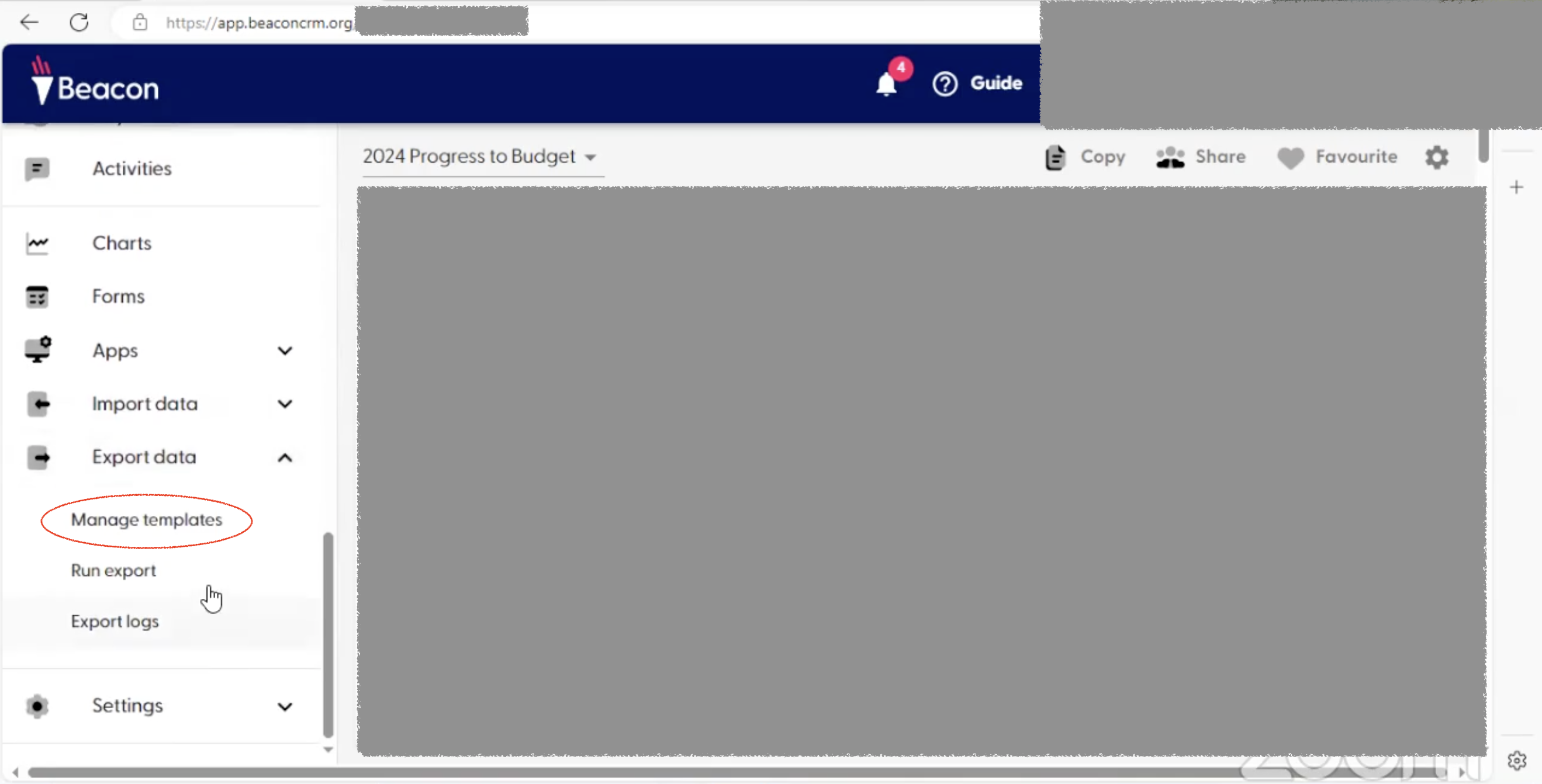
Step 2: Set Up Export Templates
- In Beacon CRM, exports are done through predefined templates. You'll need separate templates for different data types such as Contacts, Payments, Subscriptions, Campaigns, and Communications.
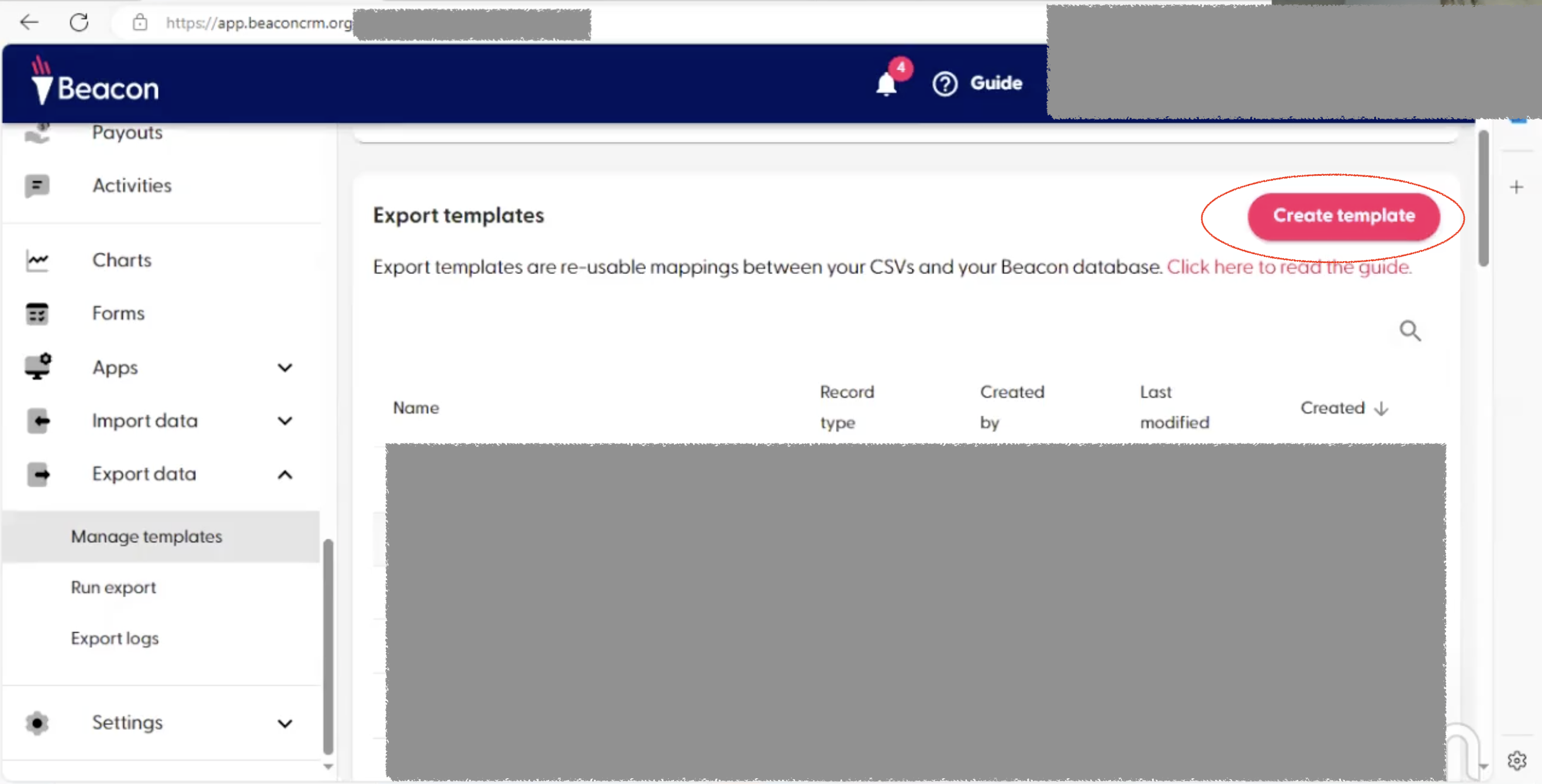
These templates are essentially lists of fields (columns) that you want to export from your CRM. - Select "Create template" to get started and name your template appropriately (e.g., Contacts Export).
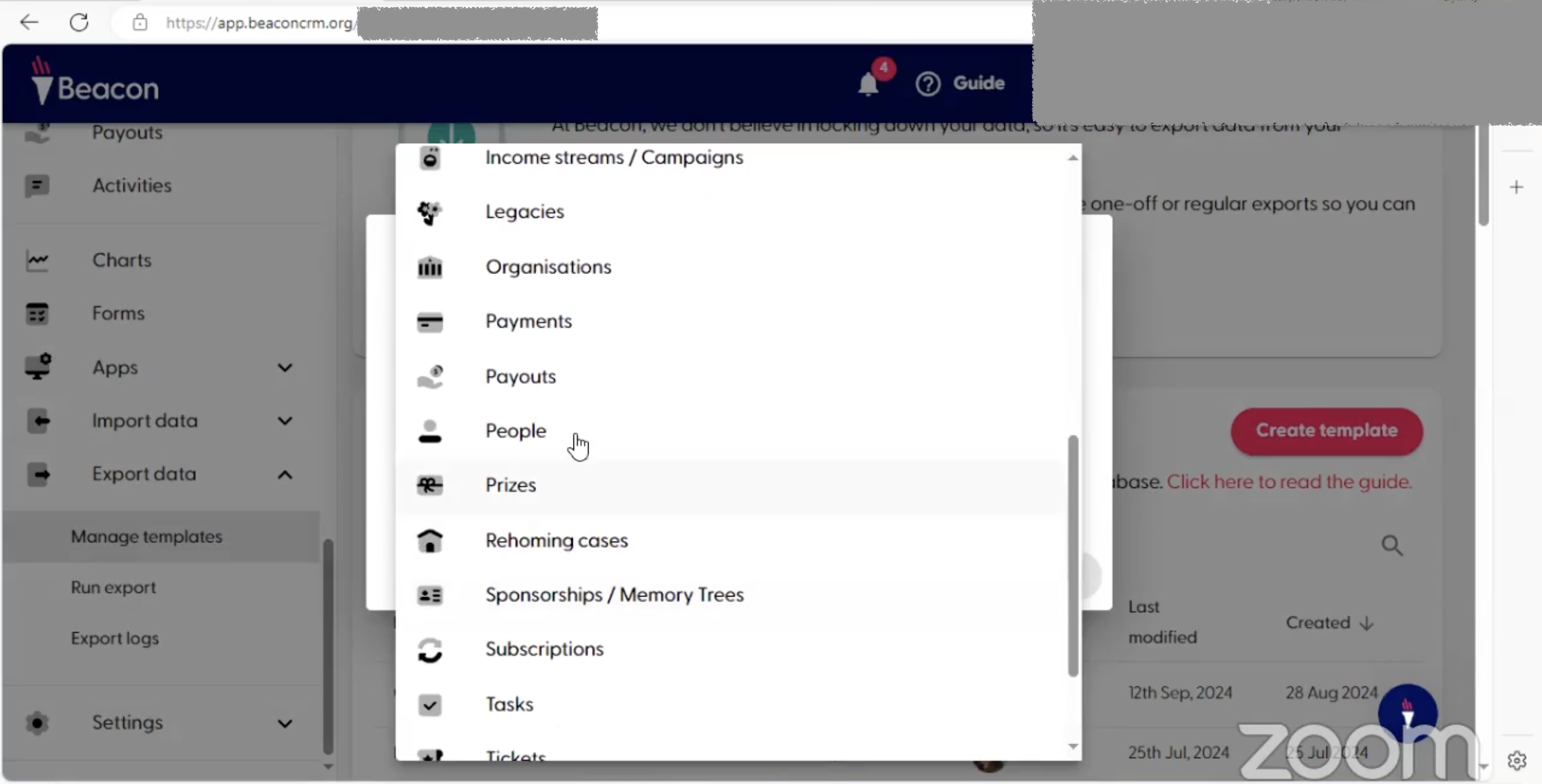
- Choose the section (e.g., People) from which you want to export data.
- Add the specific columns you need for export (e.g., Name, Email, Date of Donation). Refer to your sample files and the Dataro full reference schema to identify which columns to include.
- Rename columns to match Dataro's sample files provided.
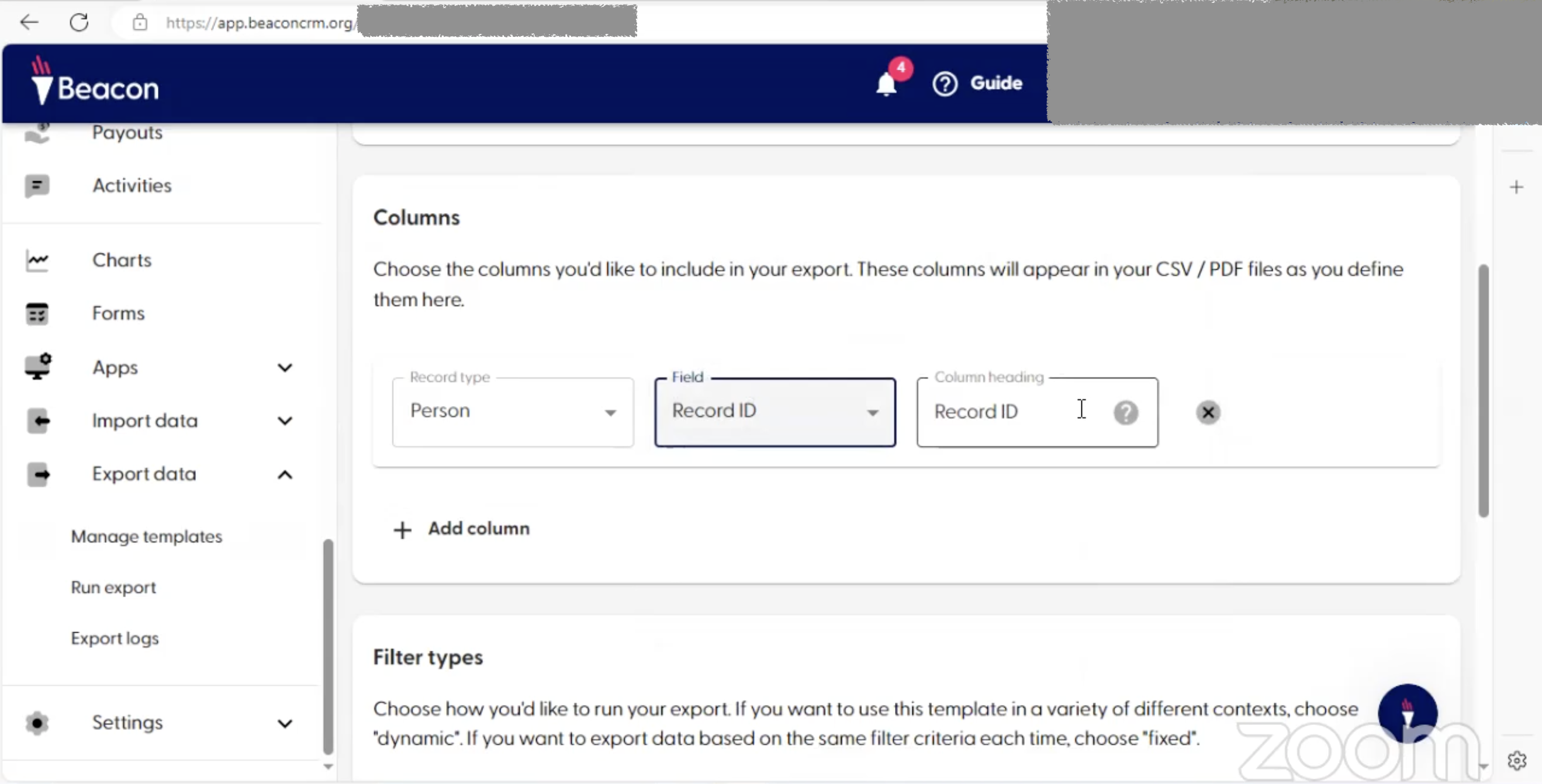
- Once you've selected all the columns, keep scrolling down and make sure that you select "Dynamic" for your Filter types.
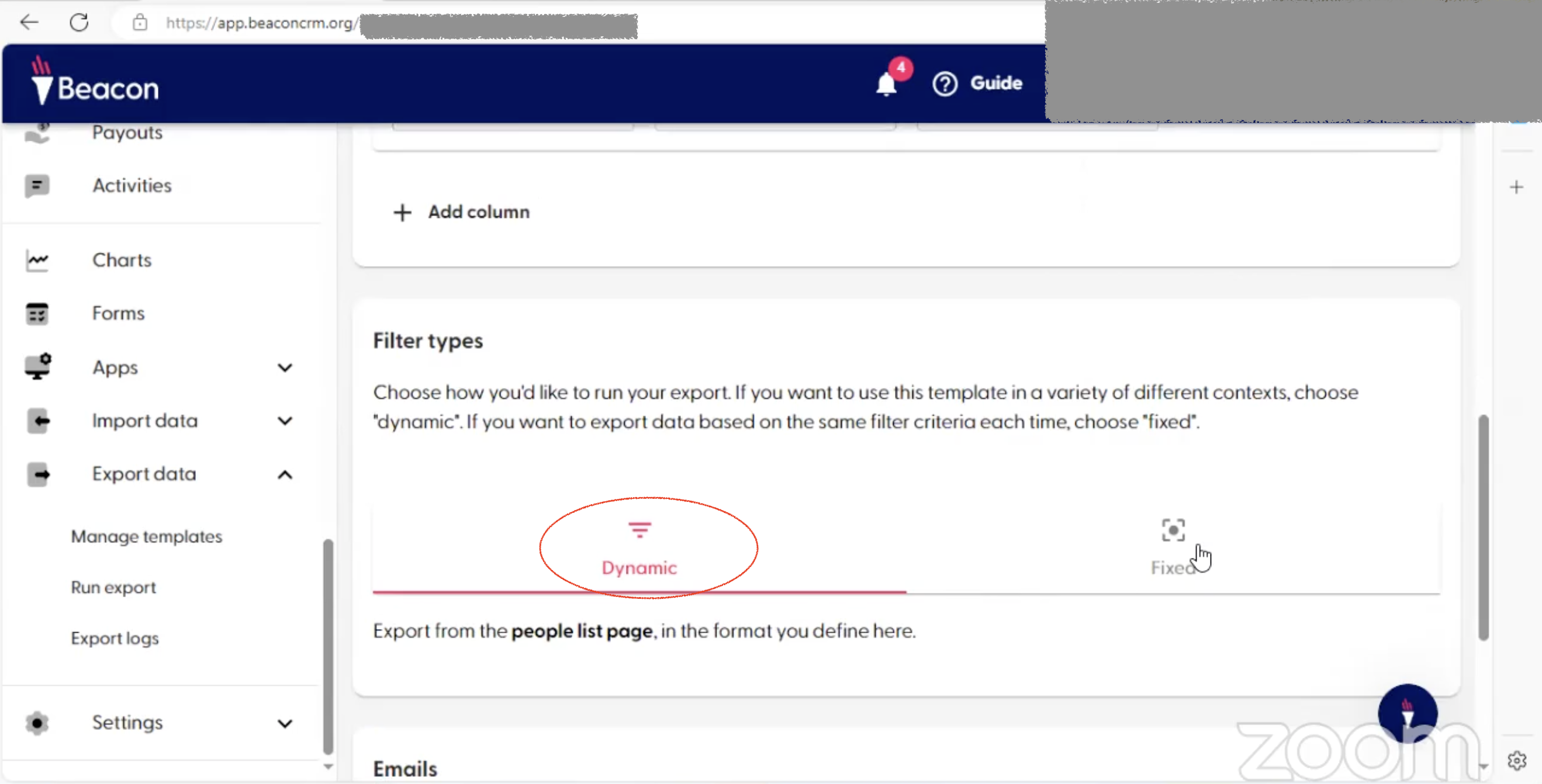
- Save the template, and it will be available for future exports 🙌
Step 3: Exporting Contacts (People) Data
- Navigate to the People section in Beacon.
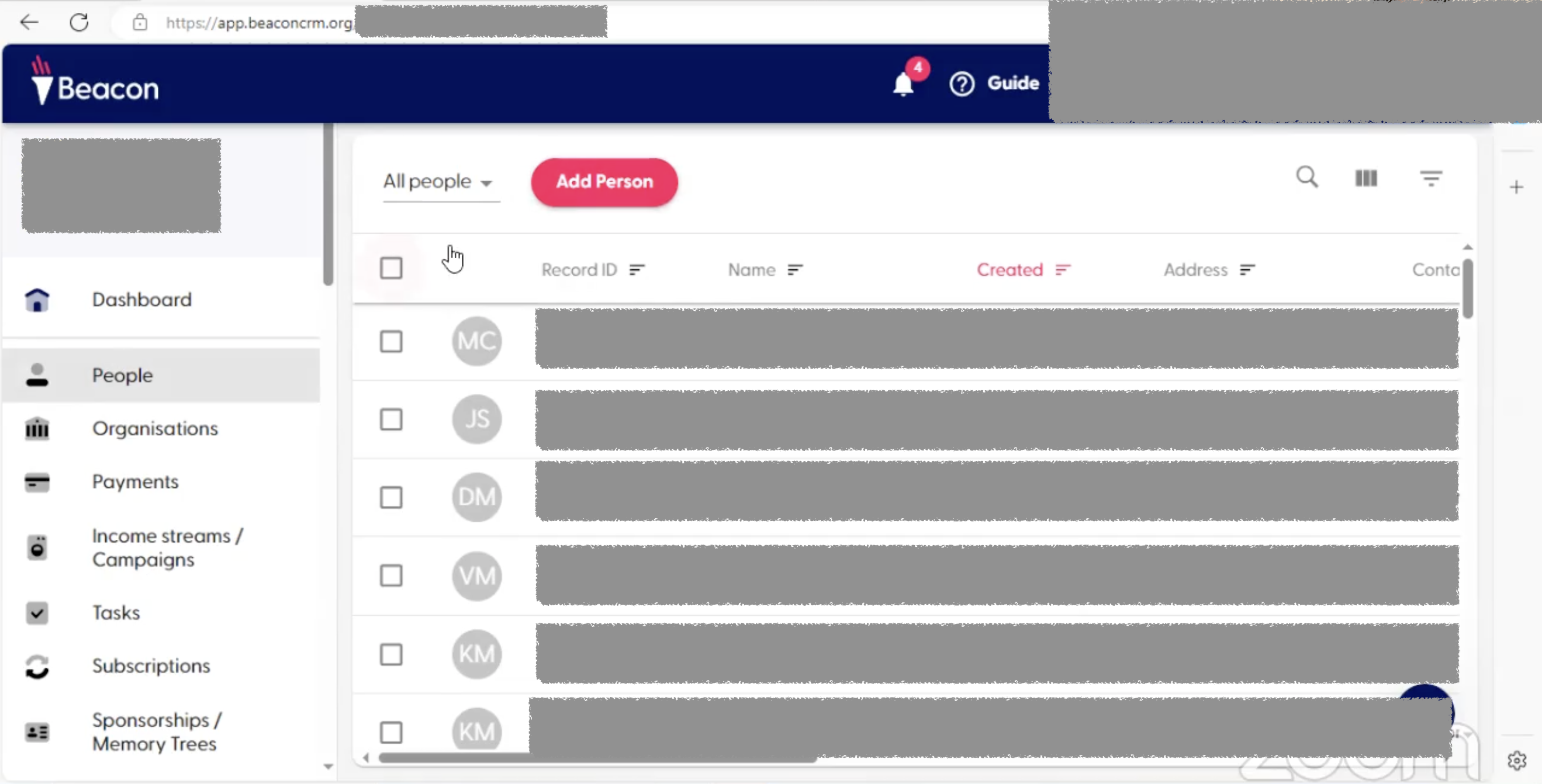
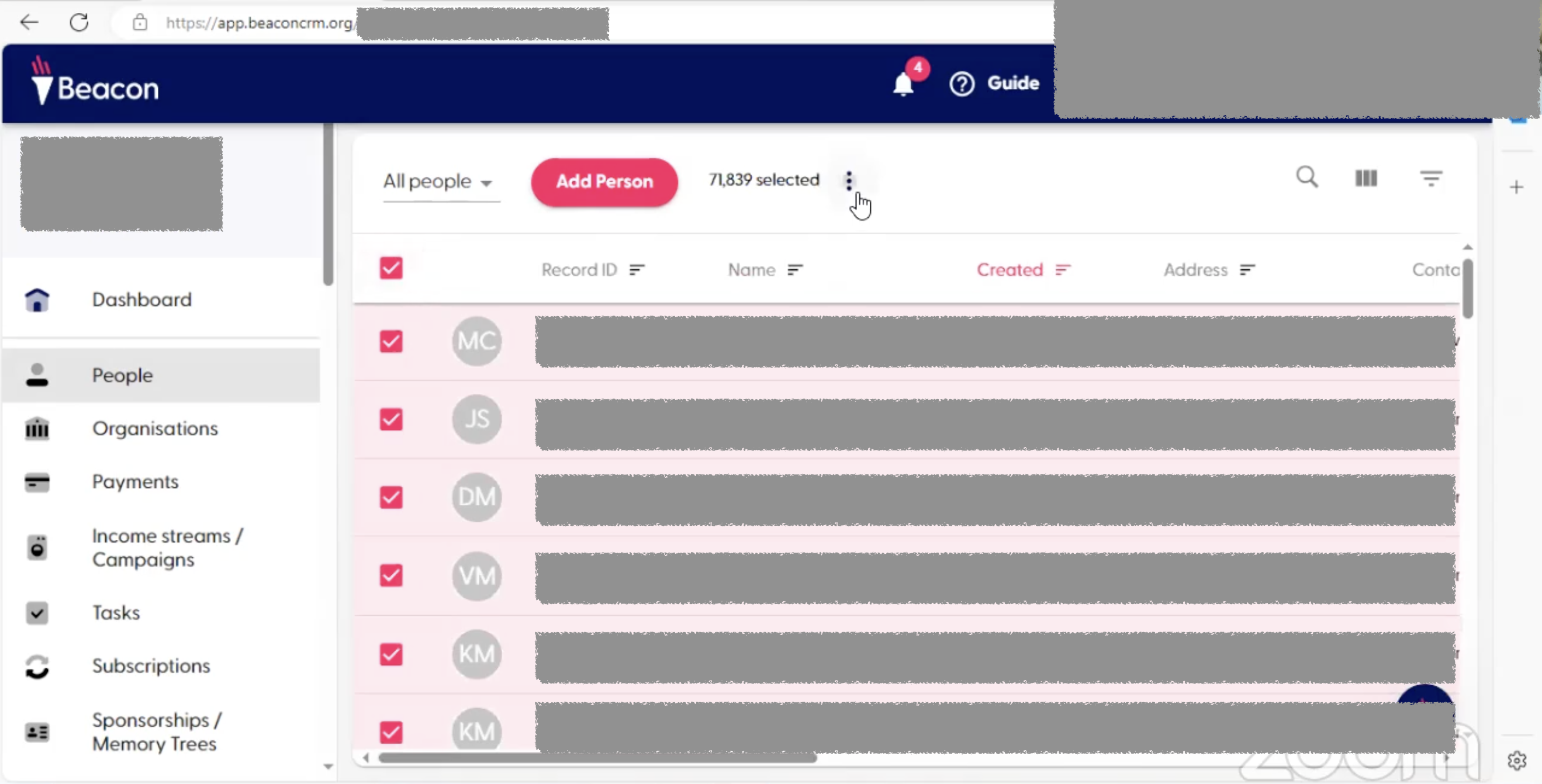
- Select all the contacts that you want to export and click on the three dots icon (located at the top right of the section).
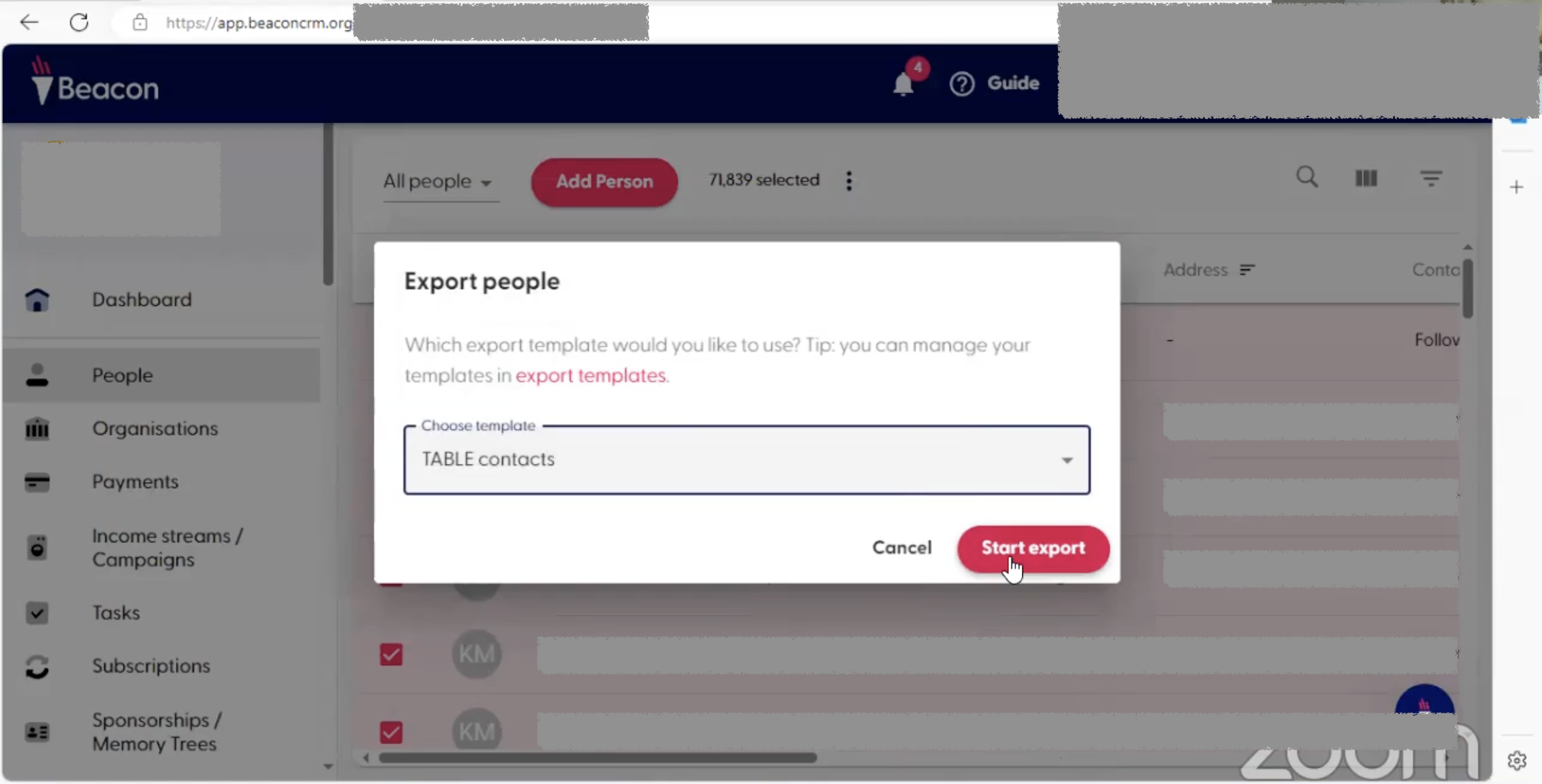
- Select "Export people"
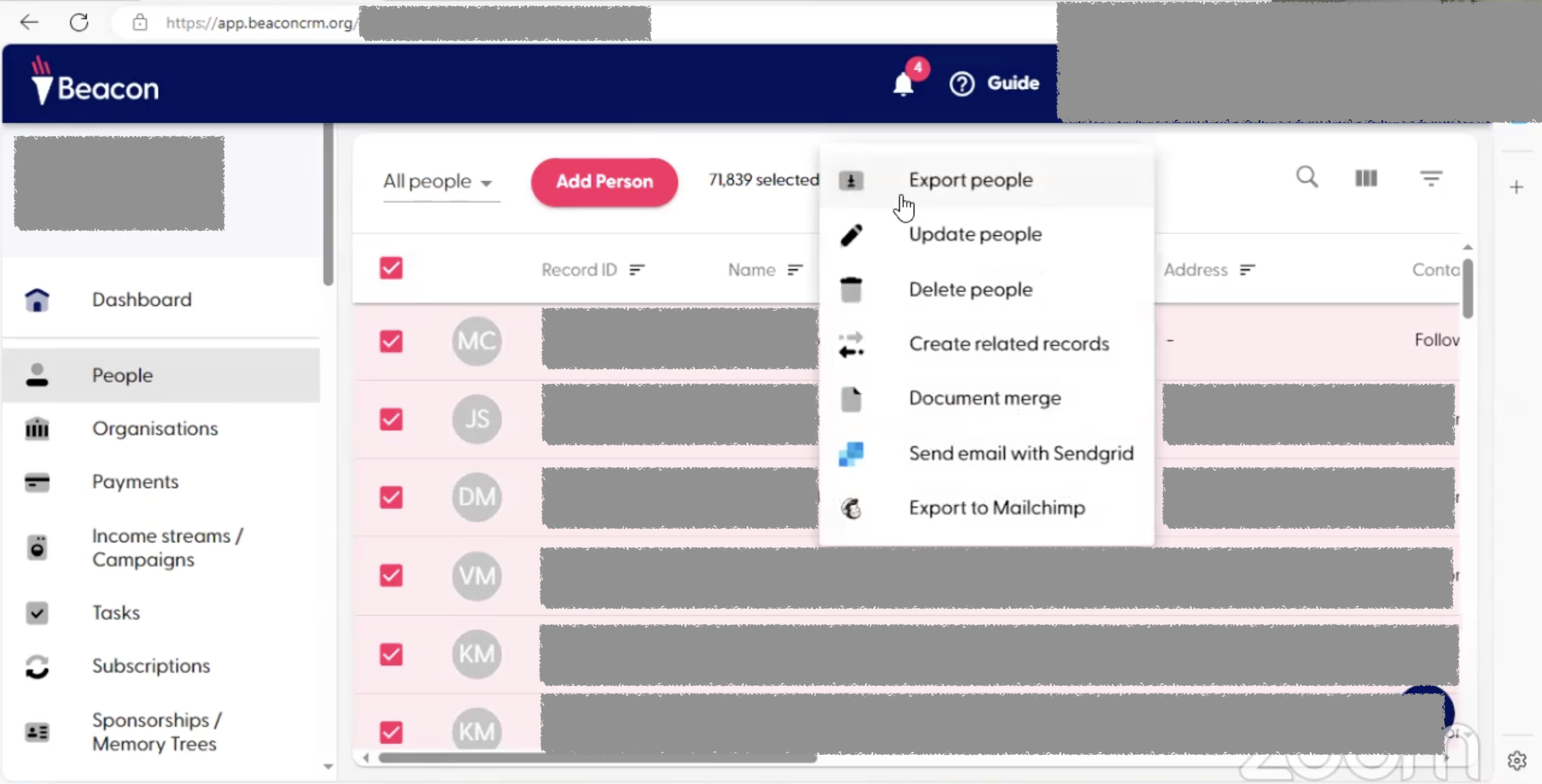
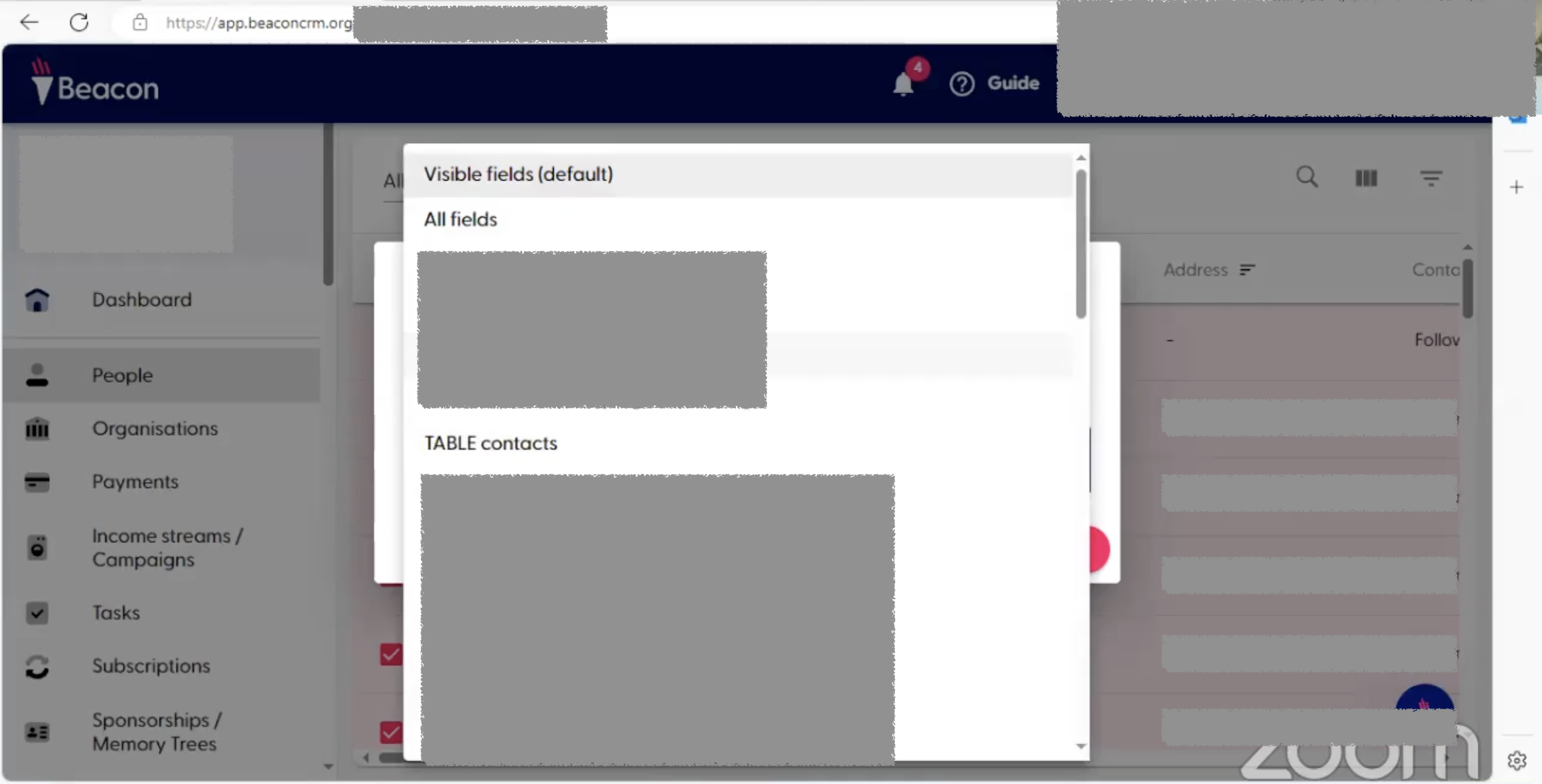
- Choose the appropriate export template (e.g., Table Contacts) that you have already set up.
- Once you've chosen the template, select "Start export". For your first export, make sure that you are exporting all contacts as Dataro needs this information in order to generate predictions for your organization.
Step 4: Repeat the process above for Payments, Subscriptions, Campaigns and Campaign Members
- Go to the Payments section.
- Select all relevant payments records.
- Click the three dots and select the Table Revenue template to export payments.
- If you're tracking recurring payments, you can handle these under the Subscriptions section.
Step 5: Exporting Subscriptions (Commitments) Data
- Subscriptions in Beacon are equivalent to commitments (i.e., recurring donations).
- Select your subscription data and use the Table Commitment template to export this information.
Step 6: Exporting Campaigns Data
- Note: Campaigns and income streams might not be linked, making this export slightly trickier.
- If the campaign data is linked to income streams, you will need to navigate through Campaign Members and export the relevant campaign information.
- Use the Table Campaign export template.
💡 Campaigns might be tricky depending on how they are set up in your system. Beacon has a flexible setup, but sometimes, income streams and campaigns might be interlinked. Double-check these when setting up your export.
Step 9: Review and Finalize the CSV
- After exporting the data, you can review the CSV file.
- Check if any additional formatting or cleanup is needed before using it.
- Typically, no further adjustments should be necessary unless specific fields couldn’t be pulled due to data linkage issues.