Required Salesforce Permissions for Dataro Integration
Last updated: October 8, 2026
Required Salesforce Permissions
To establish the connection between Salesforce and Dataro, the user performing the integration must have the following permissions:
Approve Uninstalled Connected Apps & Manage Connected Apps: Allows the connecting user to install the Dataro Connected App
API Enabled: Grants access to Salesforce API for data integration.
View Setup and Configuration: Allows the user to view and manage organization-level metadata settings.
Read permissions on the required objects and fields
This may change depending on the client’s exact configuration, but generally we require: Contact, Account, Opportunity, Opportunity Payment, Recurring Donation, Campaign, Campaign Member
Write permission on the Contact object
Ability to create custom fields on the contact (the client can also do this manually).
API Usage
The Salesforce API is primarily used for:
Reading Metadata: Extracting field configurations and other required metadata for integration.
Collecting Data: Getting the required data from Salesforce into Dataro’s system.
Writing Data: Updating or inserting data back into Salesforce.
How to setup permission sets in SalesForce (Example)
Create a Permission Set
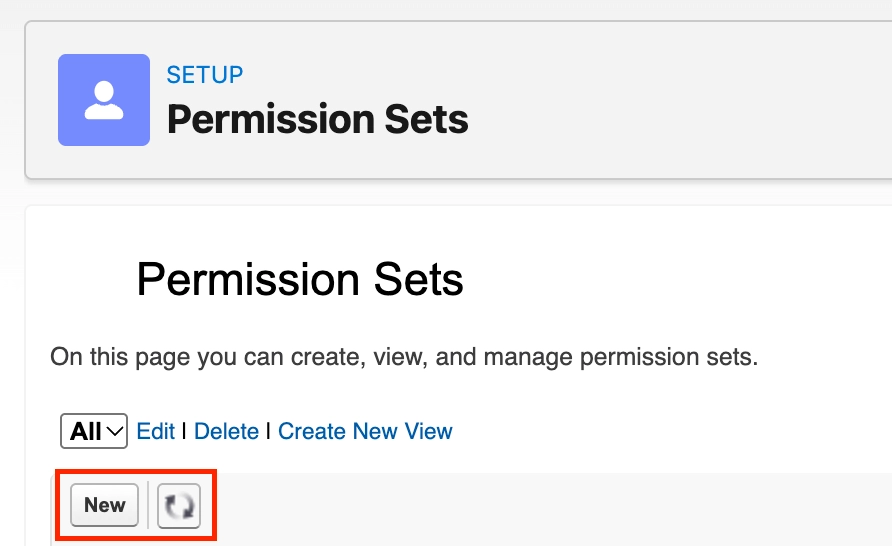
For the connected user, go to Setup > Permission Sets > click 'New’.
Give it an appropriate name (e.g. ‘Dataro Integration User’).
Choose the appropriate license (typically 'Salesforce').
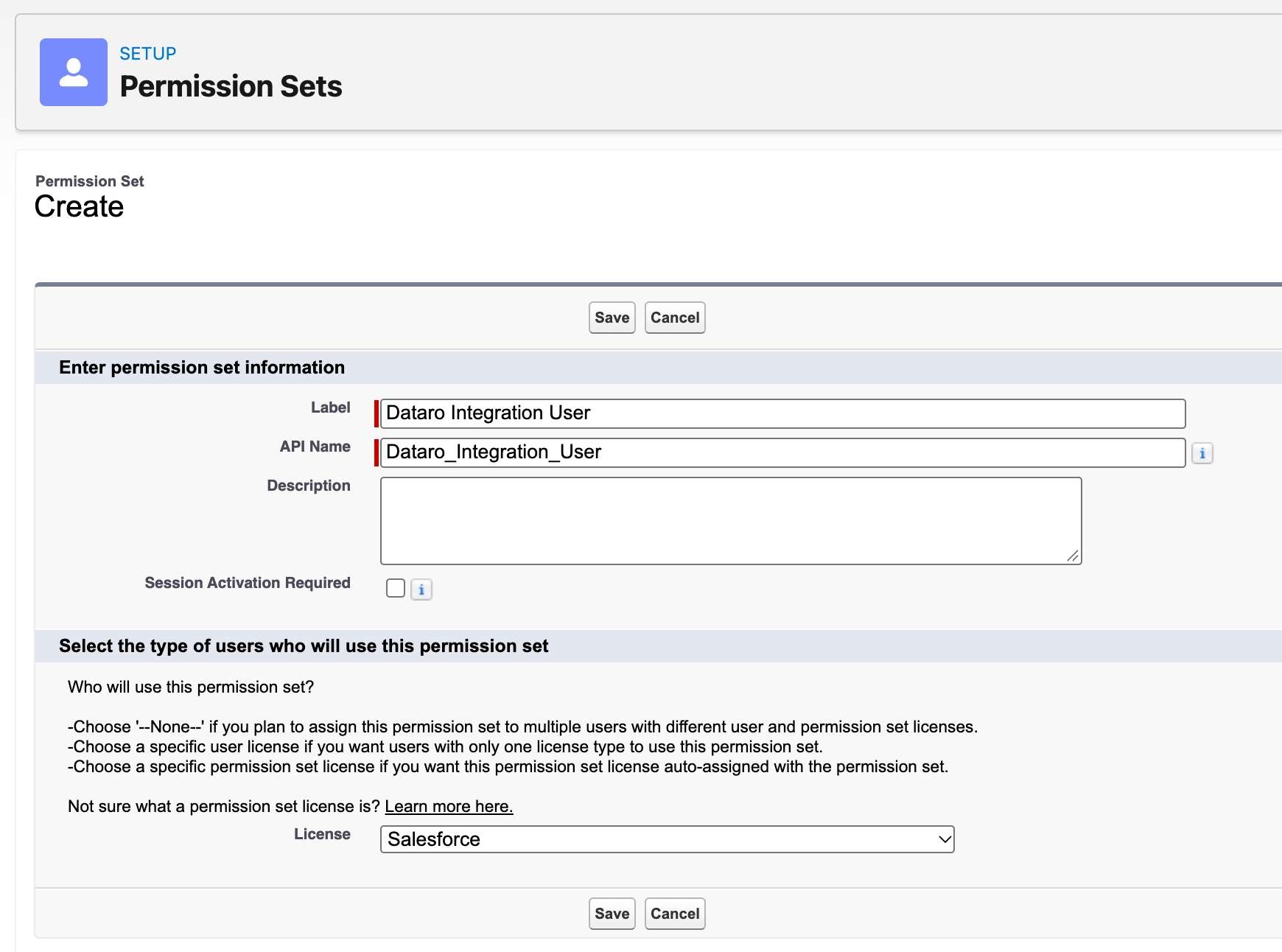
Click Save.
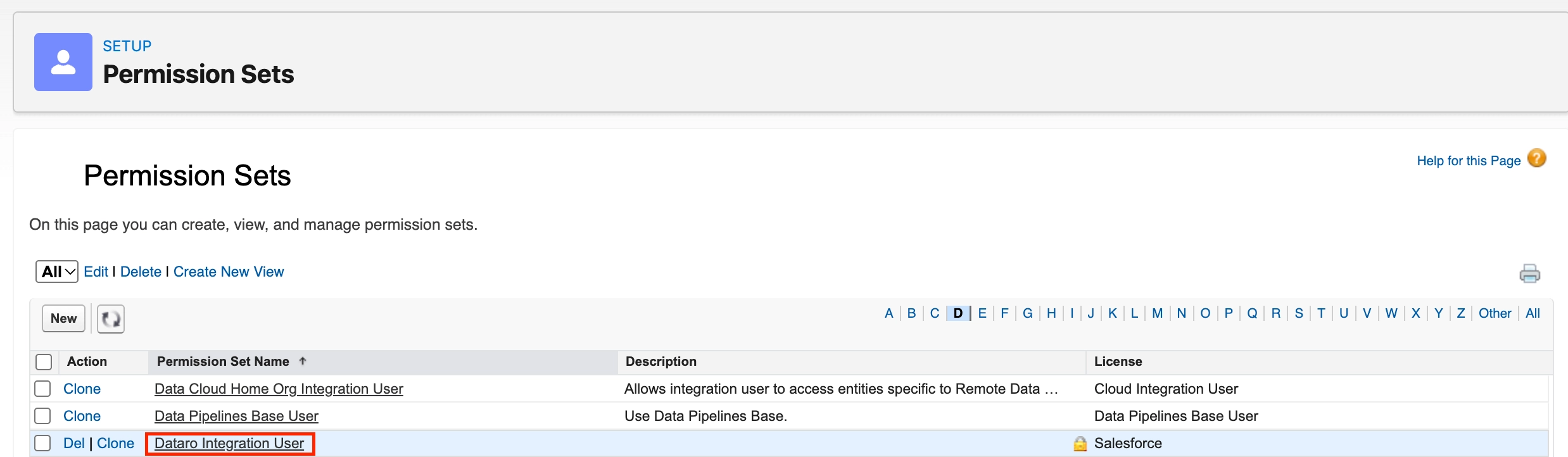
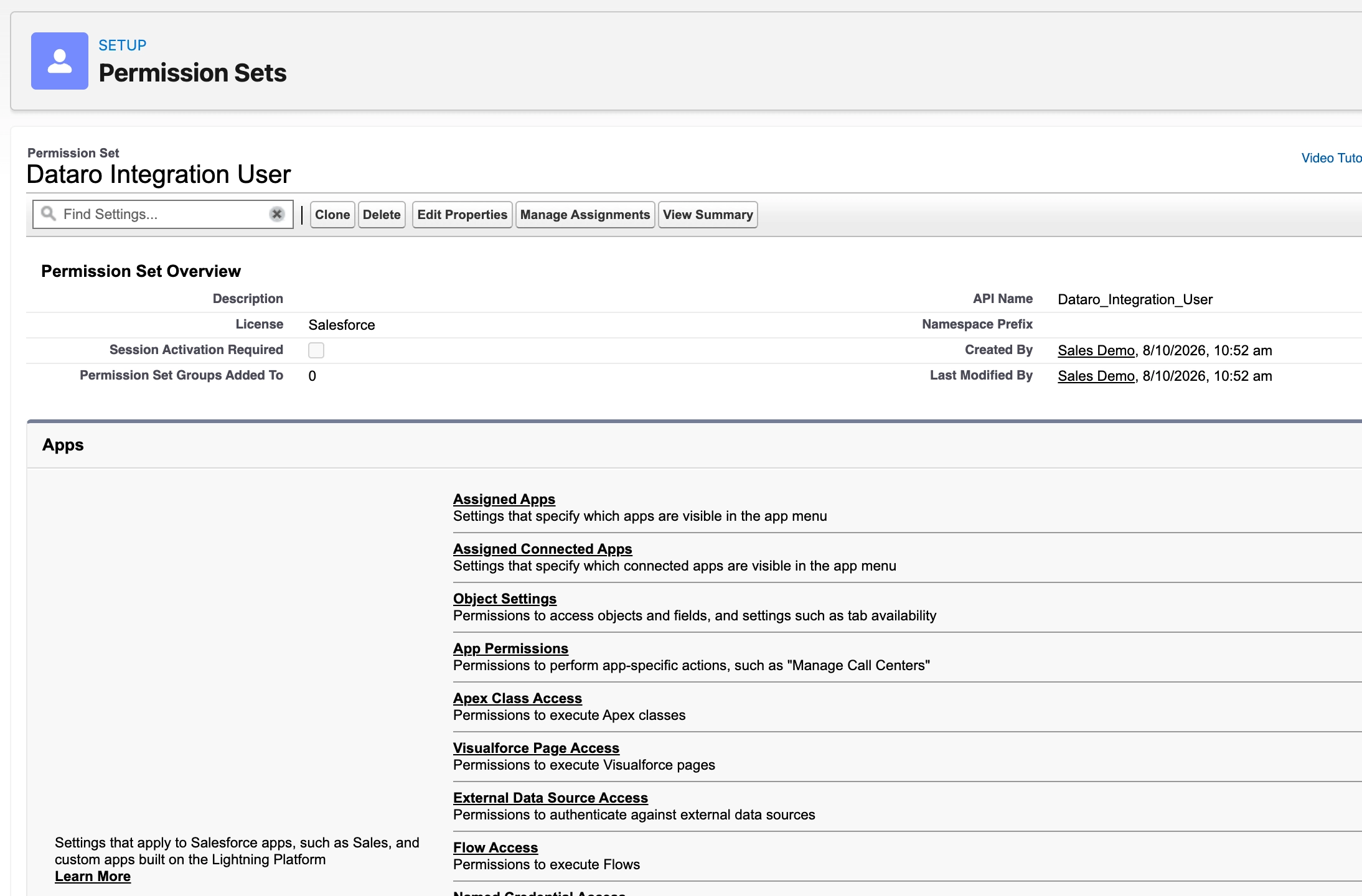
After the permission set is saved, you will be redirected to the Permission Set Overview page. You can also reach this page from Setup via Users > Permission Sets, then searching for your permission set and clicking on its name.
Grant System Permissions
From the Permission Set Overview page, scroll down to find the System Permissions page.
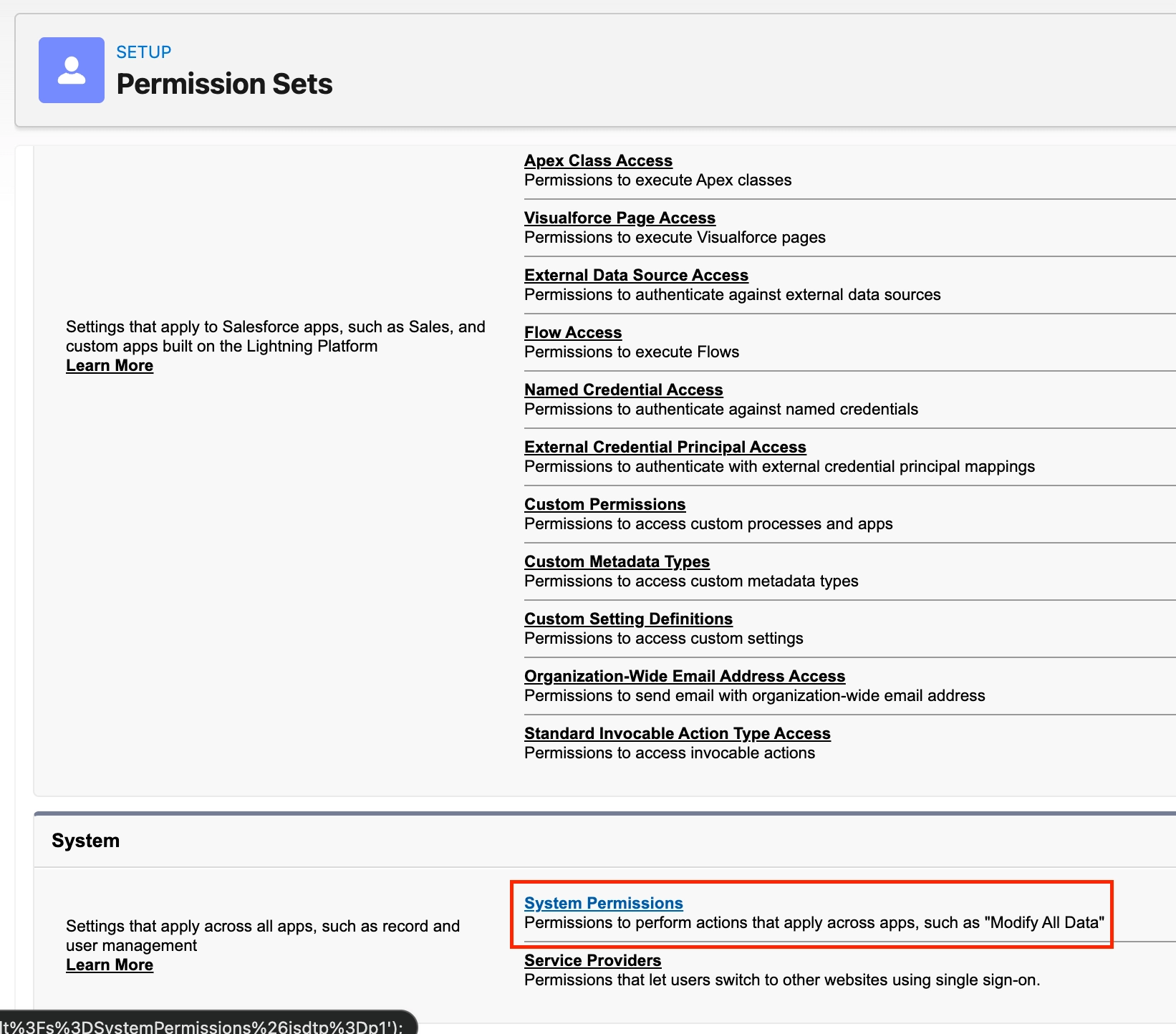
Then, click the Edit button.
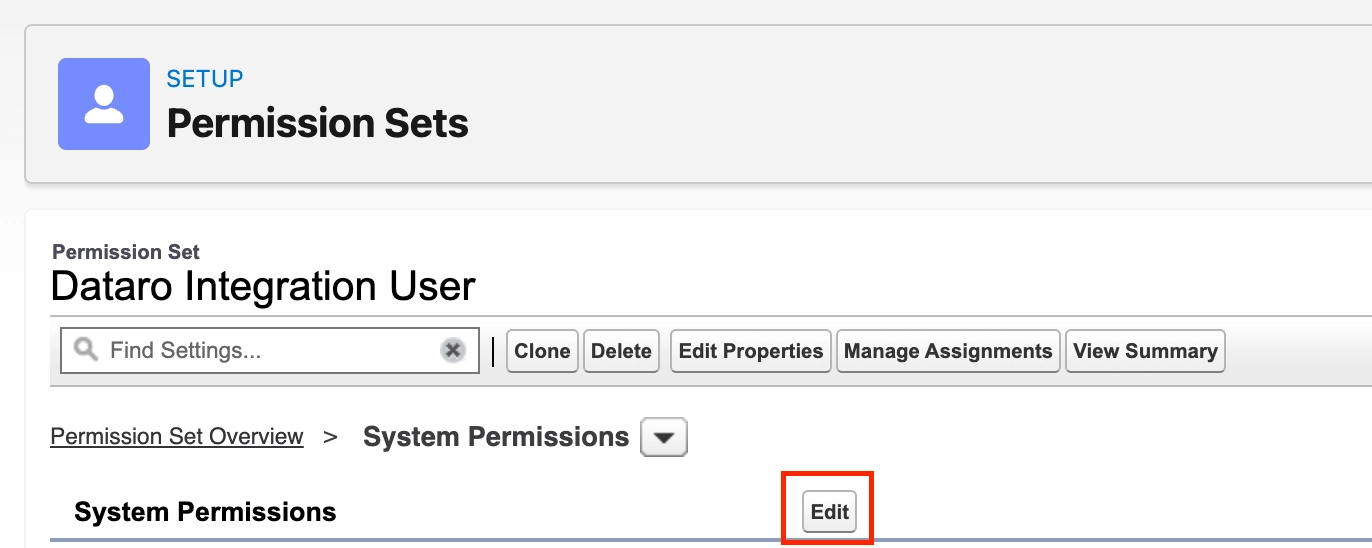
Click the checkboxes next to the following permissions:
API Enabled
Approve Uninstalled Connected Apps
Manage Connected Apps
View Setup and Configuration
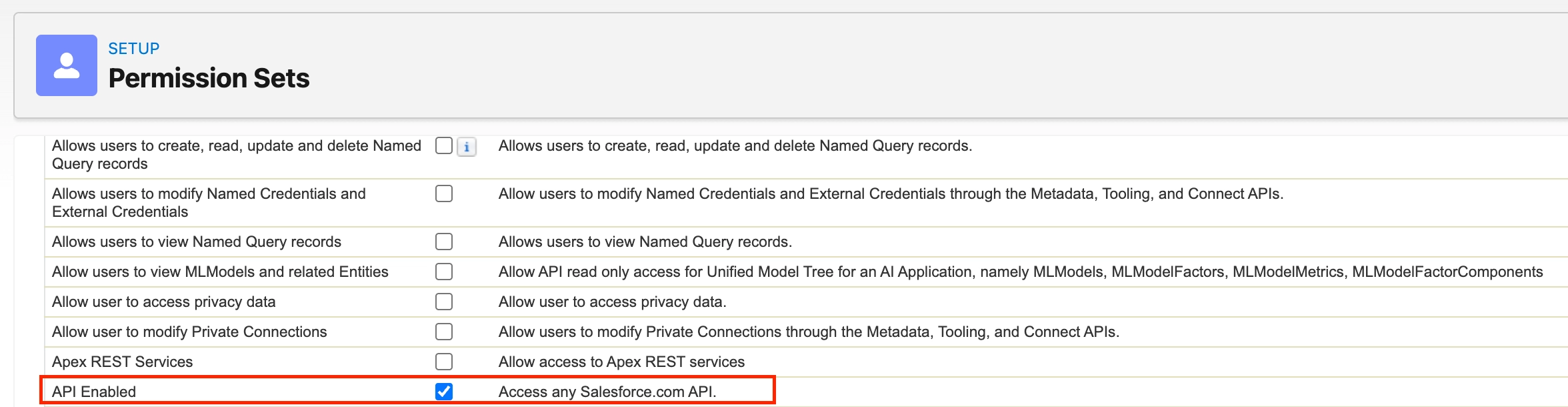
Once this is done, remember to click Save.
Grant Object Permissions
Go back to the Permission Set Overview page, then click on the Object Settings link.
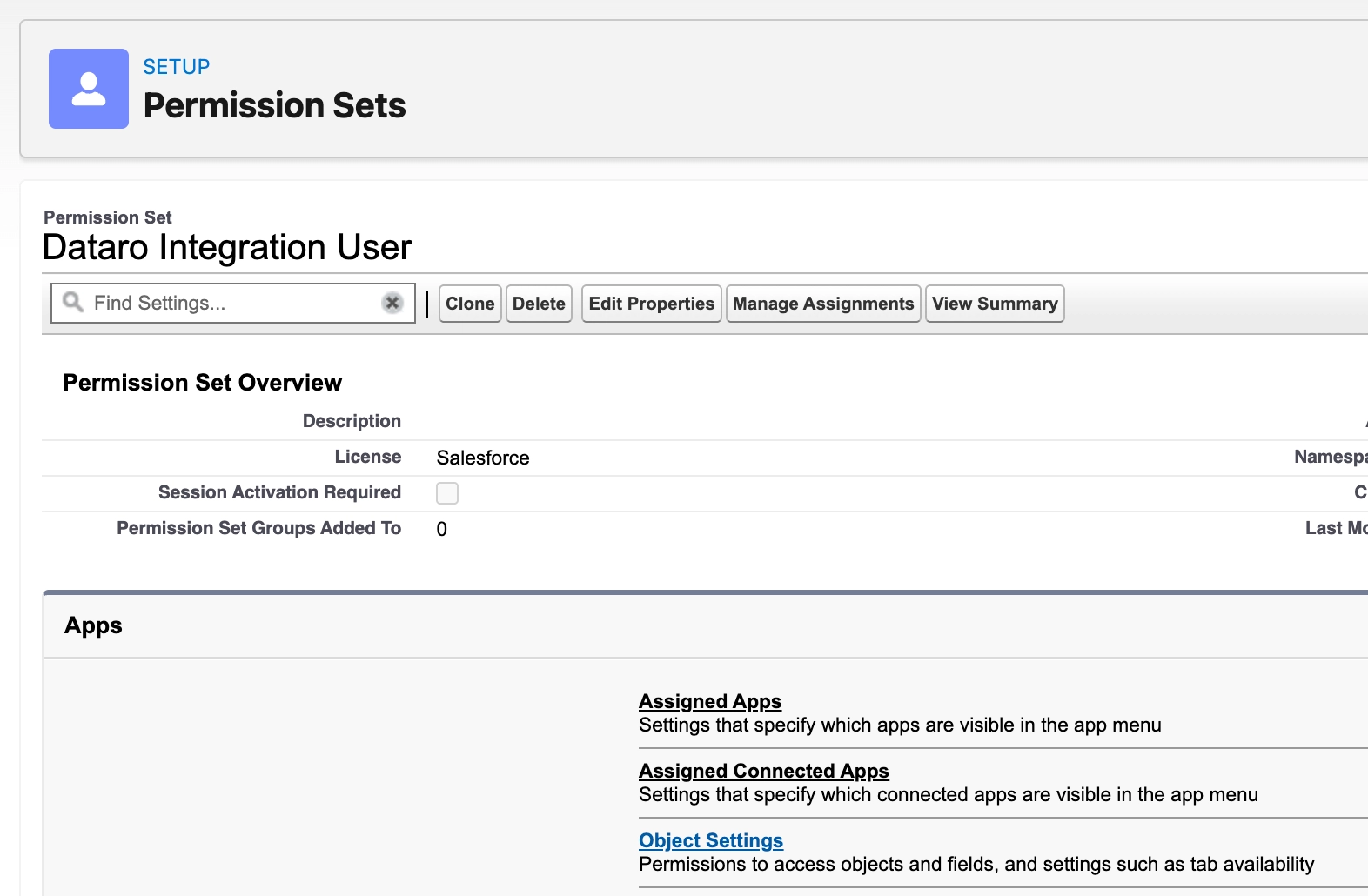
The exact permissions you need to set in Object Settings will depend on how you have your data set up in Salesforce. As a general rule:
We require Read access to Contact, Account, Opportunity, Opportunity Payment, Recurring Donation, Campaign, and Campaign Member. The more access you grant, the more likely it is that we will be able to extract all the data we need to make predictions.
We require Edit access to Contact.
To grant Read and Edit access to an object, first find that object in the Object Settings page. In this example, we’ll use Contact.
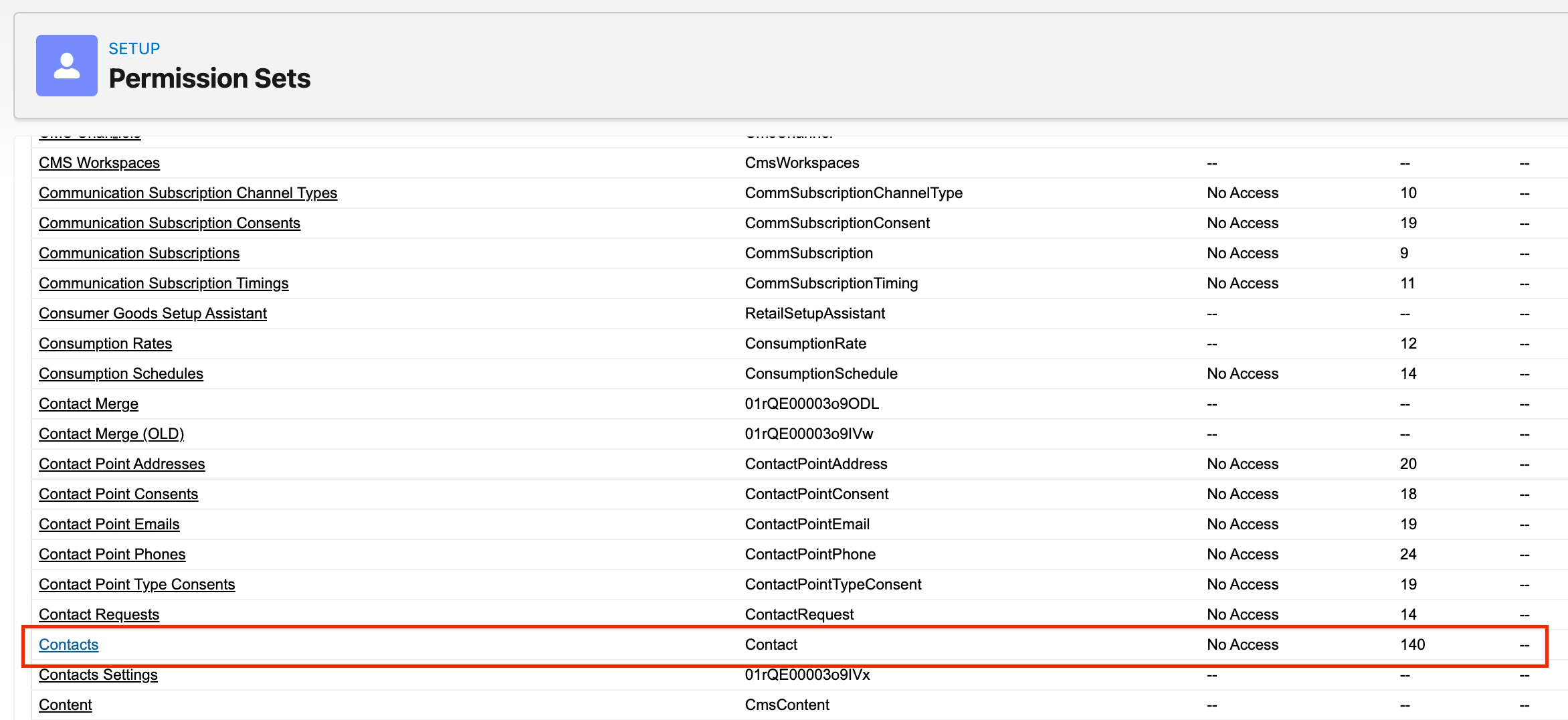
From that page, click the Edit button.
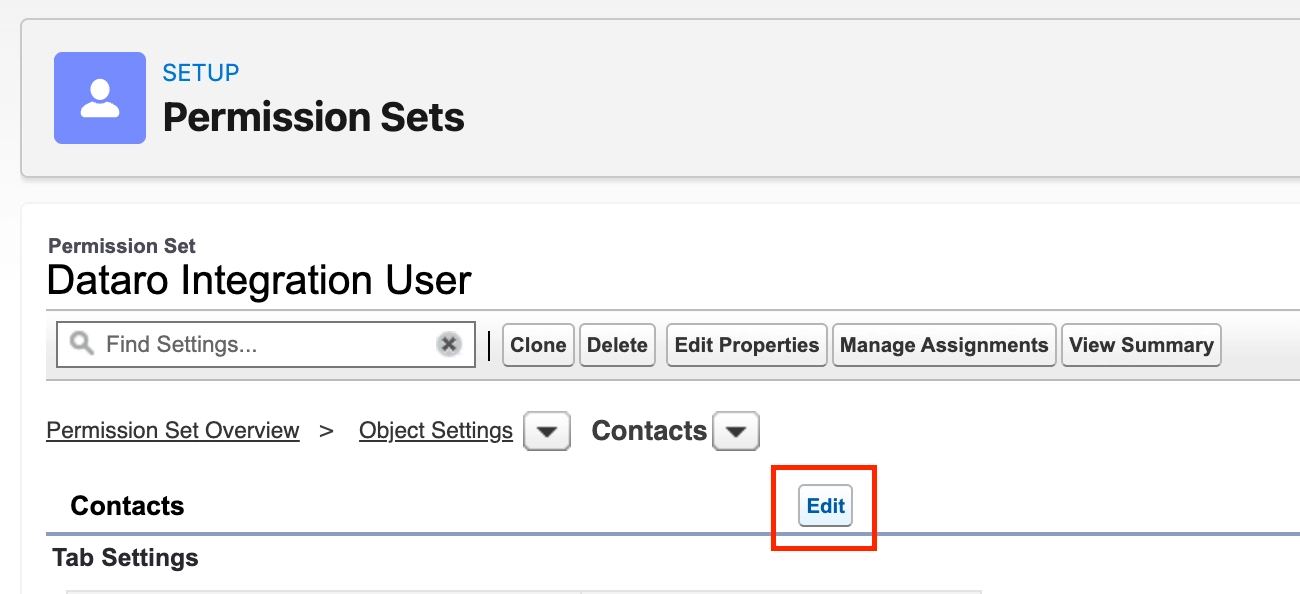
Then, go to Object Permissions > check the Read or Edit boxes as appropriate.
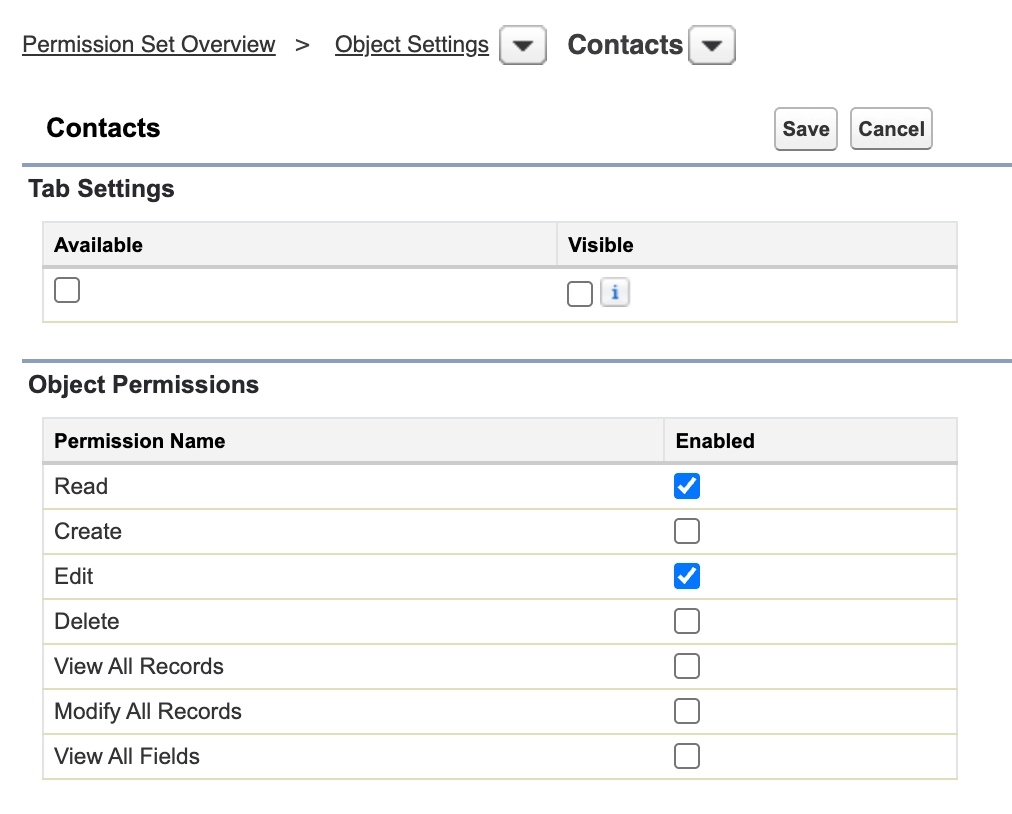
Once you’re done, make sure to click Save.
Assign the Permission Set
Finally, assign the permission set to the user you’ll be using for the integration. From Setup, go to Users > Users. Then, find the user and click their name.
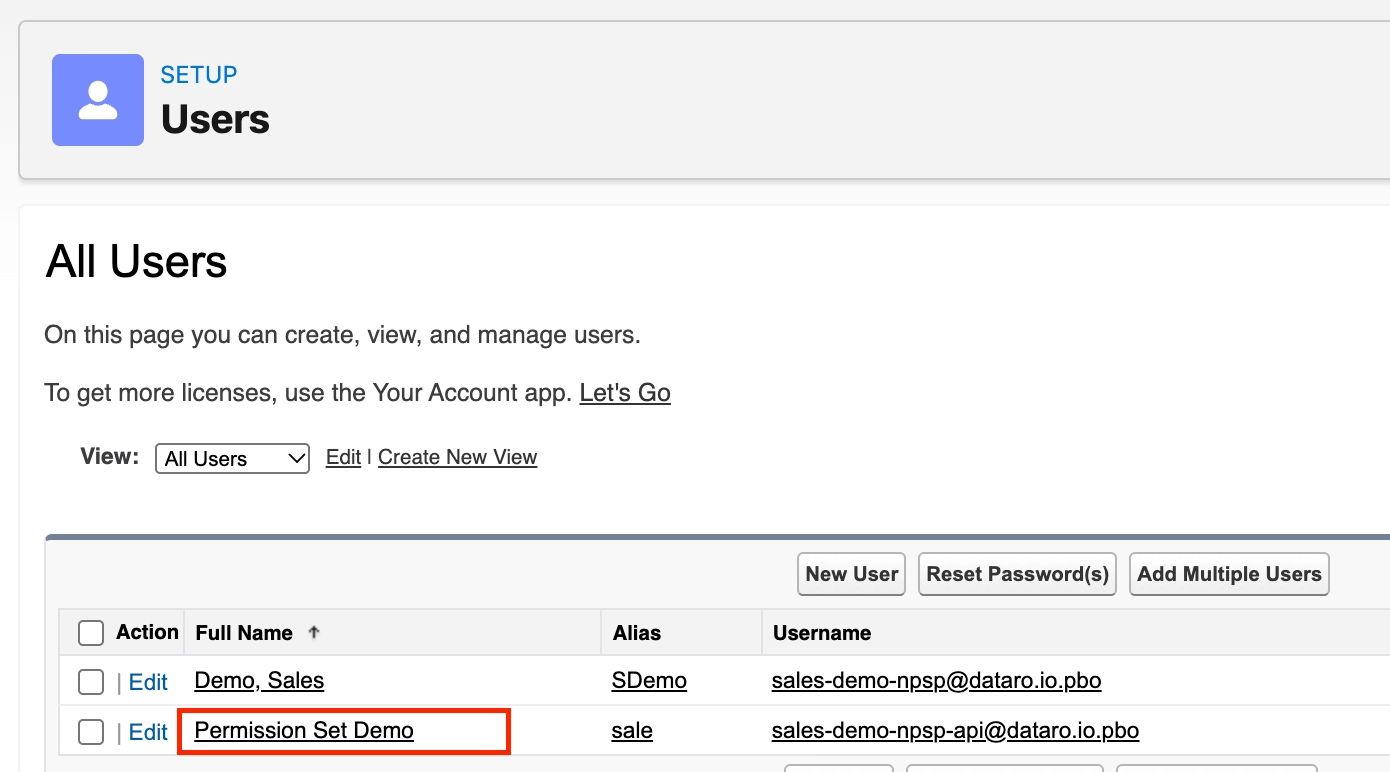
Then, click on Permission Set Assignments, then Edit Assignments.
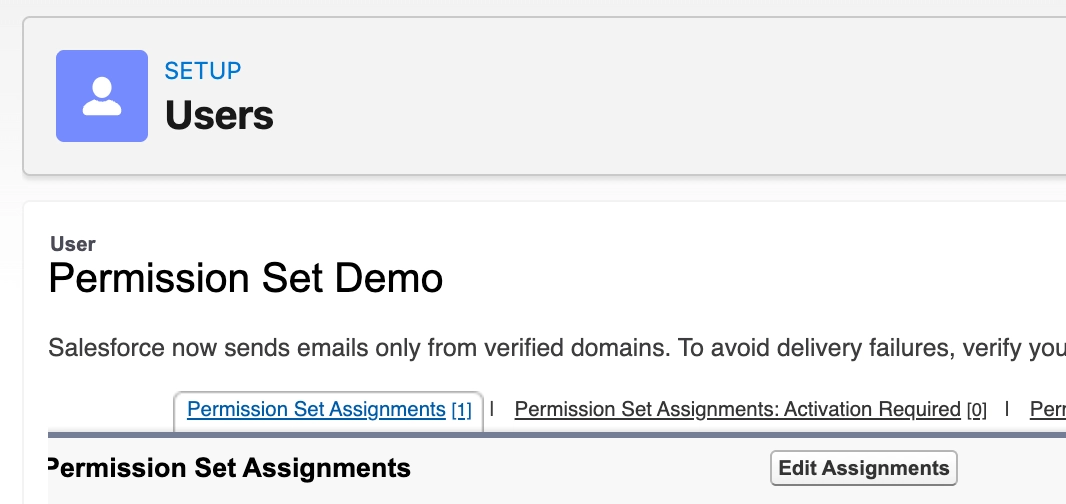
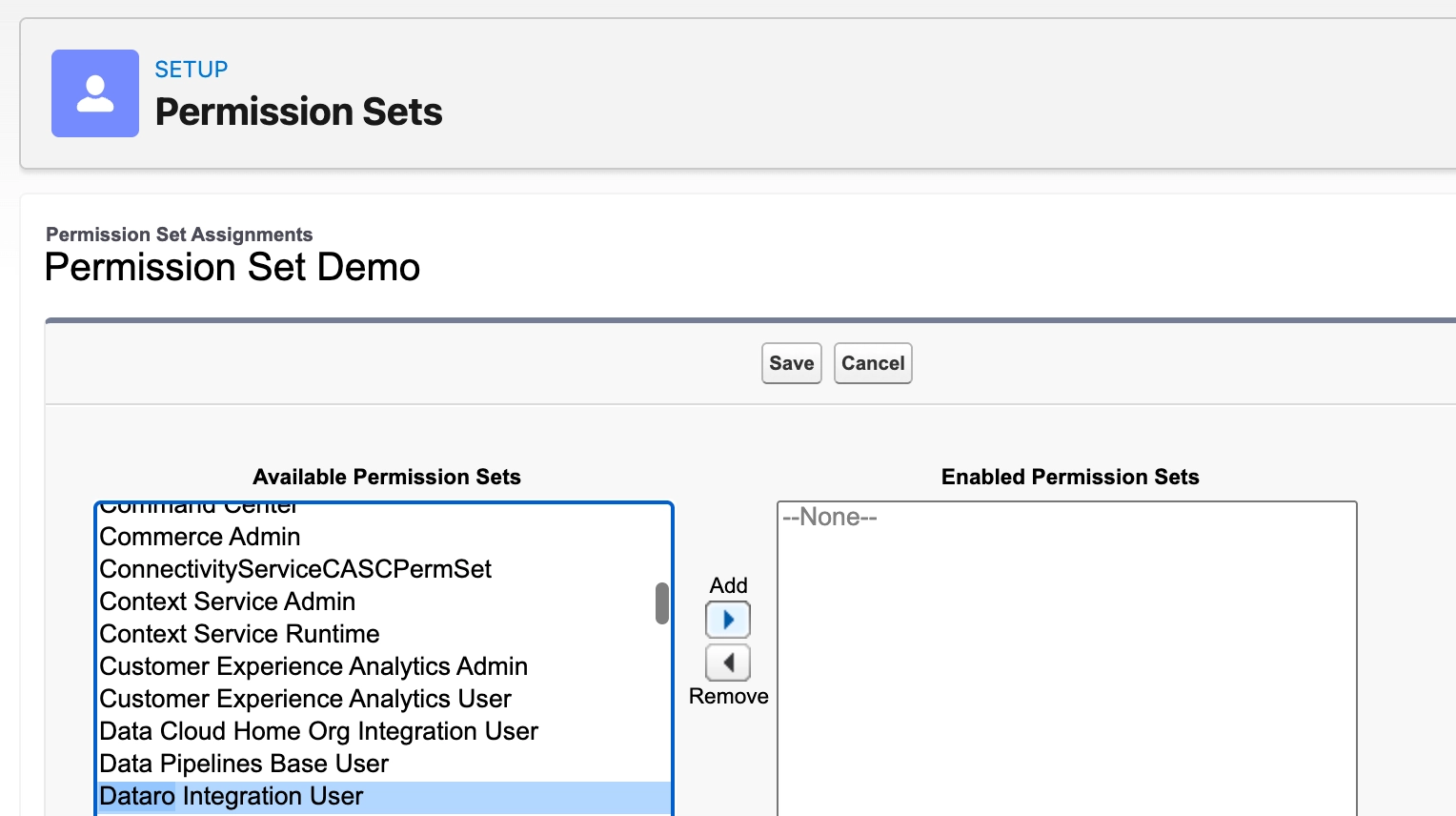
Select the permission set you created, then click the Add button.
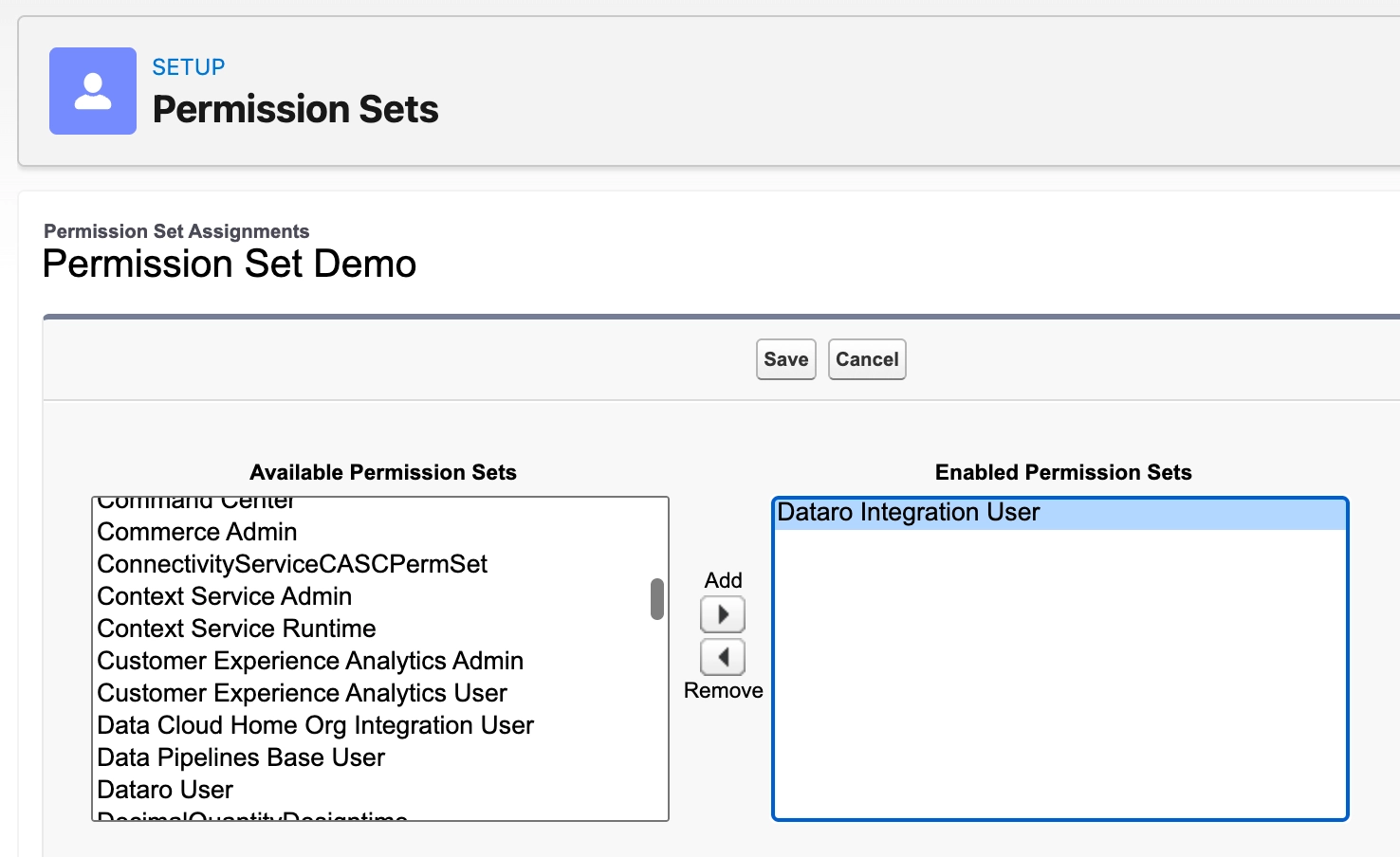
Then, click Save.
Troubleshooting
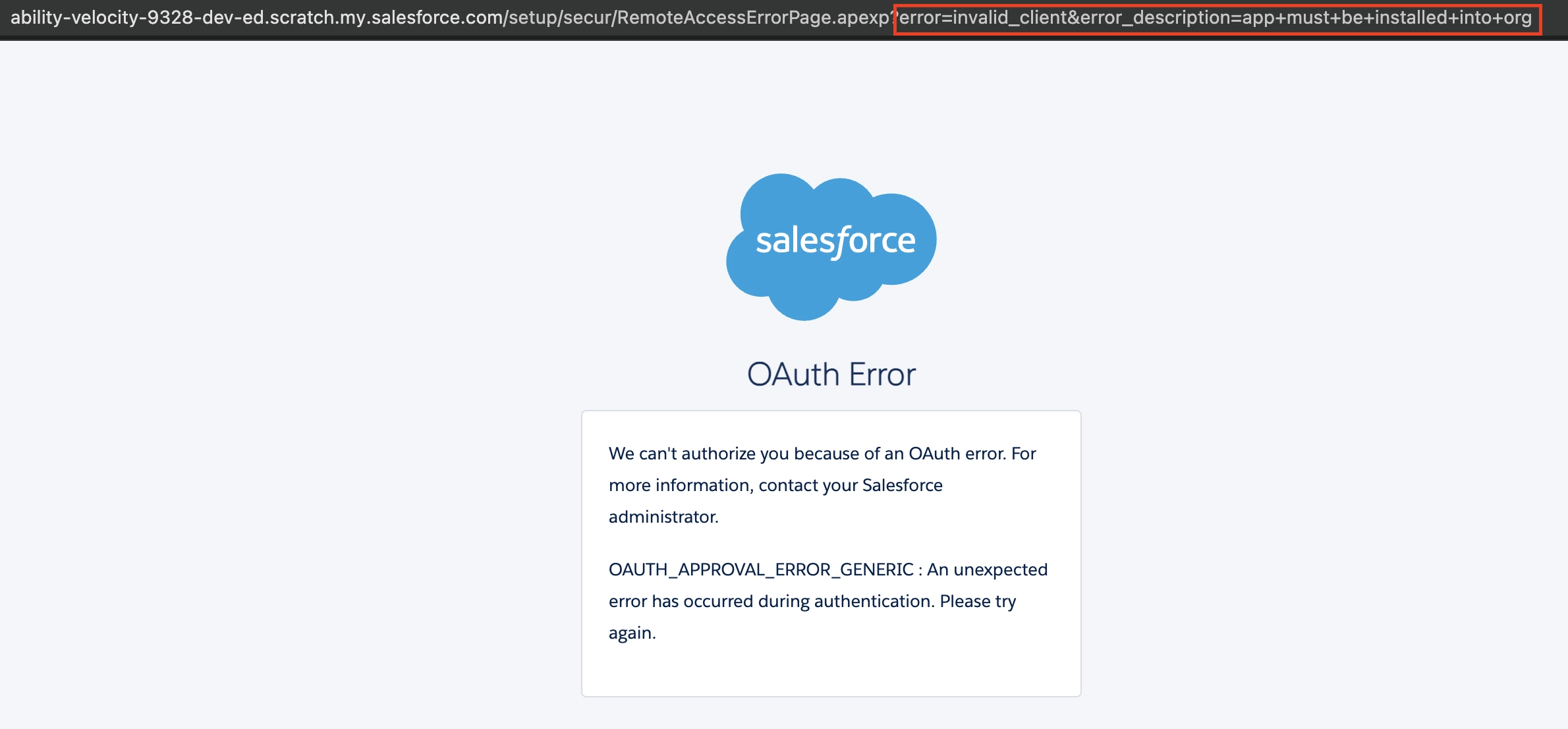
If you encounter the above error when connecting your Salesforce account to Dataro, your account is missing the Approve Uninstalled Connected Apps and Manage Connected Apps permissions. See the Grant System Permissions section above for more information.