Building an audience
Last updated: October 8, 2026
The Audience Builder lets you filter your way to exactly the donors you want, and save the result in one step.
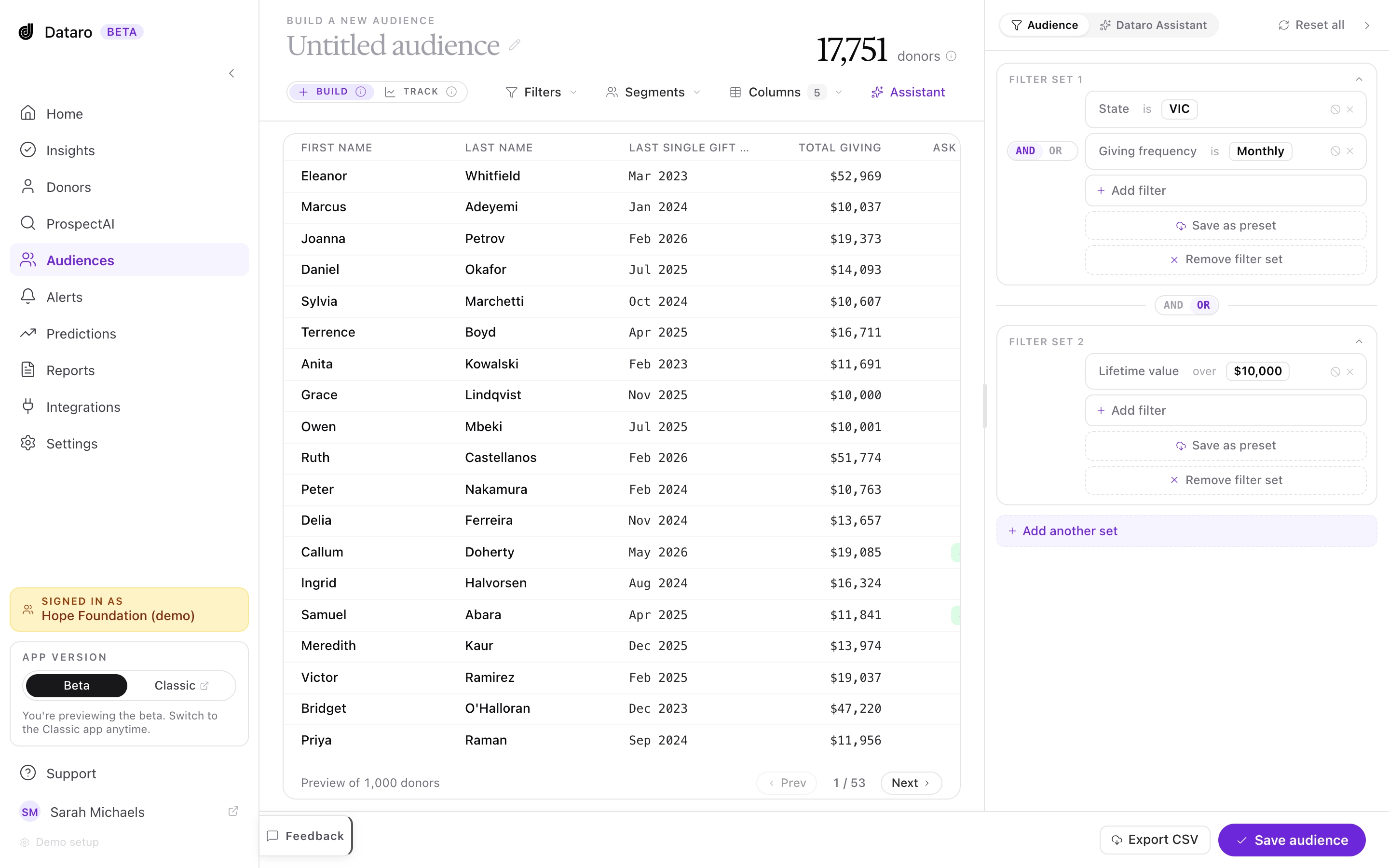
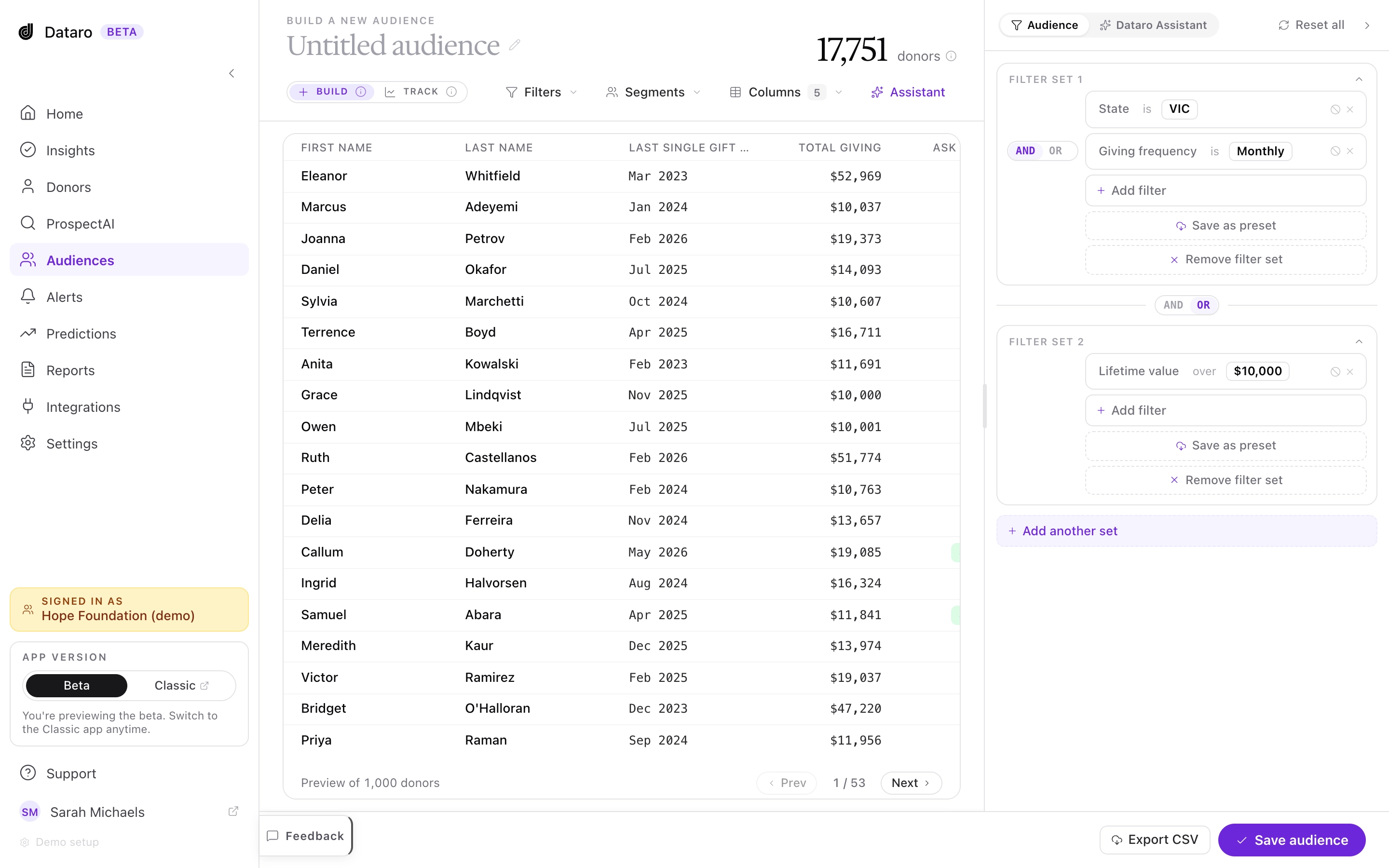
The donor table fills the page and shows every donor who matches your conditions, with a live count above it. Filters, Segments, Columns, and Assistant sit above the table. The panel on the right shows your audience as you build it, and you can collapse it when you need more room for the table.
The toggle under the page title switches between Build and Track. Build produces an audience for a specific piece of outreach. Track produces an audience with a target outcome that Dataro measures over time (see Tracked audiences: audiences with a goal).
Filters and filter sets
Every condition in an audience is a filter, such as "Last gift is more than 12 months ago" or "State is Victoria". Filters live inside filter sets, and an audience can hold one filter set or several.
To add a filter:
Click Filters above the table, then Add filter. To add to a particular filter set, click Add filter inside that set in the panel.
Search for or select a field. Fields are grouped into demographics (e.g. State, Age), giving behavior (e.g. Last gift, Lifetime value, Channel), and Dataro model ranks.
Choose a value and click Apply. The table and the count update straight away.
To change a filter, click the field, operator, or value, and the picker opens on that part only. To exclude instead of include, click the exclude icon on the filter, so "State is Victoria" becomes "State is not Victoria".
AND and OR
Filters combine at two levels, and each level has its own operator.
Inside a filter set, every filter is joined by the same operator. AND returns donors who match every filter in the set. OR returns donors who match any of them.
Between filter sets, the sets are joined by one operator in the same way.
Both words are shown, with the active one highlighted. Click the other word to switch.
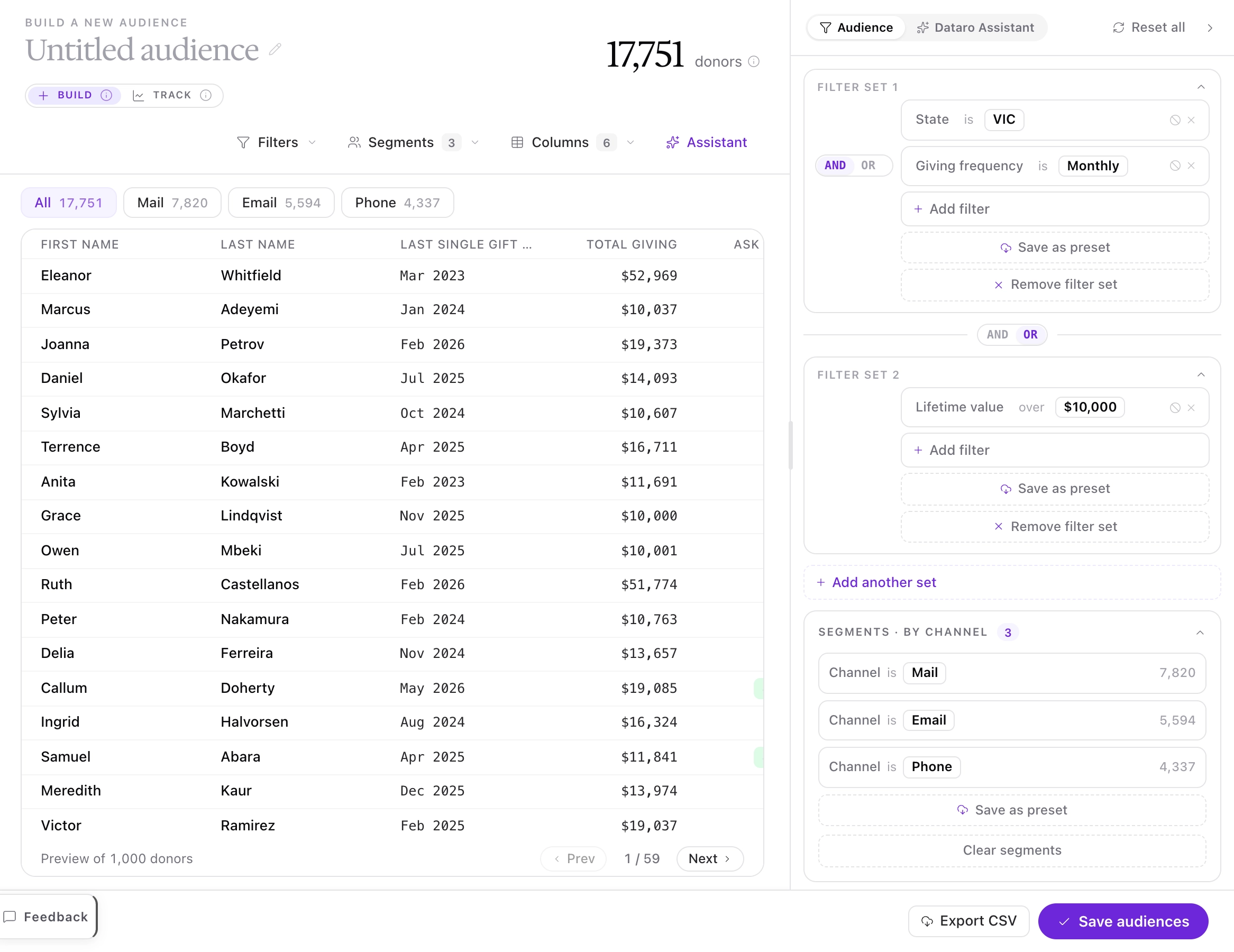
For example, suppose you want monthly donors in Victoria, plus any donor anywhere with lifetime giving over $10,000. Filter set 1 holds "State is VIC" AND "Giving frequency is Monthly". Filter set 2 holds "Lifetime value over $10,000". Joining the two sets with OR gives you everyone in either group. Joining them with AND would return only Victorian monthly donors who have also given more than $10,000.
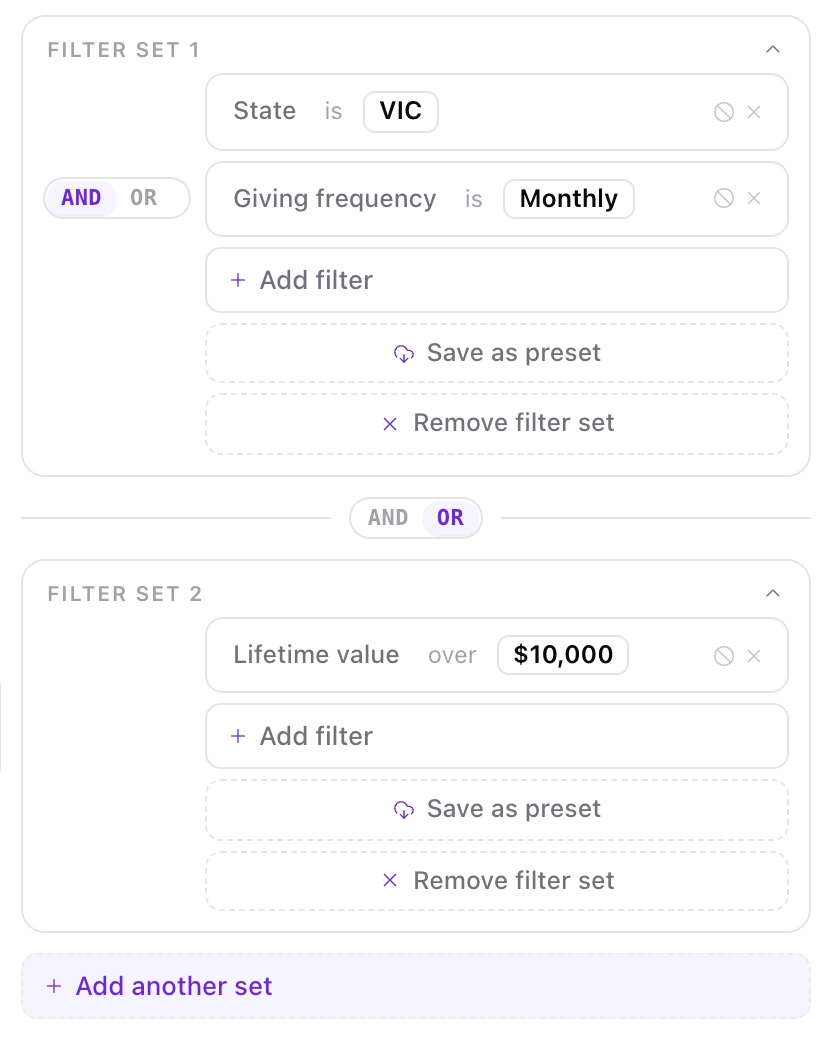
We recommend checking the count after every operator change. A count close to zero usually means AND where you needed OR, and a count close to your whole file usually means the reverse.
Filter set presets
If you build the same group of conditions often, such as your standard mail exclusions, save it as a preset.
To save a filter set as a preset:
Click Save as preset at the bottom of the filter set.
Name the preset. The filters stay editable on this screen, so you can adjust them before saving.
Click Save preset.
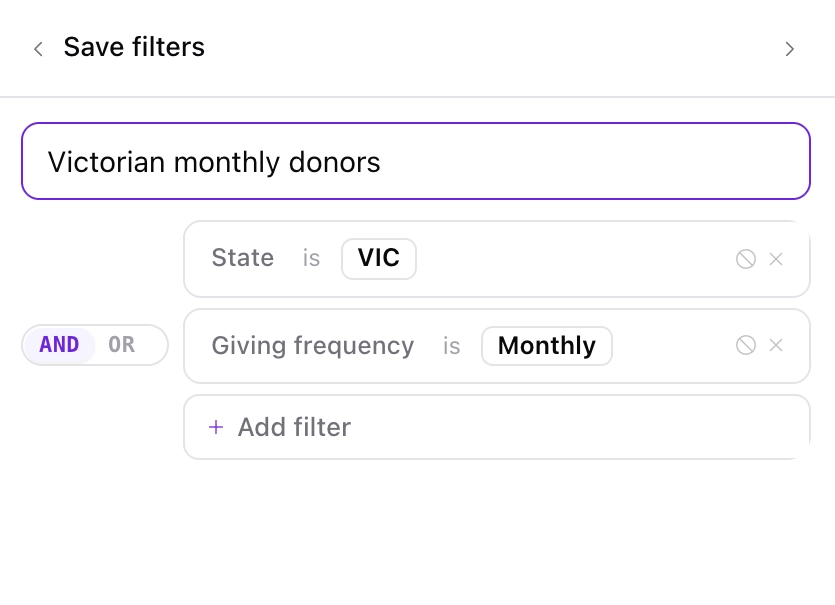
A preset holds exactly one filter set. When you apply a preset from the Filters menu, Dataro adds it as a new filter set and leaves your existing sets in place. This means two presets can be combined in one audience. The set shows the preset's name, for example "Do not mail", and editing it does not change the saved preset.
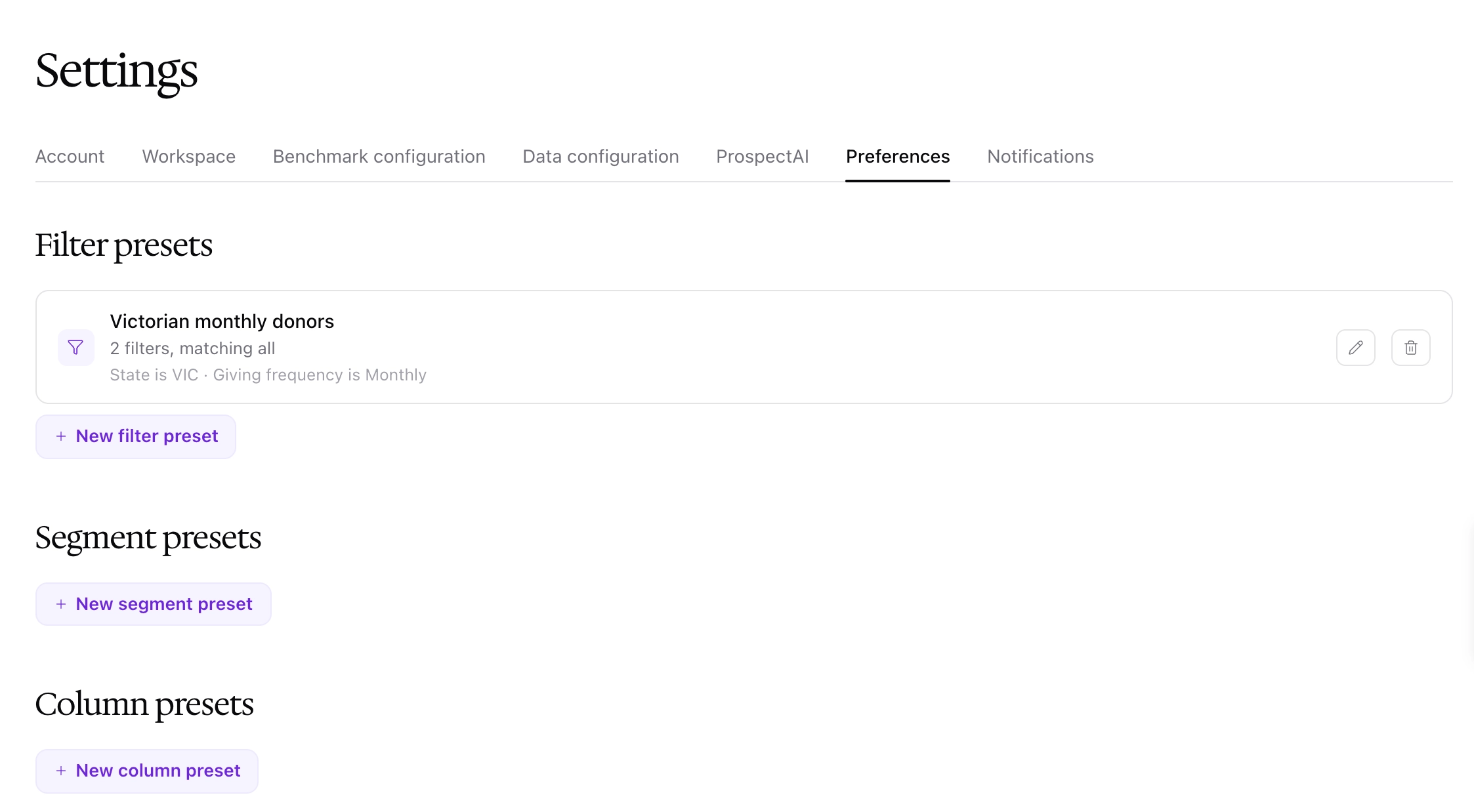
You can keep up to 10 filter set presets. Filter, segment, and column presets are all listed in Settings > Preferences, where you can edit or delete them.
Segments
Most campaigns send different versions to different groups of donors, such as by channel or by ask amount. Segments let you split one audience into several without rebuilding it for each group.
To split an audience into segments:
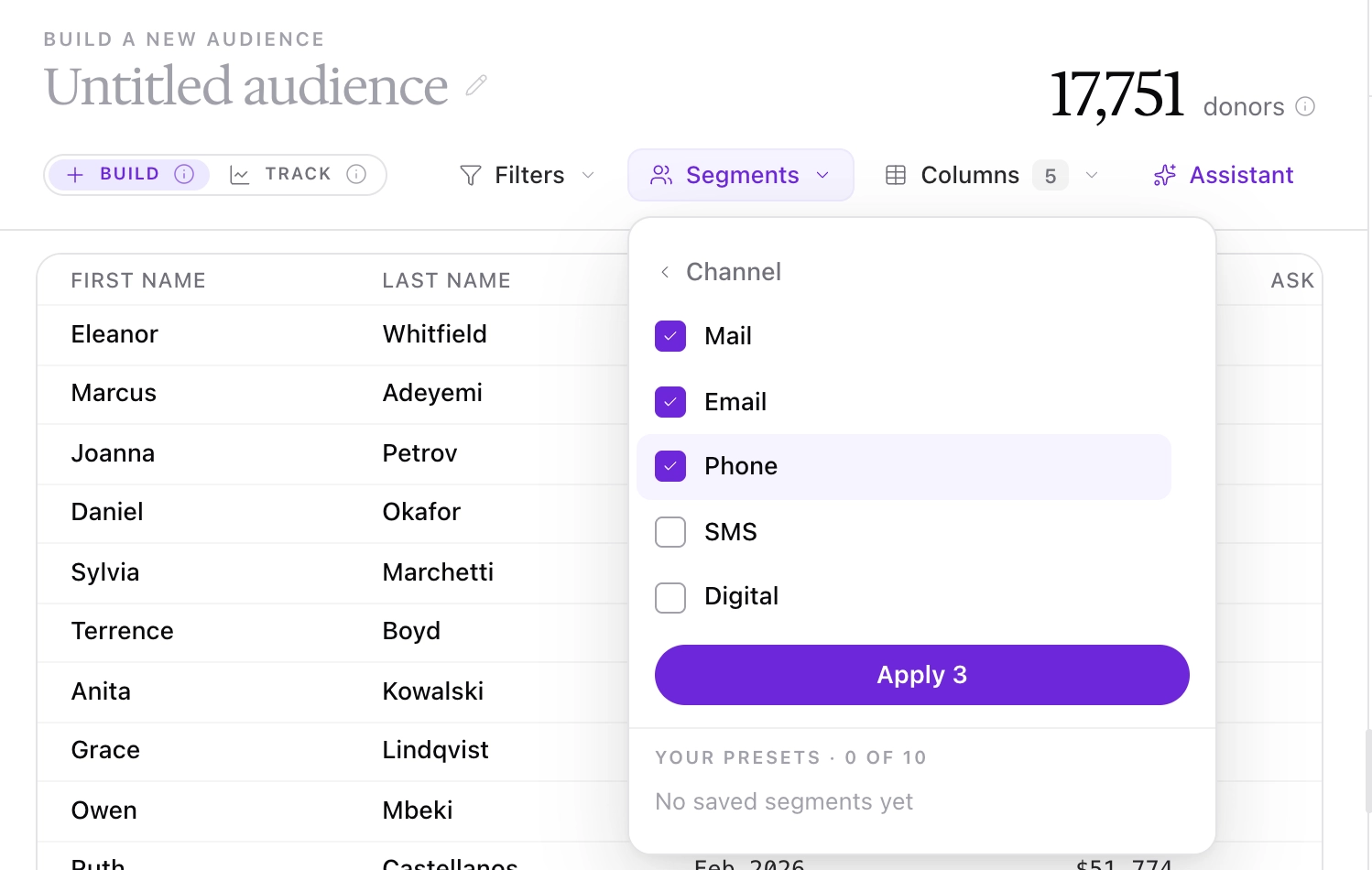
Click Segments above the table.
Select the field to split by, such as Channel.
Select the values you want and click Apply. Each value becomes its own segment, with its own count.
Each segment appears as a tab above the donor table, next to All, so you can check who is in each one before you save. The segments are also listed in the panel.
Fields that need an integration you have not connected are shown but disabled, with the reason on hover. Segment choices can be saved as presets, for example "Email and phone only".
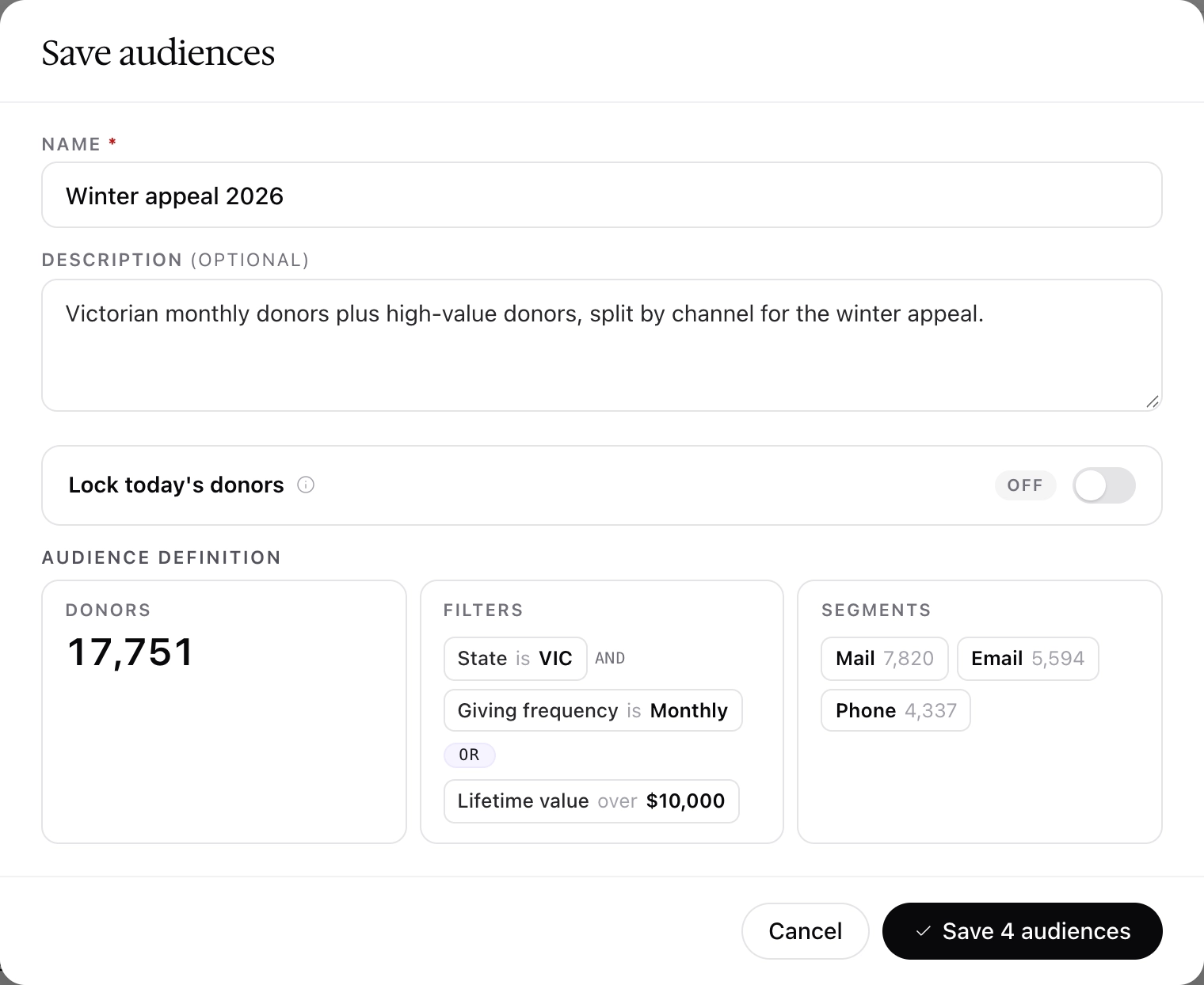
Once segments are applied, the save button reads Save audiences. Saving creates the full audience plus one audience for each segment, so an audience split by three channels saves as four audiences. The save window lists each segment with its count, and the confirm button shows the total, for example Save 4 audiences.
Finding and using your segments
Segments are kept with the audience they came from rather than listed separately.
To find your segments:
Open Audiences from the sidebar.
Find the full audience. Its row shows how many segments it has, for example 3 segments.
Click the segment count to show the segments underneath it. Each one is labeled with its value, for example Segment · Email. Click the count again to hide them.
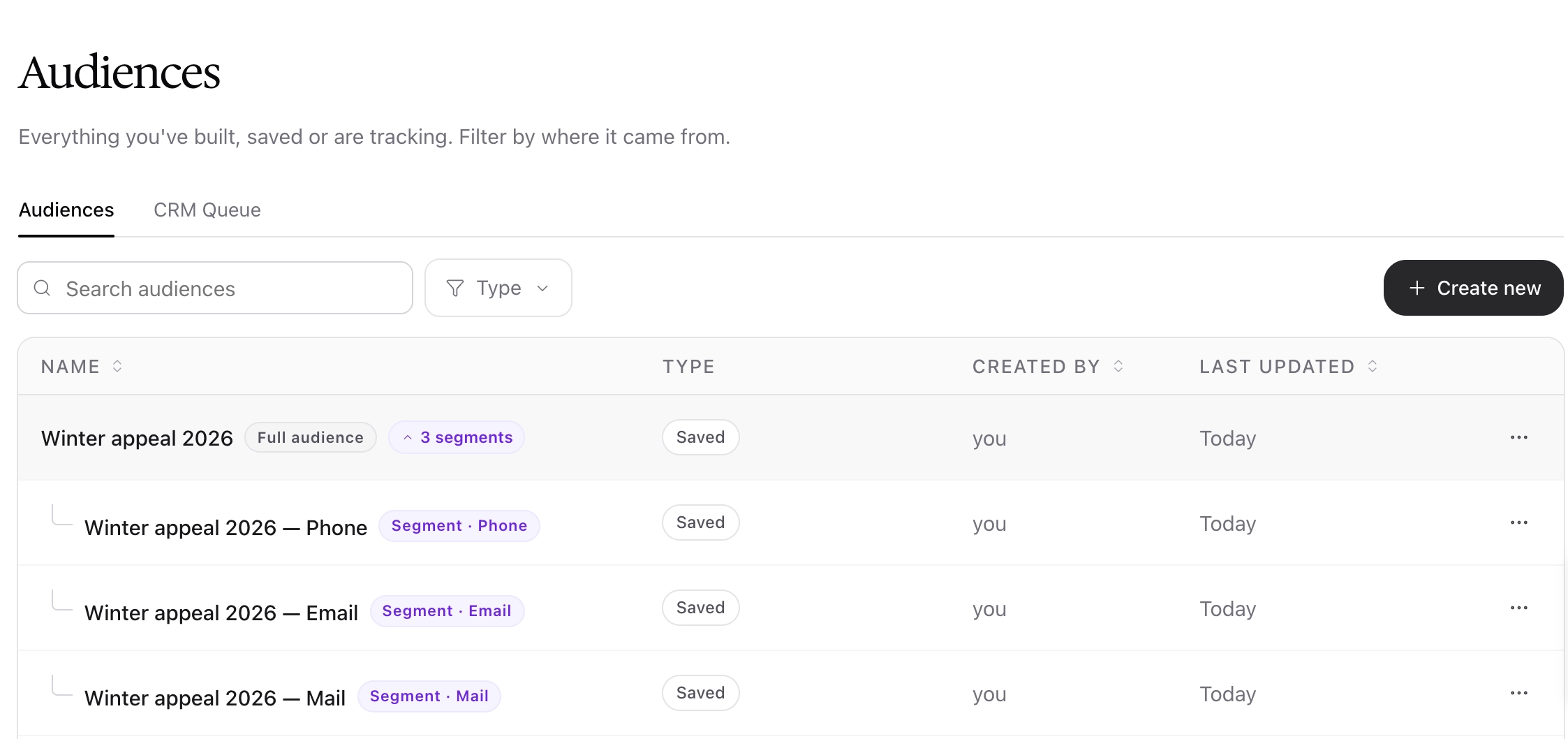
Click any segment to open it on its own.
The full audience and its segments are used differently:
Push to your CRM | Export as CSV | |
|---|---|---|
Full audience | Yes | Yes |
Segment | No | Yes |
To send each segment to a mail house, telemarketing agency, or email platform, export it as a CSV. To publish the audience to your CRM, push the full audience.
Columns
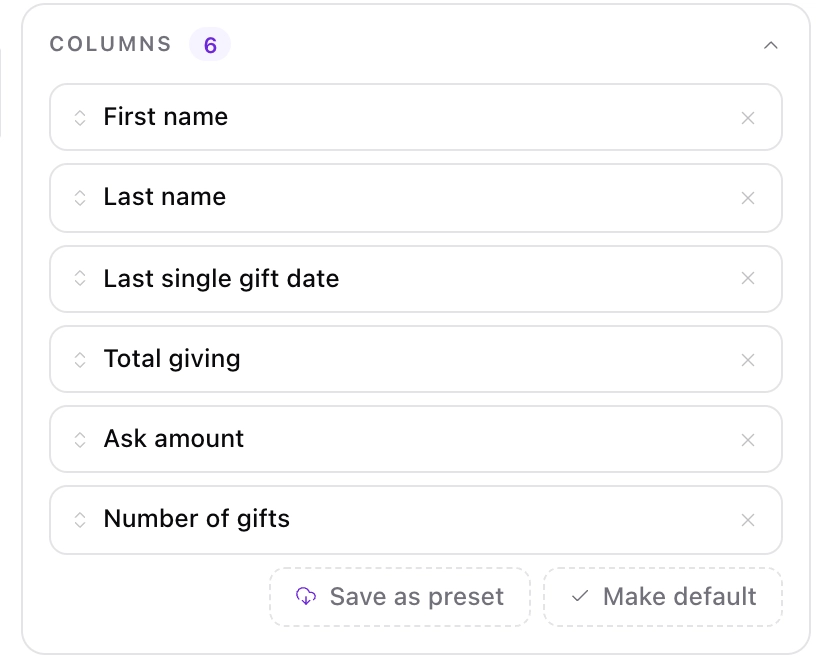
Columns sets which fields appear in the donor table, and in what order. The same columns are used when you export.
To change the columns:
Click Columns above the table.
Choose a category, such as Giving behavior, and tick the fields you want.
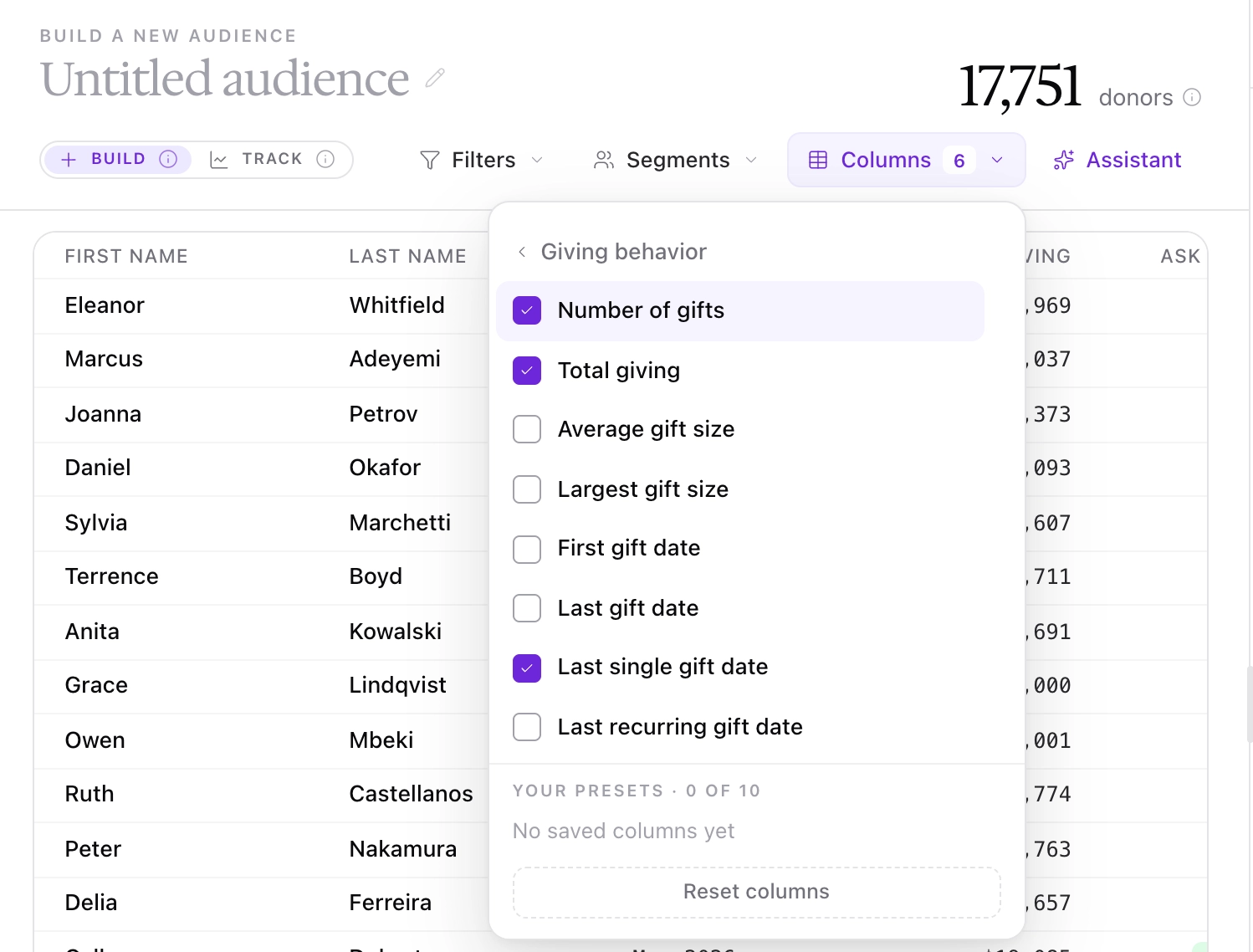
The Columns section in the panel lists your columns in order. Drag a column to move it, or click the x to remove it. To reuse an arrangement, click Save as preset. To load it on every new audience, click Make default.
The Dataro Assistant
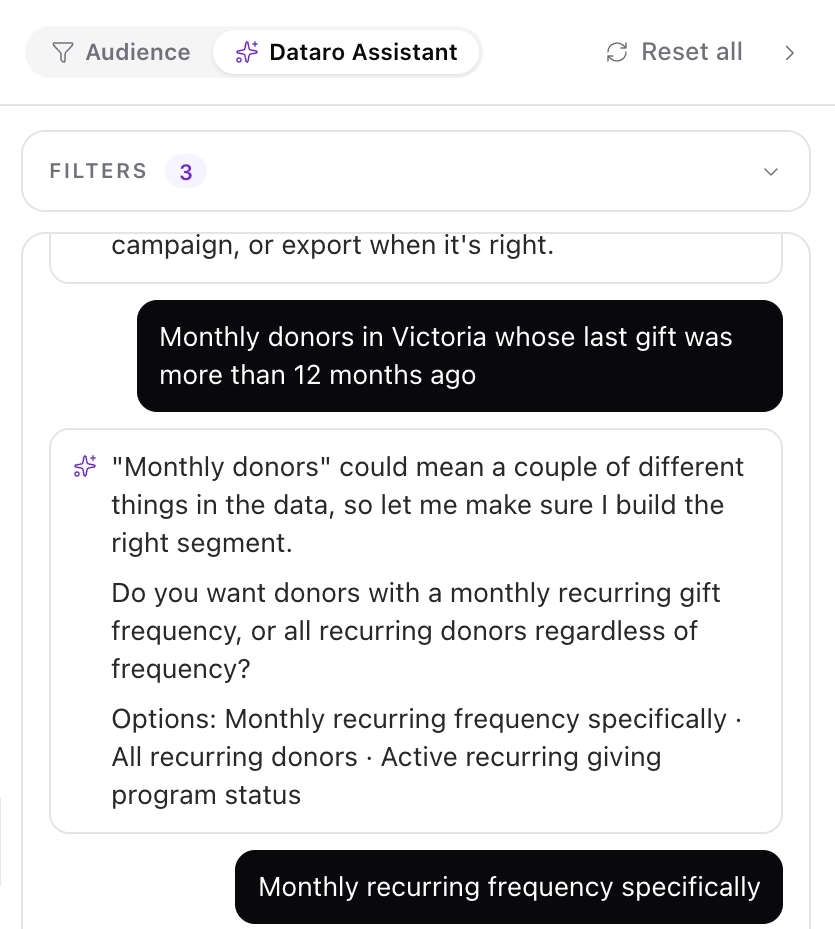
Open the Dataro Assistant tab in the panel and describe the donors you want in plain English, for example "Donors whose last gift was more than 12 months ago", and the Dataro Assistant adds the matching filters to your audience. If a description could mean more than one thing, the assistant asks which you meant before it builds. We recommend opening the Audience tab to check every filter the assistant writes before you save, and editing a wrong one directly rather than rephrasing.
Saving your audience
To save an audience:
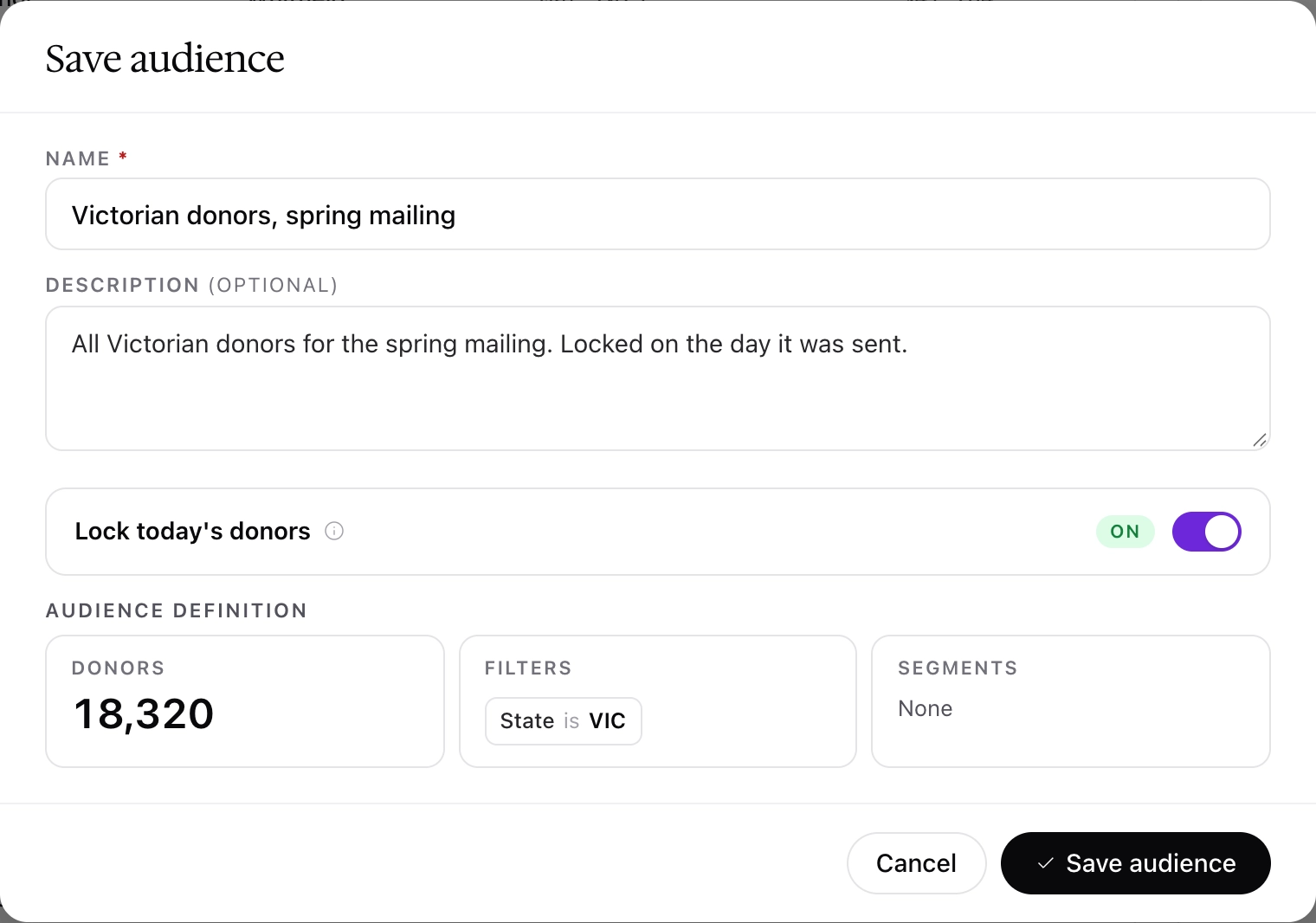
Click Save audience. The button is available once your audience has at least one condition.
Enter a name. Dataro tells you if an audience with that name already exists.
Add a description (optional). We recommend one for any audience a colleague might reuse.
Review the audience definition, which lists every filter by filter set, with the operators between them.
Click Save audience.
By default, a saved audience updates on its own as donors start or stop matching your conditions. Turn on Lock today's donors if you want to keep exactly the donors who match right now, for example to record who received a particular mailing.
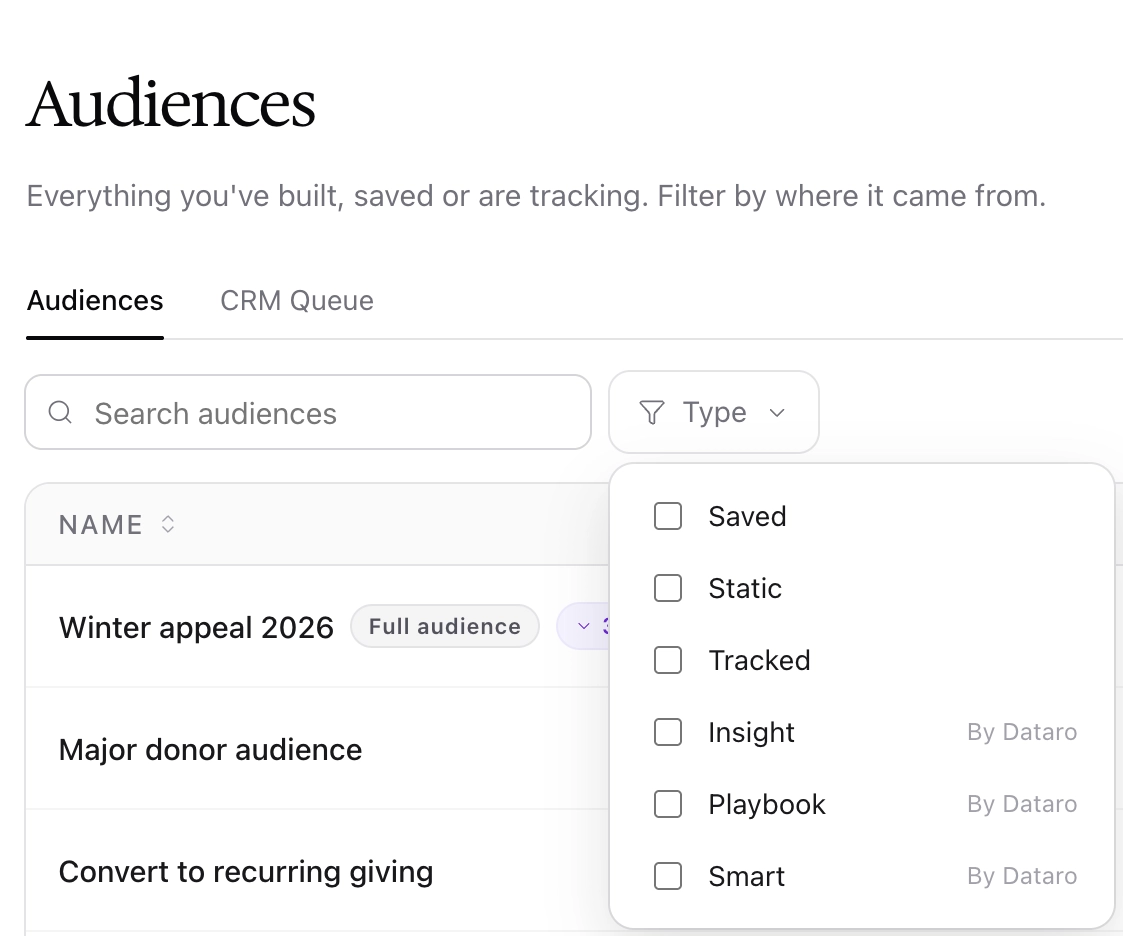
Saved audiences are listed on the Audiences page. Use the Type filter to narrow the list. An audience you build is labeled Saved, or Static if you turned on Lock today's donors. Insight, Playbook, and Smart audiences are built by Dataro. For more on the Audiences page, see 📄 The Audiences page.
You can also export the audience as a CSV, or push it to your CRM or ad platforms, from the table header.
Frequently asked questions
My count dropped to zero. What happened?
One condition is excluding everyone who matched the others. Check the operators first, because AND between two conditions that cannot both be true, such as two different states, always returns zero. Then remove your most recent filter and see whether donors come back.
If I change a preset, do audiences that used it change too?
No. Applying a preset copies its conditions into your audience, so later changes to the preset do not reach audiences already saved.
Why doesn't my default column set appear on an audience I saved last month?
The default applies to new audiences only. A saved audience keeps the columns it was saved with, so an arrangement a colleague set up on purpose is not changed without them knowing.
Can I push a single segment to my CRM?
No. Only the full audience can be pushed to your CRM. Each segment can be exported as a CSV from the Audiences page.
I saved a segmented audience. Why can I only see one row?
The segments are hidden under the full audience. Click the segment count on its row, for example 3 segments, to show them.
How do I start again?
Click Reset all. It clears every filter and segment and returns the table to your default columns.