The Audiences page
Last updated: October 8, 2026
The Audiences page keeps every audience you work with, and every CRM push, in one place.
Open Audiences from the sidebar. The page has up to three tabs: Interest Areas, Audiences, and CRM Queue.
Note: The Interest Areas tab only appears when an email platform is connected to Dataro. If you cannot see it, check Integrations first.
Interest Areas
Interest Areas groups your donors by the topics they are most likely to engage with, based on how they interact with your email campaigns. For example, an organization might use interest areas such as Strong Families, Poverty, and Youth Mental Health.
To set up interest areas:
Open the Interest Areas tab.
Enter the interest areas you want Dataro to look for, following the instructions on the page.
Click Generate Segments.
Each interest area then shows its donor count, with a demographic and giving summary and a list of the donors in it. To regenerate the results, or to try a different set of interest areas, click Reanalyze.
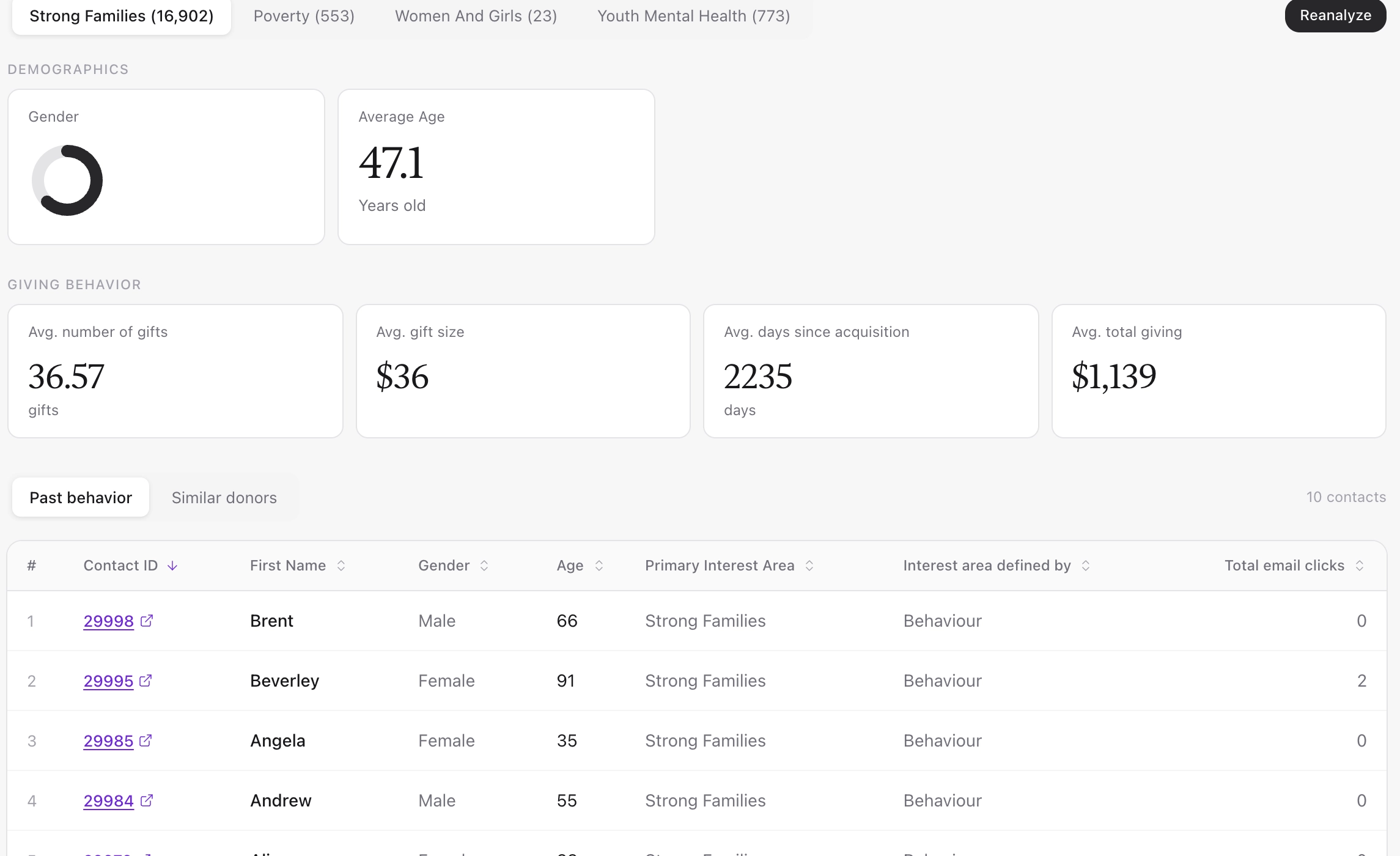
About a day after you generate interest areas, two new fields appear in the Audience Builder: Primary interest area and Interest area defined by. You can use them as filters or columns, for example to build an appeal audience of donors whose primary interest area is Youth Mental Health.
Audiences
The Audiences tab lists every audience in one table, whether you built it or Dataro did. Each row shows the audience's type, who created it, and when it was last updated.
Use the Type filter to narrow the list:
Type | What it holds |
|---|---|
Saved | Audiences you built that update as donors start or stop matching |
Static | Audiences you built with Lock today's donors turned on |
Tracked | Audiences with a target outcome that Dataro measures over time |
Insight | Audiences saved from an insight in Action Tracking |
Playbook | Audiences Dataro built from a playbook |
Smart | Audiences Dataro keeps up to date for you |
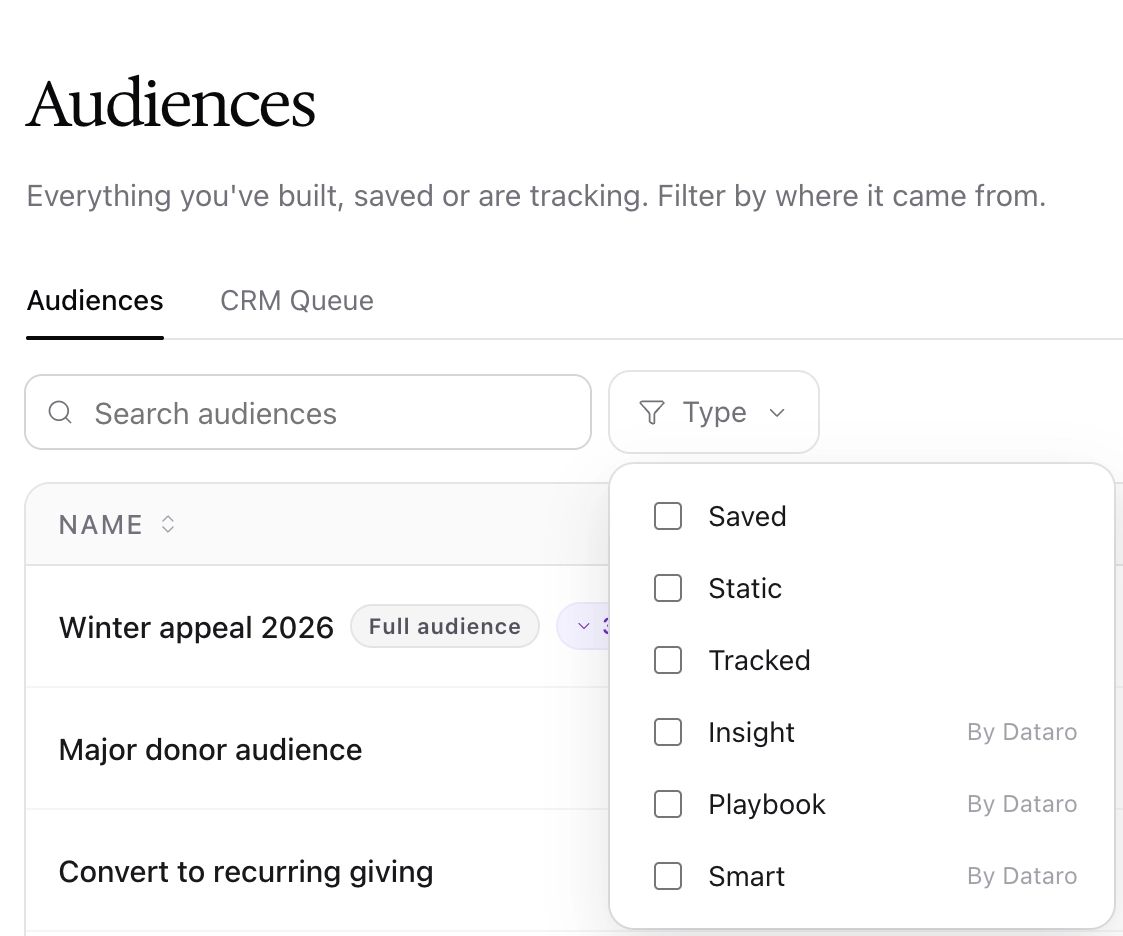
An audience saved with segments shows as one row, labeled Full audience, with a segment count beside it. Click the segment count to show the segments underneath. For more on segments, see 📄 Building an audience.
To work with an audience, click ... at the end of its row. From this menu you can view a summary, export the audience, edit its definition or details, manage notifications, push it to your CRM, send it to Google Ads, Meta, or ProspectAI, share it, or delete it.
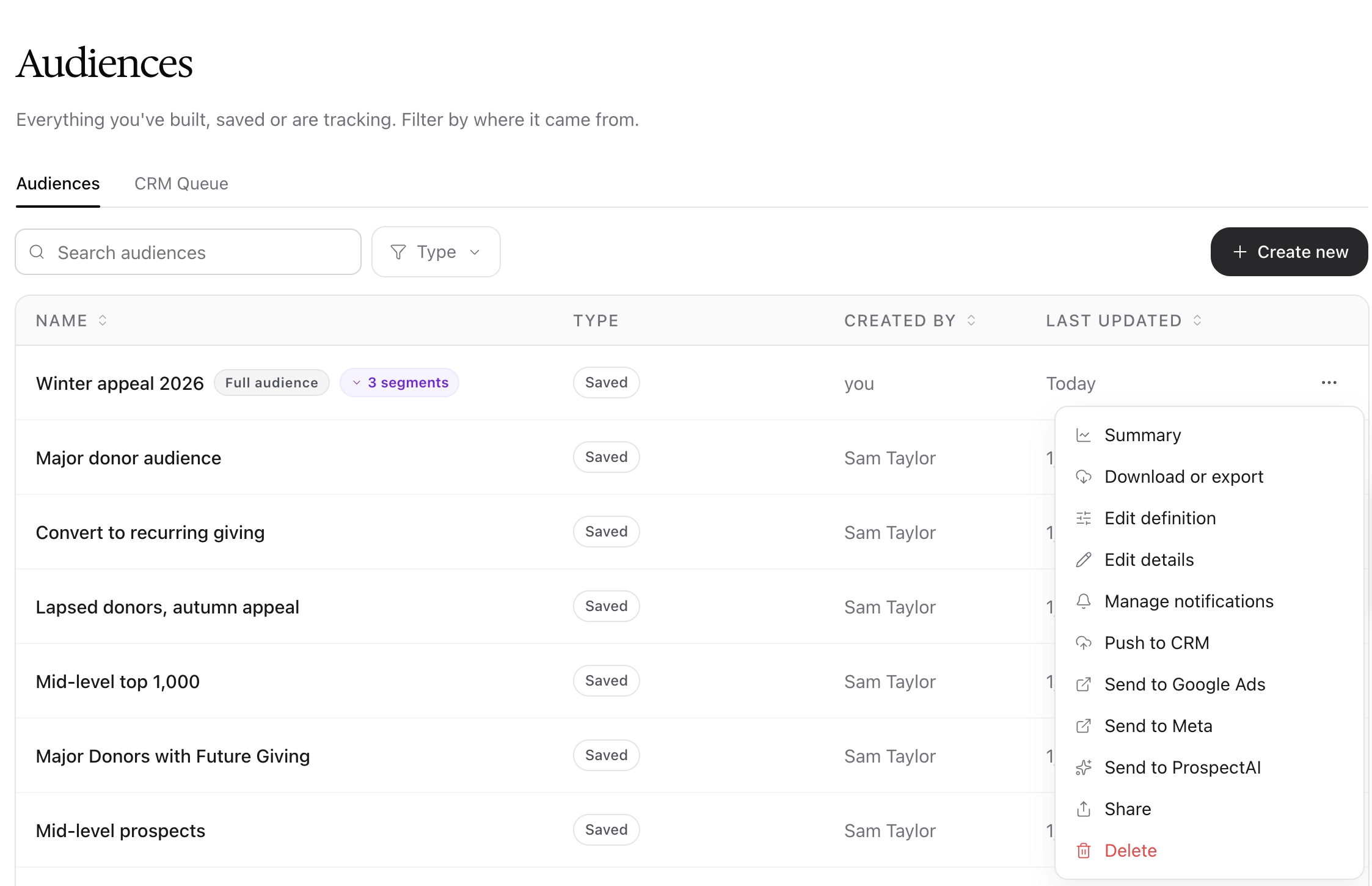
Note: Only a full audience can be pushed to your CRM. Segments can be exported as CSV files.
CRM Queue
The CRM Queue tab lists every push to your CRM, with its status:
Queued means the push is waiting to start.
Processing means Dataro is sending the audience to your CRM.
Pushed means the audience reached your CRM. The appeal and list links point to the records created there.
Failed means the push did not complete.
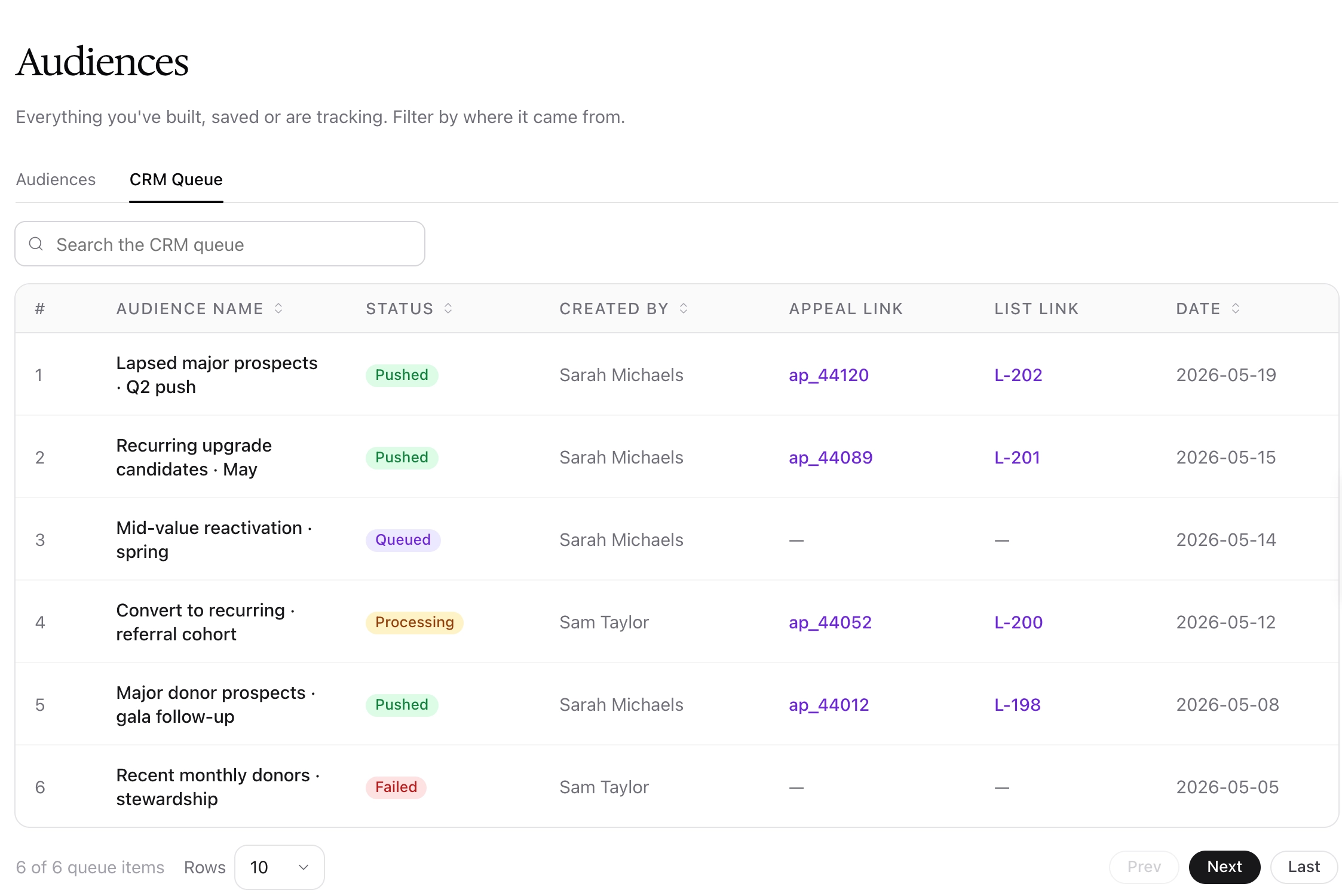
The queue is a history of pushes, not a list of audiences, so the same audience appears once for every time it was pushed. We recommend checking the queue after any time-sensitive push, because a failed push does not show up inside your CRM.
Frequently asked questions
I saved an audience and cannot find it. Where do I look?
Open the Audiences tab and search by name. If you saved it with segments, look for the full audience and click its segment count to see the segments. If you turned on Lock today's donors, it is listed as Static.
Why can't I see the Interest Areas tab?
The tab only appears when an email platform is connected to Dataro. Once one is connected, the tab appears first on the Audiences page.
How long do interest area fields take to appear in the Audience Builder?
About a day after you click Generate Segments or Reanalyze.
Can I push a segment to my CRM?
No. Push the full audience to your CRM, and export each segment as a CSV if you need them separately.
What should I do if a push failed?
Check that your CRM integration is connected under Integrations, then push the audience again. If it fails a second time, contact your Customer Success Manager