![Dataro Logo Small.png]](https://support.dataro.io/hs-fs/hubfs/Dataro%20Logo%20Small.png?height=40&name=Dataro%20Logo%20Small.png)
The Dataro External Client App installs one permission set, called Dataro User. It grants access to the Dataro fields on the Account and Contact Objects, and nothing else. Your users cannot see the Dataro fields until you assign it.
This article applies if your Dataro data lands on the Account or Contact Objects. If your Dataro data is on a custom Object, or on a standard Object other than Account or Contact, you do not need this permission set.
Who needs the permission set?
You decide who gets it. We recommend assigning it to every user who works with Dataro data in Salesforce, which for most organizations is all fundraising users.
Assigning the permission set does not put the fields on a record by itself. Your admin also needs to add the Dataro fields to your page layouts. Both steps are required before anyone sees a Dataro score.
Assign the permission set
Here's how to assign the Dataro User permission set:
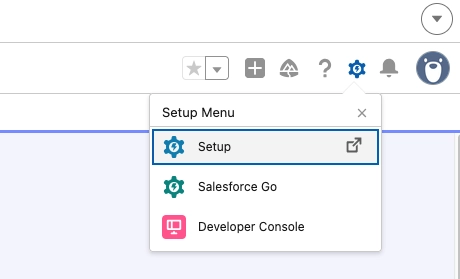
- Click the gear icon, then select Setup.
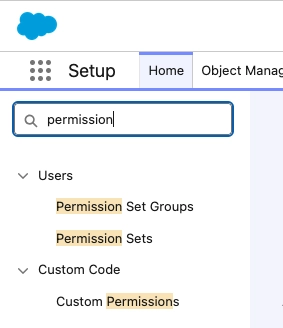
- Type
Permission Setsin Quick Find.
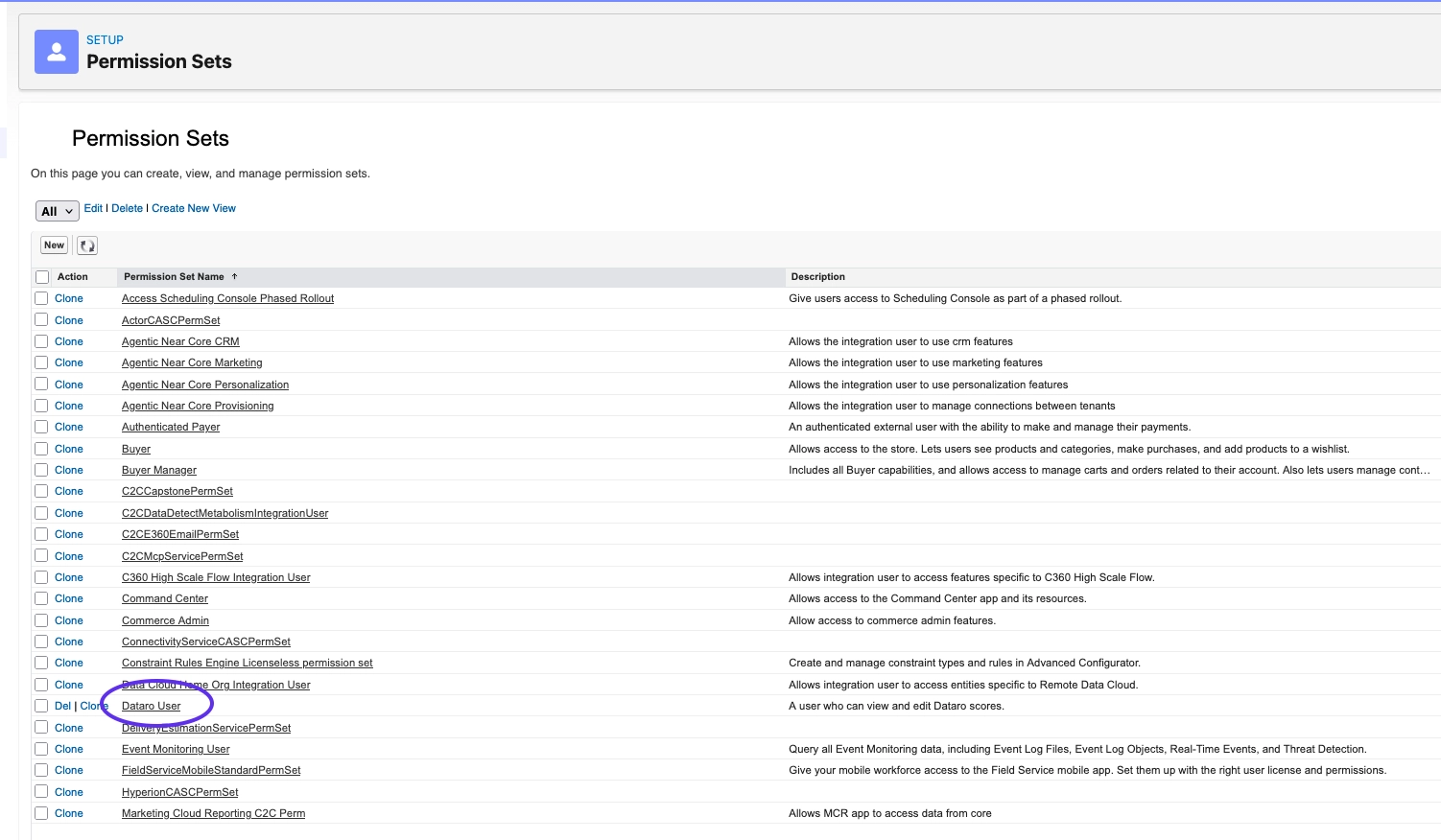
- Open Dataro User.
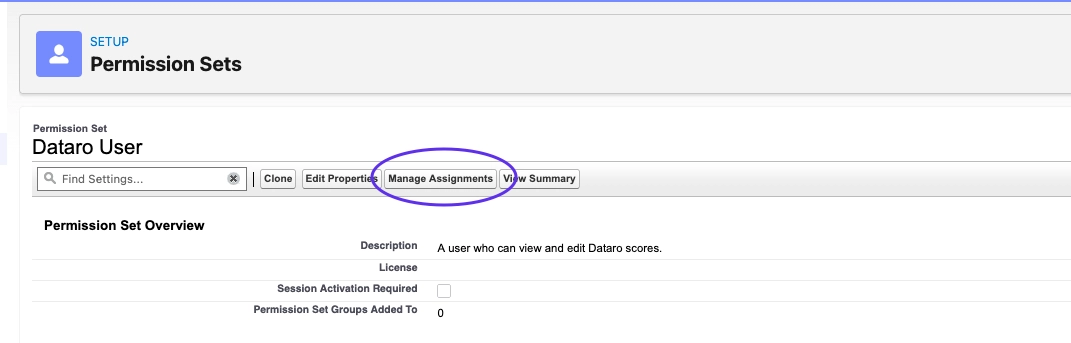
- Click Manage Assignments.
- Click Add Assignments.

- Select a list to view.
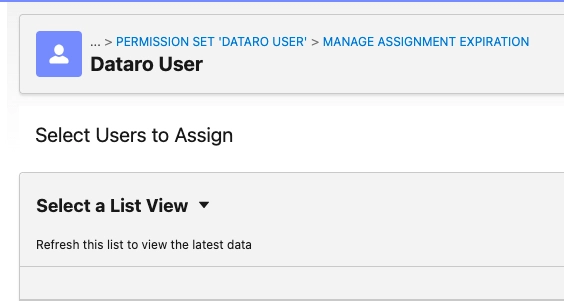
- Select the users who need access, then click Next.
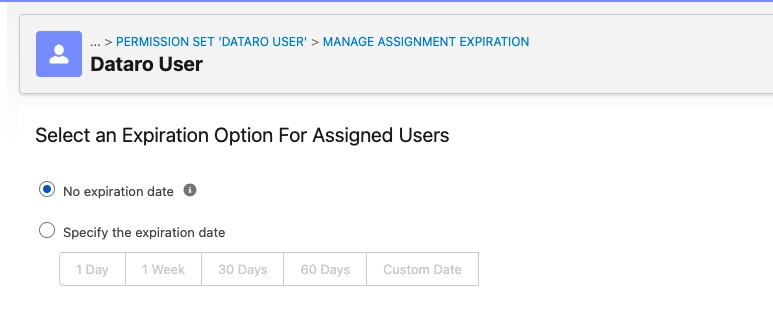
- Select an Expiration Date. We recommend No Expiration Date.
- Click Assign.
Why can't my team see the Dataro fields?
There are two reasons a user sees no Dataro fields on a record, and both are common straight after an install.
The first is that the user does not have the Dataro User permission set. Check the assignment list for that user.
The second is that the fields are not on the page layout. The app creates the fields but does not place them anywhere, so your admin adds them to each layout your team uses.