![Dataro Logo Small.png]](https://support.dataro.io/hs-fs/hubfs/Dataro%20Logo%20Small.png?height=40&name=Dataro%20Logo%20Small.png)
Salesforce has changed how outside systems connect to a Salesforce org. Salesforce no longer allows new Connected Apps, and treats the External Client App (ECA) as the standard for inbound integrations. Dataro has built an External Client App to replace the Connected App it uses today, and a Salesforce System Administrator installs it in your org.
The install takes about 15 minutes. If your Dataro data lands on the Account or Contact Objects, there are two follow-up tasks after the install, covered at the end of this article.
Before you start
You need Salesforce System Administrator access to the org you are installing into.
Salesforce has renamed AppExchange to AgentExchange. Some Salesforce screens still show the old name, and either name refers to the same marketplace.
Note: We recommend installing in a Sandbox first and testing the connection there, then installing in Production. If your org has no Sandbox, install directly in Production.
Install the app
Here's how to install the Dataro External Client App:
- Open the Dataro listing on AgentExchange. [TBC: listing URL]
- Click Log In at the top right, and sign in with the credentials for the org you want to install into. A linked Trailblazer.me account also works.
- Click Get It Now.
- Choose your environment, either Sandbox or Production.
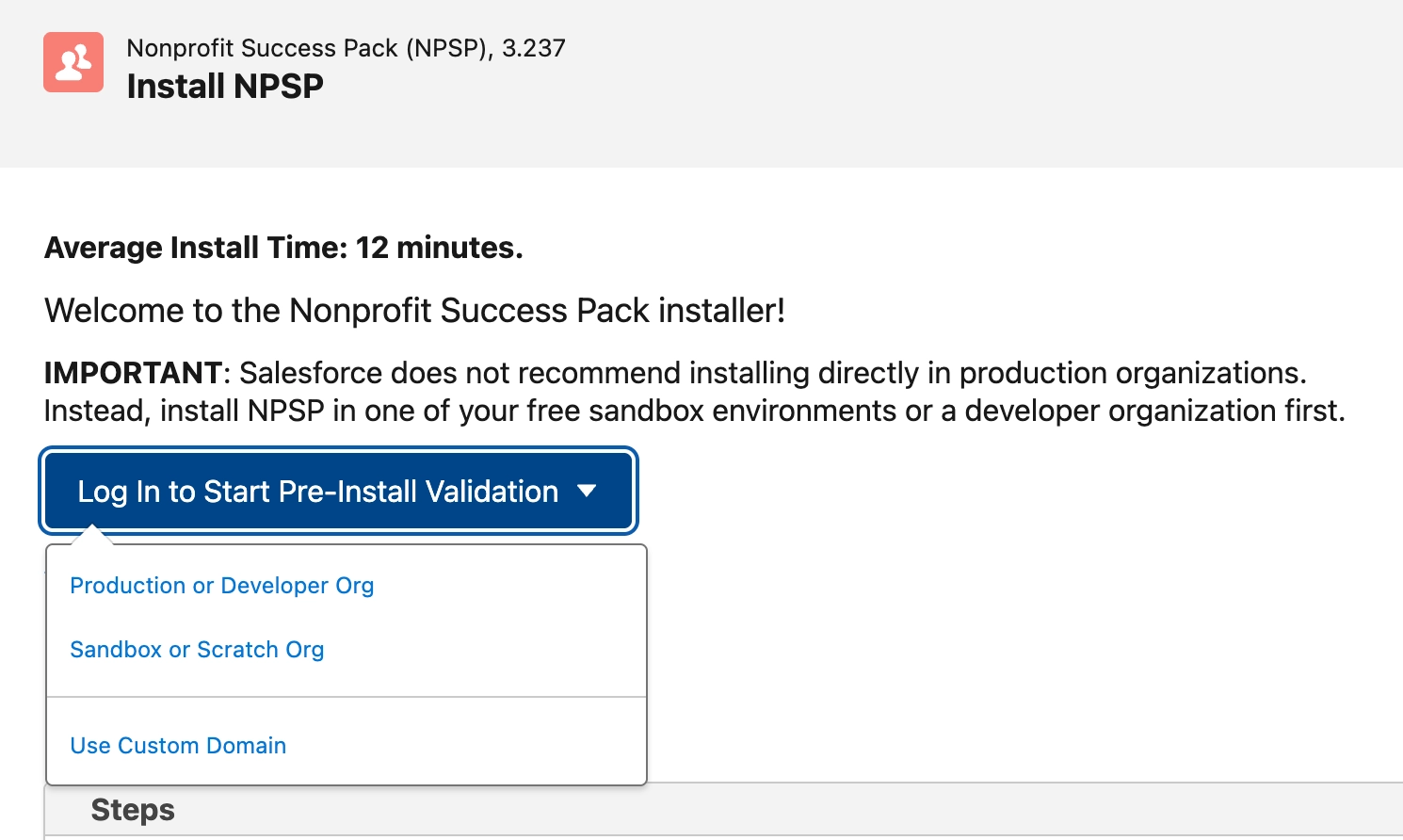
- Confirm the installation details.
- Check the box to accept the terms and conditions.
- Click Confirm and Install.
- Log in to your Salesforce org again when prompted. This authorizes the install.
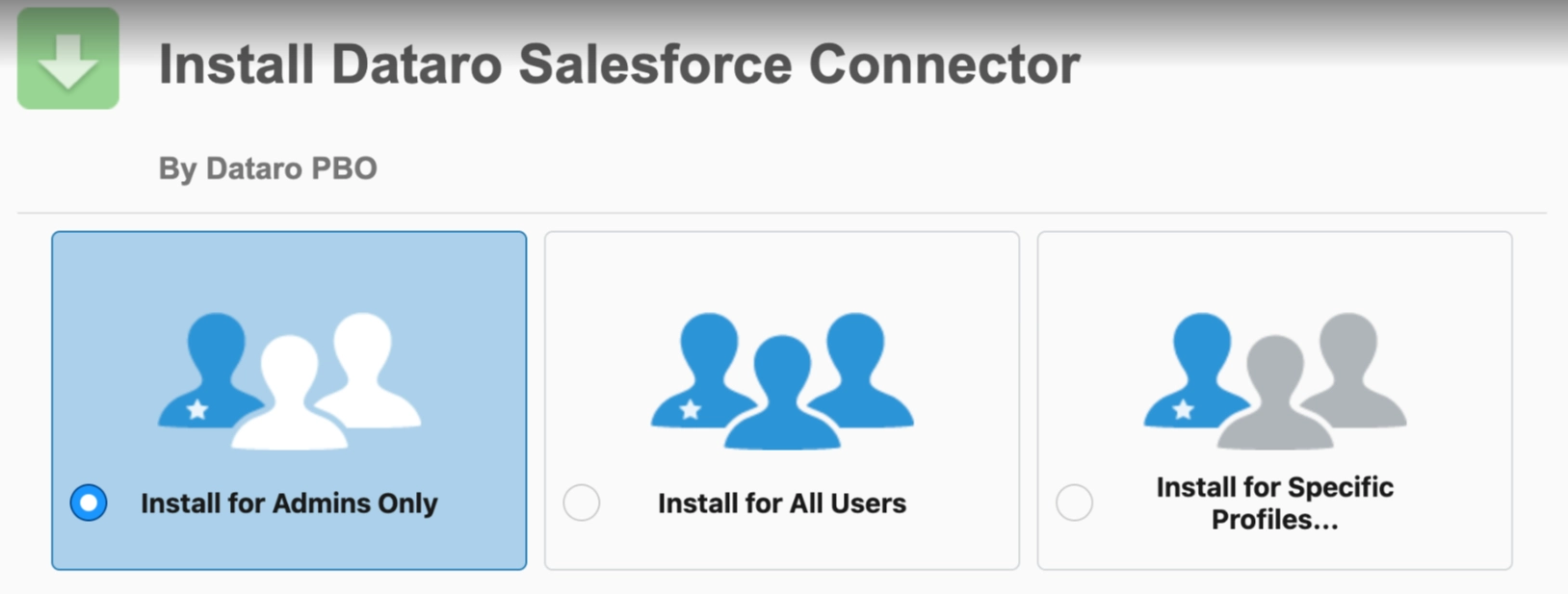
- Select the security level. We recommend Install for Admins Only, which lets you complete the setup before your users see the app. You can change this setting later.
- Check the acknowledgement box, which reads: "I acknowledge that I'm installing a Non-Salesforce Application that is not authorized for distribution as part of Salesforce's AppExchange Partner Program".The Dataro package is in the Salesforce security review queue, and this box appears until the review completes. The warning means the review has not finished, not that the package failed anything. The review does not change how the package works, and reviews usually take about six weeks. You can wait for the review to complete before you install, but we recommend installing now.

- Click Install. Salesforce may show a message that the install is taking a long time, which is normal for a large package.
- Click Done. You can leave the page, and Salesforce emails you when the install completes.
Verify the install
To confirm the package installed:
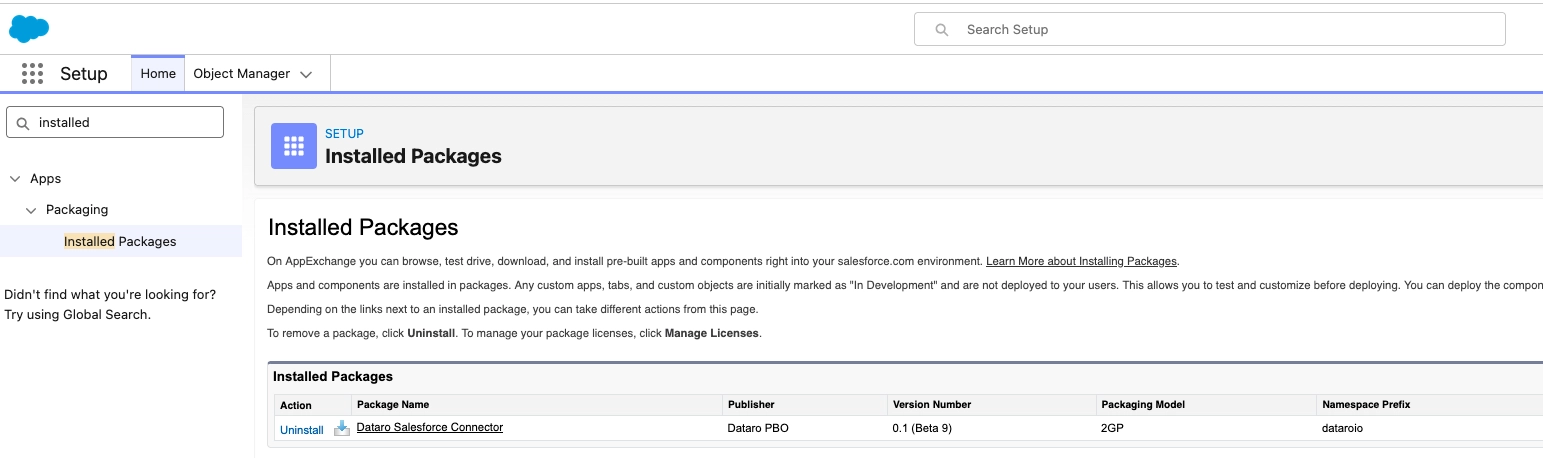
- Click the gear icon, then select Setup.
- Type
Installed Packagesin Quick Find. - Confirm the Dataro package appears in the list.
What to do next
What happens after the install depends on which Salesforce Object holds your Dataro data.
If your Dataro data is on the Account or Contact Objects, the app creates a new set of Dataro fields, and Dataro writes to those new fields from then on. There are two required tasks:
- Assign the Dataro User permission set. Your users cannot see the new Dataro fields until you do.
- Add the new Dataro fields to your page layouts, then point anything that reads the old fields at the new ones. This includes reports, dashboards, list views, segments, and flows.
If your Dataro data is on a custom Object, or on a standard Object other than Account or Contact, your Dataro fields do not change. Dataro keeps writing to the fields you use today, and your reports, dashboards, list views, and segments keep working exactly as they do now. There is nothing else to do.
To use the Dataro Single Gift model, add the two Single Gift fields to your Object yourself, then tell your Customer Success Manager once the fields exist so Dataro can start publishing to them.
What about the old Dataro Connected App?
Leave it in place for now. Both connections can coexist, and the old Connected App does no harm while it is there.
Note: Do not remove the old Dataro Connected App as part of this install. Your new connection needs to deliver data first, which can take up to a week. If you remove the old app before then, your Dataro data stops.
Once your Dataro fields have updated through the new connection, check them:
- If your Dataro data is on the Account or Contact Objects, confirm the new
dataroio__fields have values. - If your Dataro data is on any other Object, confirm your existing Dataro fields are still updating.
If your fields have not updated a week after installing, contact Dataro. Do not remove the old app.