![Dataro Logo Small.png]](https://support.dataro.io/hs-fs/hubfs/Dataro%20Logo%20Small.png?height=40&name=Dataro%20Logo%20Small.png)
Read this article if your Dataro data lands on the standard Salesforce Account or Contact Objects. If your Dataro data lands on a custom Object, or on a standard Object other than Account or Contact, read Dataro custom fields for custom Objects in Salesforce instead.
There are two things to do after you install the Dataro External Client App. Add the new fields to your page layouts, so your team can see them. Then point anything that reads the old fields at the new ones.
What the app creates
When you install the External Client App, it creates a new set of Dataro fields on your Account and Contact Objects. You do not need to create them.
Every new field name starts with dataroio__. This is the package namespace, and it is how you tell a new field from an old one. For example, Dataro_RG_Churn__c is an old field and dataroio__Dataro_RG_Churn__c is its replacement.
The full field list, with the matching old and new API names, is in Dataro custom fields for Salesforce.
Add the fields to your page layouts
The app creates the fields, but does not place them anywhere. Until you add them, nobody in your organization sees a Dataro score on a record.
This step is required. Do it before you tell your team the upgrade is done.
Here's how to add the Dataro fields to a page layout:
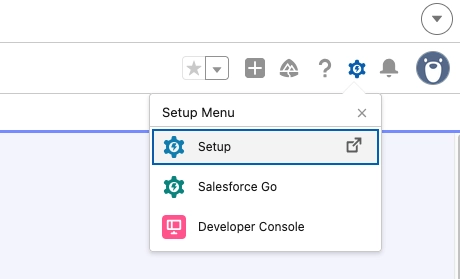
- Click the gear icon, then select Setup.
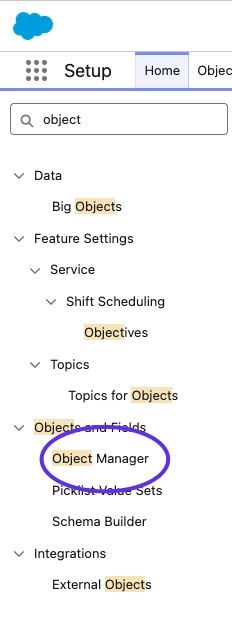
- Type
Objectsin Quick Find, then click Object Manager.
- Select Account or Contact.
- Click Page Layouts.
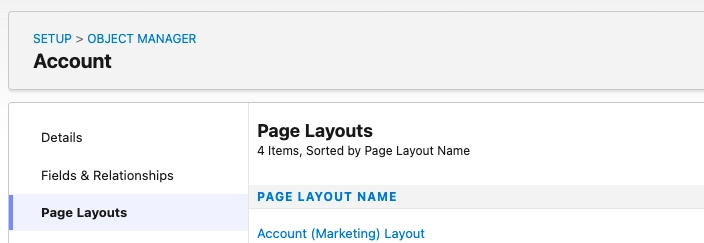
- Open the layout your team uses.
- Drag each Dataro field you want from the palette onto the layout.
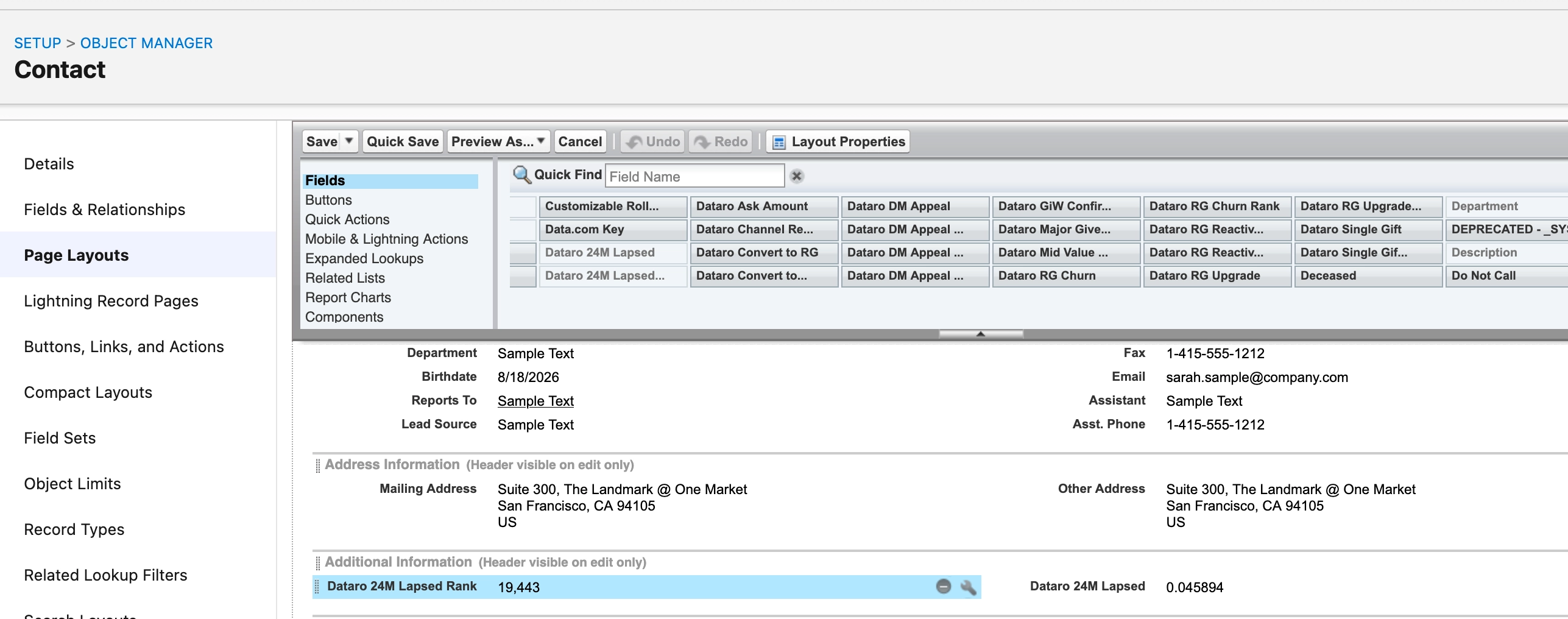
- Click Save.
- Repeat for every layout your team uses, on both Objects.
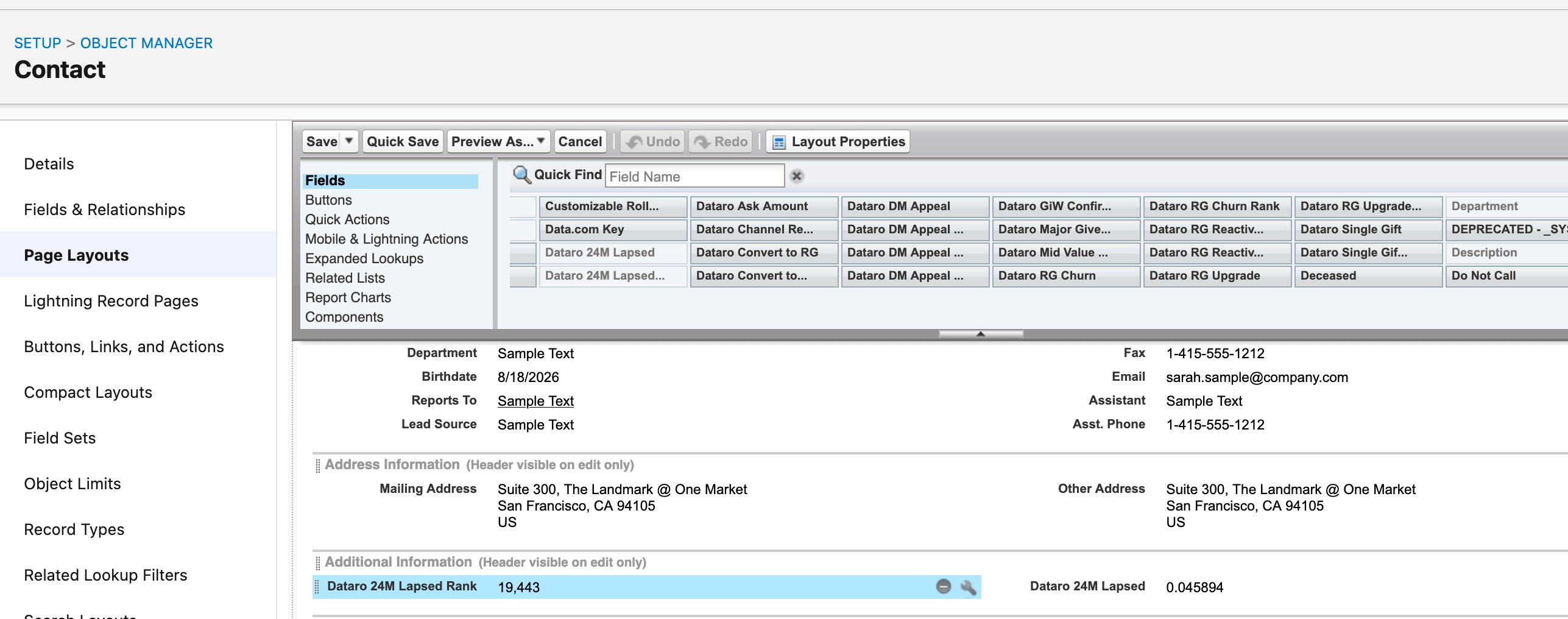
Add the fields to your list views as well, if your team works from list views.
Pro tip: Add only the fields your team uses. The app creates every Dataro field regardless of which models Dataro runs for you, and a field for a model you do not have stays empty.
If your org uses Dynamic Forms, add the fields on the Lightning record page in the Lightning App Builder instead. Fields added to the page layout do not appear on a record page that has been migrated to Dynamic Forms.
Repoint anything that reads the old fields
Note: The External Client App creates a new set of Dataro fields. It does not reuse the fields from your existing integration.
After the upgrade, Dataro writes to the new fields. The old fields stay in place, but they stop updating, so anything in your Salesforce org that reads an old Dataro field holds its last values and receives no new data. Reports and dashboards are the most common examples. Segments, list views, flows, and external tools that pull from Salesforce can also be affected.
To repoint your Salesforce assets:
- List every report, dashboard, list view, segment, and flow that reads a Dataro field.
- Point each one at the matching new field. You do not need to repoint anything you no longer use.
- Check that each one returns data after the next Dataro sync.
How long this takes depends on how much reporting you have. An organization with a handful of Dataro reports can finish in under an hour. An organization with Dataro fields embedded across dozens of dashboards, list views, and flows should plan for longer, and can work through it after the install rather than on the same day.
What happens to the old fields?
The old Dataro fields stay in your org. Dataro stops writing to them, so they hold their last values and do not update again.
Dataro cannot remove them. You can delete them yourself once you have repointed everything, but you do not have to. Leaving them in place has no effect on the new fields.