![Dataro Logo Small.png]](https://support.dataro.io/hs-fs/hubfs/Dataro%20Logo%20Small.png?height=40&name=Dataro%20Logo%20Small.png)
Overview
Fundraise Up includes a built-in AI Ask Amount feature that analyses donation history and donor profile data to display a set of personalised giving amounts as clickable buttons on the checkout form. On most platforms, enabling an external ask amount means disabling that feature entirely. Fundraise Up is different.
Fundraise Up's URL API accepts an external amount= parameter that pre-fills the donation input field — the text box where donors type a custom amount — without replacing or disabling the AI-powered buttons. This means you can use both simultaneously:
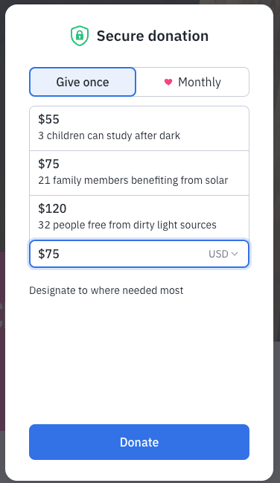
The Fundraise Up donation form showing three AI-suggested amount buttons alongside a Dataro Ask Amount pre-filled in the custom input field — both working simultaneously.
|
Fundraise Up AI Amount Buttons |
Dataro Ask Amount (pre-filled input) |
|
|
Why Dataro Ask Amounts Go Further
Fundraise Up's AI Ask Amounts draw only on data stored within Fundraise Up — primarily online donation history and the donor profile held there. For donors who also give by mail, phone, at events, or through your CRM, that picture is incomplete.
Dataro Ask Amounts draw on your complete donor record: giving history across every channel, wealth signals, retention risk, upgrade propensity, and more. The result is a more accurate recommendation that reflects the donor's full relationship with your organisation.
|
Data source |
Fundraise Up AI |
Dataro AI |
|
Online donation history (Fundraise Up) |
✓ Yes |
✓ Yes (via integration) |
|
Direct mail / offline giving history |
✗ No |
✓ Yes |
|
Phone / telemarketing giving history |
✗ No |
✓ Yes |
|
Event / in-person giving history |
✗ No |
✓ Yes |
|
Full CRM donor profile |
✗ No |
✓ Yes |
|
Retention & upgrade propensity signals |
✗ No |
✓ Yes |
|
📝 Note This guide focuses on email marketing campaigns, but the same approach works in any channel where you control the donation link — SMS, direct mail with QR codes, digital ads, and more. |
Before You Begin
Make sure you have the following in place:
- Dataro with the Predict module enabled. Ask Amounts are included at no extra cost with any licence.
- Fundraise Up account with at least one published campaign or donation element.
- An email marketing platform that supports personalisation merge tags (e.g. Mailchimp, Klaviyo, Campaign Monitor, Salesforce Marketing Cloud).
- A Dataro campaign export that includes the Ask Amount field for your intended audience.
How It Works
When a donor clicks a personalised donation link, Fundraise Up checkout opens with two layers of AI-powered ask amounts working simultaneously:
- The 6 amount buttons on the form are powered by Fundraise Up's own AI — automatically, with no changes required on your end.
- The custom amount input field is pre-filled with the Dataro Ask Amount passed via the URL API's amount= parameter — a richer, cross-channel recommendation that reflects the donor's full giving history.
The donor sees a form personalised at two levels. They can click one of the AI-suggested button amounts, accept the pre-filled Dataro amount, or type their own figure.
Here is the high-level setup flow:
- Export your audience from Dataro. Your campaign list includes a personalised Ask Amount for each donor.
- Import that list into your email platform. The Ask Amount becomes a personalisation field (merge tag) available in your email editor.
- Build a personalised donate button URL. Embed the Ask Amount merge tag in a Fundraise Up donation link using the URL API's amount= parameter.
- Send your email. Each donor receives a donate button that opens Fundraise Up with the Dataro amount pre-filled in the input field, while Fundraise Up's AI-powered buttons remain active.
Step 1 — Export Your Campaign Audience from Dataro
Create or open your campaign in Dataro and export your selected audience with Ask Amounts included.
1a. Create or select your campaign
- Log in to the Dataro platform and navigate to Campaigns.
- Open an existing campaign or create a new one for your email appeal.
- Apply your desired audience filters (e.g. active donors, lapsed donors, predicted high-propensity givers).
1b. Export the campaign list
- Once your audience is set, click Export to download the contact list as a CSV file.
- Confirm that the Ask Amount column is included in the export. This field contains Dataro's personalised recommended single-gift amount for each donor, in your local currency.
- Save the exported CSV. You will use it to build your email audience in the next step.
|
📝 Note Ask Amount is the field label in your CSV export. If you are using a CRM integration (e.g. Salesforce), this field may be mapped to a custom field on the CampaignMember object (e.g. Ask_Amount_1__c). Check your Dataro implementation guide for your specific CRM. |
Step 2 — Find Your Fundraise Up Element/Form Code
The Fundraise Up URL API requires the unique code for the donation element you want to open.
- Log in to your Fundraise Up dashboard.
- Navigate to Campaigns (or Elements) and open the campaign you want to use for this appeal.
- Find the Element Code — a short alphanumeric string (e.g. FUNCPJTZZQR). This is typically displayed in the campaign settings or the embed code panel.
- Copy the element code and keep it handy for the next step.
|
💡 Tip If your donation form is embedded directly on a page (not as a pop-up), append URL API parameters to that page's URL. The form parameter is still required to target the correct element. |
Step 3 — Build Your Personalised Donation URL
Fundraise Up's URL API lets you pre-fill checkout fields by appending parameters to your donation page URL. The amount= parameter pre-fills the custom amount input field — the text box where donors can enter or edit their gift amount. It does not affect the AI-powered amount buttons.
Replace the static amount value in your URL with a merge tag placeholder. Your email platform substitutes each donor's actual Dataro Ask Amount at send time.
URL structure
https://yourwebsite.org/donate/?form=ELEMENTCODE&amount=DONOR_ASK_AMOUNT¤cy=USD
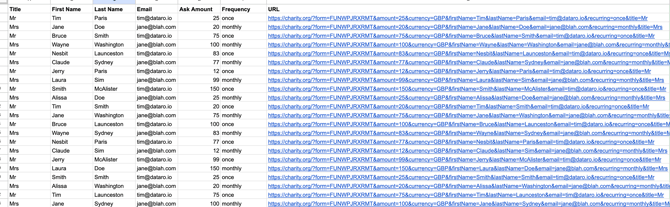
Example: A Dataro donor export showing personalised Ask Amounts and the corresponding Fundraise Up donation URLs, ready to be used as donate button links in your email campaign.
Key URL API parameters
|
Parameter |
Example value |
Description |
|
form |
FUNCPJTZZQR |
Required. The unique element code for the Fundraise Up campaign or form to open. |
|
amount |
75 |
Pre-fills the custom amount input field. AI-powered amount buttons remain active. Replace with your email platform merge tag (see Step 4). |
|
currency |
USD |
Sets the donation currency. Use the 3-letter ISO code matching your campaign (e.g. USD, AUD, GBP, CAD). |
|
recurring |
monthly or once |
Optional. Pre-selects giving frequency. |
|
modifyAmount |
yes or no |
Optional. Controls whether the donor can edit the pre-filled amount. Defaults to yes — leave this enabled so donors can increase their gift freely. |
|
designationId |
EHHJ9R36 |
Optional. Pre-selects a specific fund or designation. Find the designation ID in your Fundraise Up dashboard. |
Full example URL (before merge tags are applied)
https://yourwebsite.org/donate/?form=FUNCPJTZZQR&amount=75currency=USD&recurring=once
|
💡 Tip The amount value should be a whole number — no dollar signs or decimal points. For example, use amount=50 not amount=$50.00. |
Step 4 — Set Up Personalised Donate Buttons in Your Email
Import your Dataro audience into your email platform and replace the static amount value in your donation URL with a personalisation merge tag, so each recipient receives a link with their own suggested ask amount.
4a. Import your Dataro audience
- Import the CSV exported from Dataro into your email marketing platform as a new audience/list, or update an existing one.
- Confirm the Ask Amount column is mapped correctly as a contact attribute. Most platforms auto-detect this from the CSV header row.
- Take note of the merge tag syntax your platform uses to reference this field:
|
Email platform |
Ask Amount merge tag example |
|
Dotdigital |
@ASK_AMOUNT@ |
|
Mailchimp |
*|ASK_AMOUNT|* |
|
ActiveCampaign |
%ASK_AMOUNT% |
|
Campaign Monitor |
[ask_amount] |
|
Salesforce Marketing Cloud |
%%ask_amount%% |
|
HubSpot |
{ { contact.ask_amount } }
|
|
📝 Note Merge tag syntax and field names vary by platform. Refer to your email platform's documentation for how to reference a custom contact attribute. |
4b. Add the personalised donate button to your email
In your email editor, set the donate button URL to your Fundraise Up donation link, replacing the static amount value with your platform's merge tag.
Dotdigital:
https://donate.example.org/?form=FUNCPJTZZQR&amount=@ASK_AMOUNT@&firstName=@FIRSTNAME@&lastName=@LASTNAME@
Mailchimp:
https://yourwebsite.org/donate/?form=FUNCPJTZZQR&amount=*|ASK_AMOUNT|*¤cy=USD
ActiveCampaign
https://donate.example.org/?form=FUNCPJTZZQR&amount=%ASK_AMOUNT%&firstName=%FIRSTNAME%&lastName=%LASTNAME%
Campaign Monitor:
https://yourwebsite.org/donate/?form=FUNCPJTZZQR&amount=[ask_amount]¤cy=USD
Salesforce Marketing Cloud
https://donate.example.org/#campaign/CAMPAIGN_ID?amount=%%ask_amount%%&firstName=%%First Name%%&lastName=%%Last Name%%
HubSpot
https://donate.example.org/?form=FUNCPJTZZQR&amount=&firstName=there&lastName=
|
💡 Tip You can also personalise the button label itself in the email (etc.) content. For example, instead of a generic "Donate Now", try "Donate $*|ASK_AMOUNT|* Today" using the same merge tag in your button text. |
4c. Personalise the email body (optional but recommended)
For maximum impact, echo the ask amount in your email body copy as well. Use the same merge tag wherever you reference the suggested amount. For example:
|
📝 Example copy “As one of our most valued supporters, we’d love to invite you to make a gift of $*|ASK_AMOUNT|* this season. Your gift at this level makes a direct difference to [your mission].” |
Step 5 — Test Before You Send
Always test the personalised donation link before sending your campaign to confirm the correct amount is passing through to Fundraise Up checkout.
Test with Fundraise Up's live mode disabled
Add the parameter fundraiseupLivemode=no to your URL to open the checkout in test mode. This lets you verify the amount pre-fills correctly without processing a real donation.
https://yourwebsite.org/donate/?form=FUNCPJTZZQR&amount=75¤cy=USD&fundraiseupLivemode=no
Test checklist
- Send a test email to yourself using a contact record with a known Ask Amount value, and confirm the merge tag resolves correctly in the URL.
- Click the donate button and confirm the pre-filled amount in Fundraise Up checkout matches the expected value.
- Check the experience on both desktop and mobile.
- If using modifyAmount=no, confirm donors cannot override the pre-filled amount.
- Test with a range of Ask Amount values (e.g. $25, $75, and $200) to confirm all pass through correctly.
Tips & Best Practices
Keep both ask amount layers active
The power of this approach is that you are not choosing between Fundraise Up's AI buttons and Dataro's Ask Amount — you are using both simultaneously. Do not disable Fundraise Up's AI-powered amount buttons; they complement the Dataro pre-fill by giving donors a clear set of options to click, while the input field anchors the ask at the Dataro-recommended level.
Always allow donors to edit the pre-filled amount
Leave modifyAmount=yes (the default). The pre-filled Dataro amount anchors the ask and removes the cognitive friction of deciding how much to give — but allowing donors to freely increase it captures additional revenue you would otherwise miss. Setting modifyAmount=no is rarely appropriate and can frustrate donors who want to give more.
Round your ask amounts
Dataro's Ask Amount recommendations are whole numbers in your local currency and are already formatted correctly for use in the URL. Confirm there are no decimal points or currency symbols in the exported field before building your merge tag URLs.
Use a fallback amount
Some donors in your list may not have an Ask Amount value (e.g. brand new prospects with no giving history). Configure a fallback/default value in your email platform's merge tag logic so these donors still receive a sensible ask. For example, in Klaviyo:
Match currency to your campaign
Always include the currency= parameter and ensure it matches the currency configured in your Fundraise Up campaign. Mismatched currencies may result in unexpected checkout behaviour.
Combine with recurring frequency for sustainer campaigns
If your appeal is focused on converting one-time donors to monthly sustainers, add recurring=monthly to your donation URL alongside the Ask Amount. Dataro's Ask Amount is a single-gift recommendation — for recurring campaigns, consider adjusting the amount (e.g. dividing the annual ask by 12) before passing it to Fundraise Up.
Track performance with UTM parameters
Add UTM parameters to your donation URLs to track campaign performance in Google Analytics. Append them after the Fundraise Up parameters:
|
https://yourwebsite.org/donate/?form=FUNCPJTZZQR&amount=*|ASK_AMOUNT|*¤cy=USD&utm_source=email&utm_medium=appeal&utm_campaign=spring2025 |
|
⚠️ Important Avoid passing personally identifiable information (PII) such as first name, last name, or email address in your URLs if you use Google Ads or other advertising tools alongside your email campaigns. Google's policies prohibit PII in URLs for ad tracking. The amount and currency parameters are safe to use. |
Frequently Asked Questions
What if a donor doesn't have a Dataro Ask Amount?
If a donor is new or has very limited giving history, Dataro bases the Ask Amount on the median value of recent first-time gifts across your organisation. In rare cases where no value is present, configure a fallback amount in your email merge tag as described in the Tips section above.
How often does the Ask Amount update?
Dataro's Ask Amount recommendations update weekly. If your campaign spans multiple weeks, re-export your audience closer to send time to ensure you are using the most current recommendations.
Can I use the Dataro Ask Amount with Fundraise Up recurring giving?
Yes. Add recurring=monthly to your URL to pre-select the monthly frequency alongside the pre-filled amount. Keep in mind that Dataro's Ask Amount is a single-gift recommendation, so for recurring appeals you may wish to adjust the value (e.g. a proportion of the annual ask) before passing it to Fundraise Up. Fundraise Up's own AI buttons will still appear and may provide helpful monthly amount options alongside your Dataro pre-fill.
What if my email platform doesn't support merge tags in URLs?
Most modern email marketing platforms support merge tags inside hyperlink URLs. If yours does not, consider building separate audience segments grouped by amount (e.g. $25, $50, $100, $250) and creating a separate email version for each segment with a hardcoded amount in the URL.
Can I test this without sending a live donation?
Yes. Append fundraiseupLivemode=no to your URL to open the Fundraise Up checkout in test mode. No real payment will be processed. This is strongly recommended before any campaign launch.
Related Resources
- Fundraise Up URL API Documentation
- How do Dataro Ask Amount & Channel Recommendations work?
- Introducing Dataro's Ask Amount Recommendation Feature
- Dataro + Fundraise Up Partnership
- Available Dataro Predict Models
Need help? Contact Dataro Support at support.dataro.io or reach out to your Customer Success Manager.