Act on Insights and Action Tracking
Last updated: October 8, 2026
Act on Insights shows what Dataro recommends this week, and Action Tracking lets you record what you did about it.
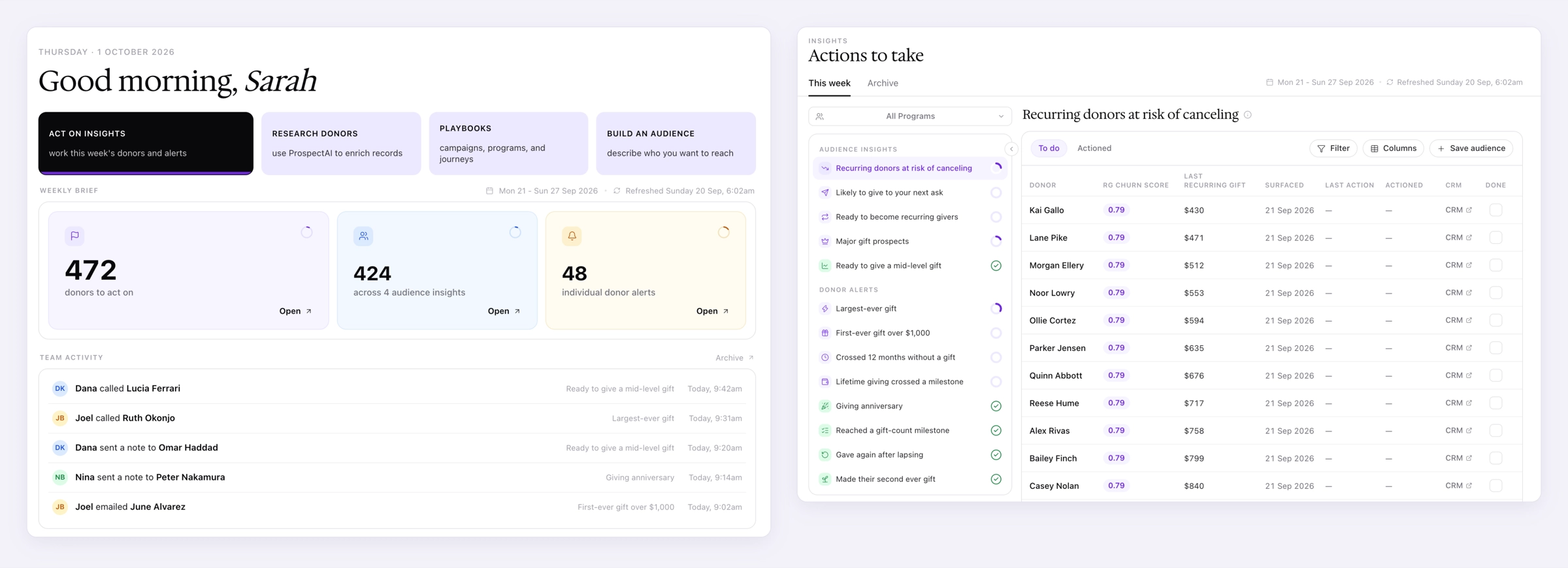
Each week, Dataro reviews your donor file and surfaces a set of insights: groups of donors worth a campaign, and individual donors worth a personal contact. Act on Insights, on your homepage, gives you the week at a glance: how many donors are waiting, and what your team has done so far. Action Tracking, on the Insights page, lists every insight for the week in one table, so you can work through each donor and record what you did.
Two kinds of insight
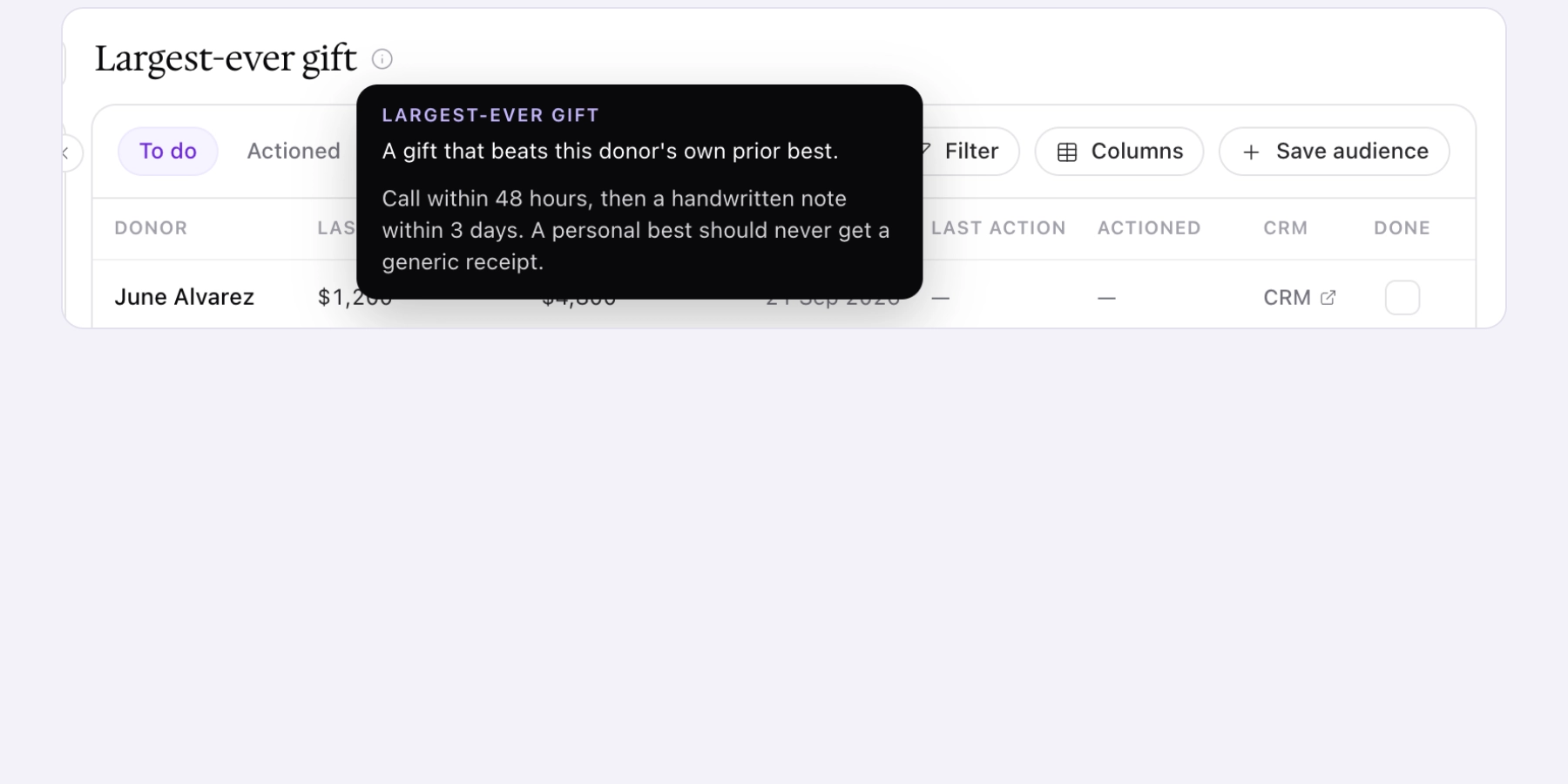
Every insight is either an audience insight about a group of donors or a donor alert about one donor. The two call for different responses, so it helps to know which you are looking at.
Audience insights | Donor alerts | |
|---|---|---|
Scope | A group of donors | One named donor |
How many | Five, one per model | Eight, one per event |
What triggers it | A prediction about what donors will do next | Something a donor has already done |
Typical next step | Save the donors as an audience and send it out | A call, a note, or a personal thank you |
Urgency | Works for weeks | Best acted on the same week |
For the full list of insights, what each one is based on, and which program it belongs to, see 📄 Audience insights and donor alerts.
Act on Insights on your homepage
Act on Insights is the first tab on your homepage when you sign in at app.dataro.io/v3.
Weekly brief
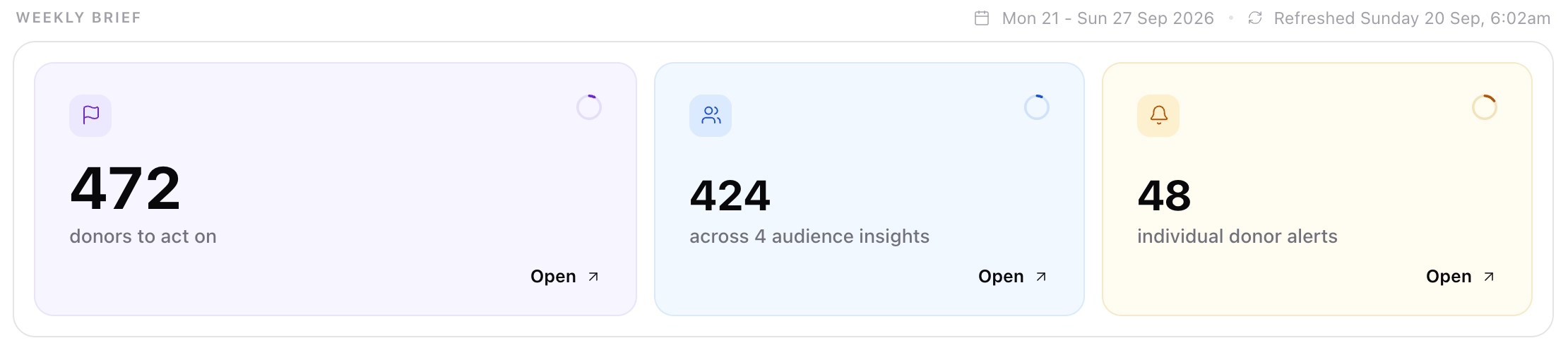
The Weekly brief shows the dates of the current week, when your data was last refreshed, and three counts. Click Open on any card to go to Action Tracking.
Card | What it counts | Where Open takes you |
|---|---|---|
Donors to act on | Every donor in this week's insights who is waiting for an action | Action Tracking, with every insight listed |
Across audience insights | Donors in this week's audience insights (e.g. "424 across 4 audience insights") | Action Tracking, starting with the audience insights |
Individual donor alerts | Donors with an individual alert this week | Action Tracking, starting with the donor alerts |
The circle in the top corner of each card fills as donors are actioned, so you can see which kind of work is furthest behind. The two kinds are usually worked differently. We recommend working audience insights in bulk, for example by saving the donors as an audience and sending it to your email tool, and working donor alerts one donor at a time.
Team activity
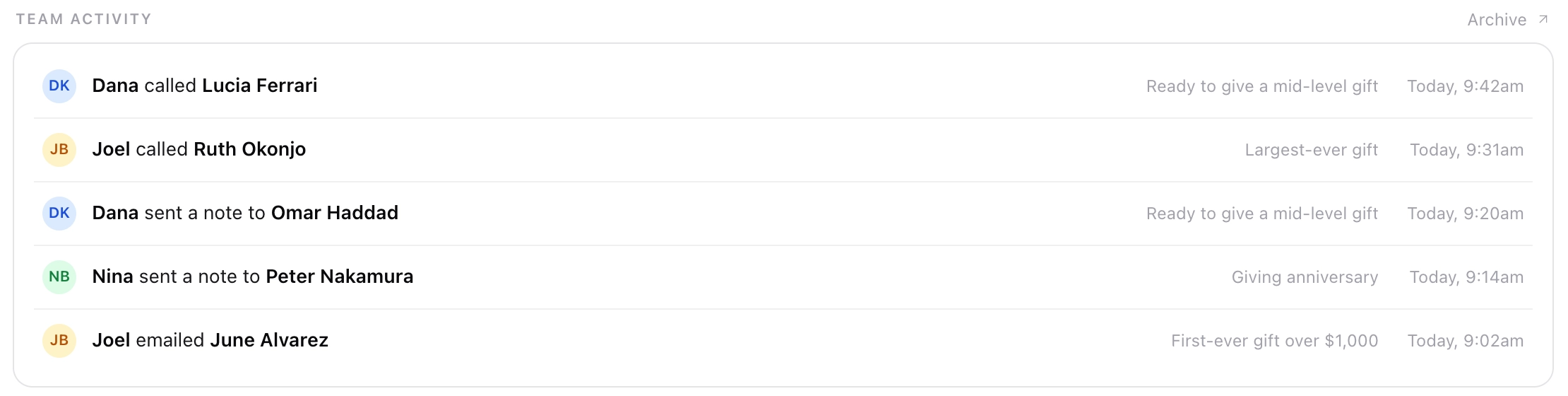
Team activity lists the most recent actions recorded by people in your organization, such as "Dana called Lucia Ferrari", with the insight each action relates to and when it was recorded. Click Archive to see the full record in Action Tracking.
Action Tracking

Open Insights from the sidebar to get to Action Tracking. The page has two tabs: This week, where you work through the current list, and Archive, where you review what has been done. The header shows the dates of the current week and when your data was last refreshed.
The insight list
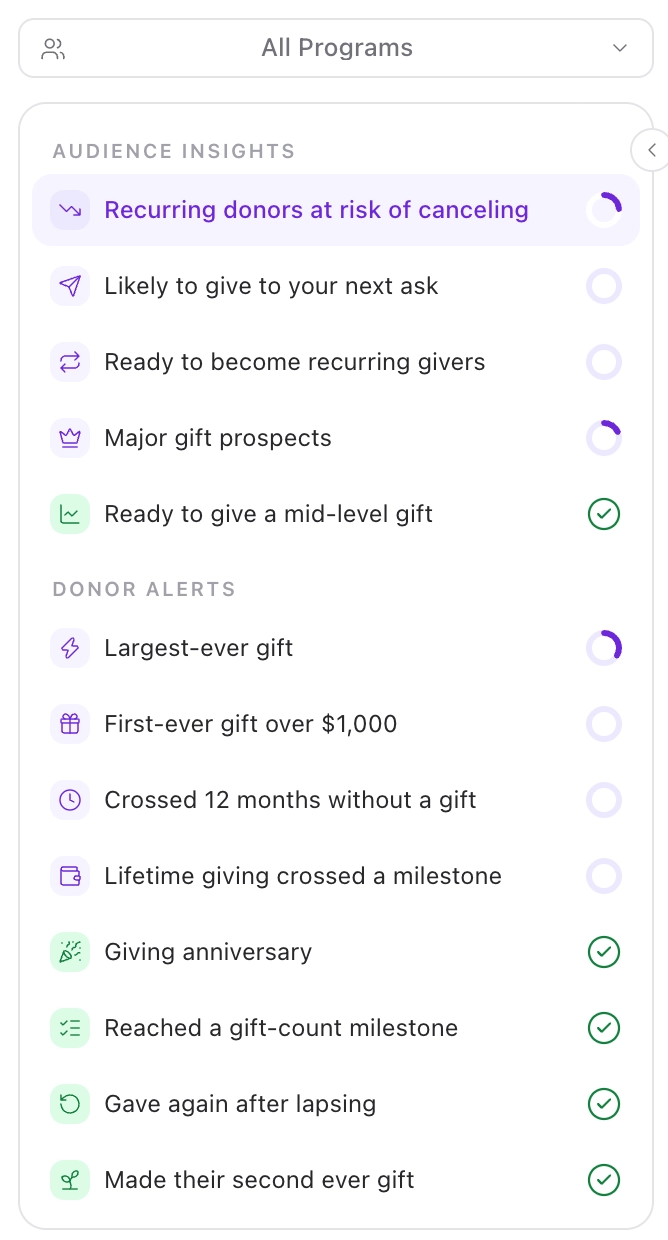
The left side of the page lists every insight for the week in two groups. Audience insights are the five model-based insights, such as "Recurring donors at risk of canceling". Donor alerts are the eight event types, such as "Largest-ever gift". Select an insight to load its donors into the table. You can collapse the list to give the table more room.
Filtering by program
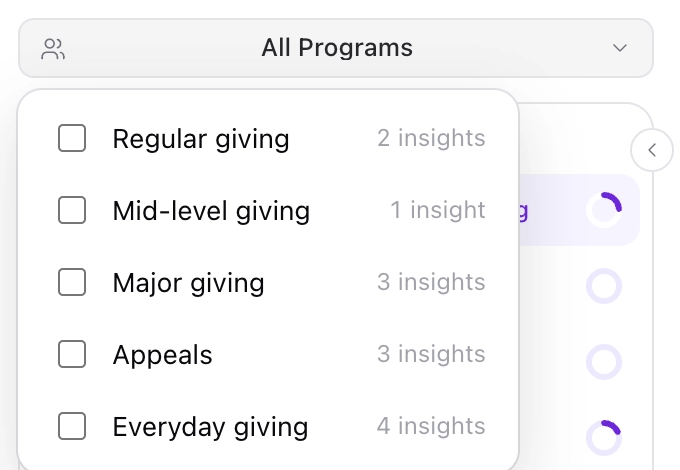
The All Programs menu above the insight list is a quick way to narrow the list to the insights relevant to your work. The programs are:
Regular giving
Mid-level giving
Major giving
Appeals
Everyday giving
The menu shows how many insights sit under each program. Select every program you are responsible for, and the insight list updates to match. The filter only changes your own view: it does not assign insights to you or change what your colleagues see.
Note: We are building roles, permissions, and personalization across Dataro, so that each person sees the insights and features that fit their role. The program filter is the first step toward that.
The donor table
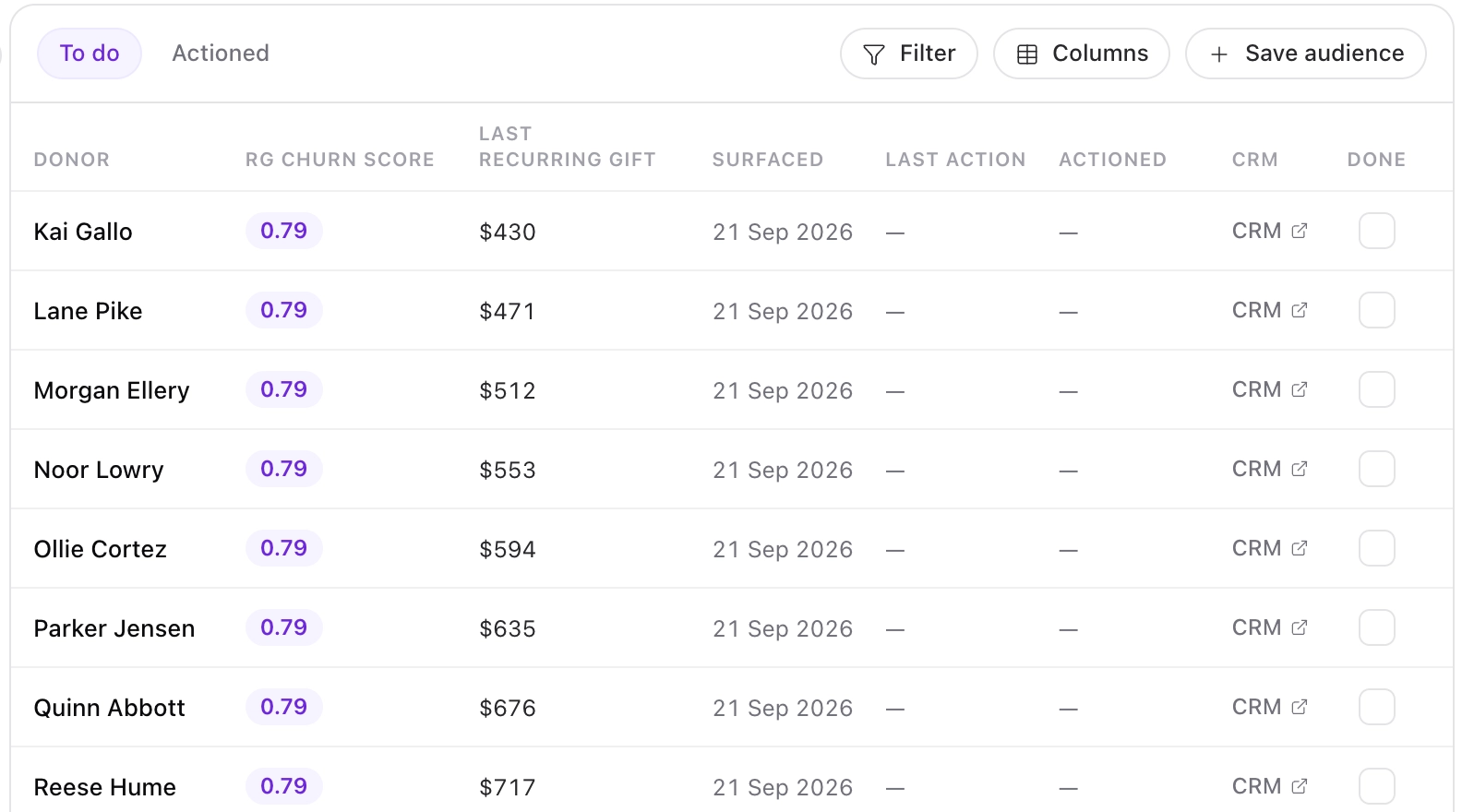
The table shows the default columns for that insight (e.g. RG churn score and last recurring gift for "Recurring donors at risk of canceling"), followed by these columns:
Column | What it shows |
|---|---|
Surfaced | The date the donor surfaced in this insight |
Last action | The most recent action recorded for the donor |
Actioned | The date that action was recorded |
CRM | Opens the donor's record in your CRM in a new tab |
Done | Records what you did for the donor |
Donor alerts use the same table. This means you can see every donor who made a largest-ever gift this week in one list, rather than one alert at a time.
Recording an action
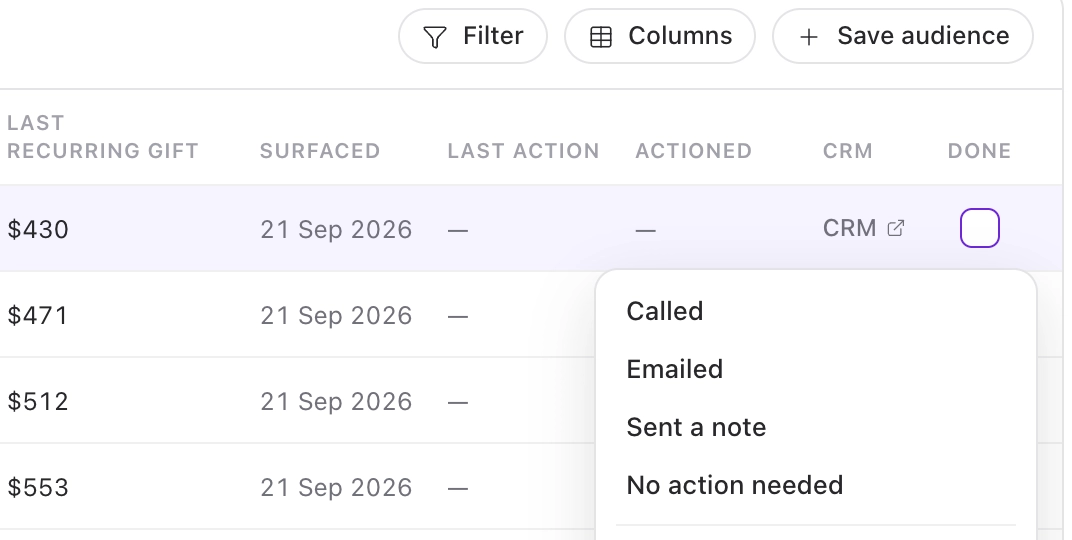
To record what you did for a donor:
Select the insight from the list on the left.
Click the box in the Done column on the donor's row.
Choose Called, Emailed, Sent a note, or No action needed.
The action saves immediately, and there is no separate save step. The donor moves out of To do and into Actioned, and a confirmation appears with an Undo option in case you chose the wrong row or action.
Actions are visible to everyone in your organization. If a colleague has already called a donor, you will see that before you pick up the phone.
Note: Actions are recorded in Dataro. Sending them to your CRM, so the donor record stays up to date in both places, is coming soon.
To do and Actioned
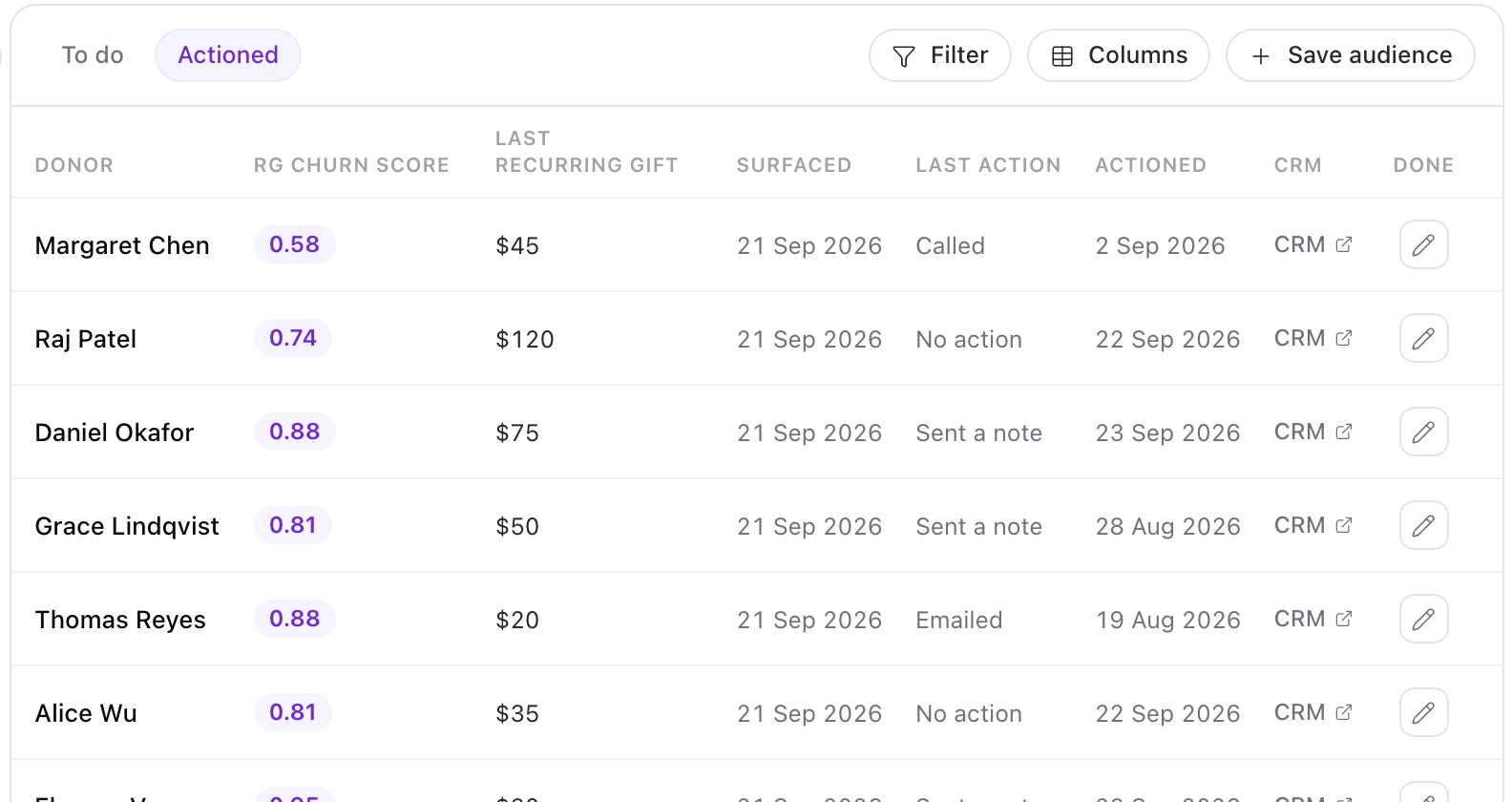
The To do and Actioned controls above the table switch between donors who still need an action this week and donors who already have one. The Actioned view shows the action and the date it was recorded.
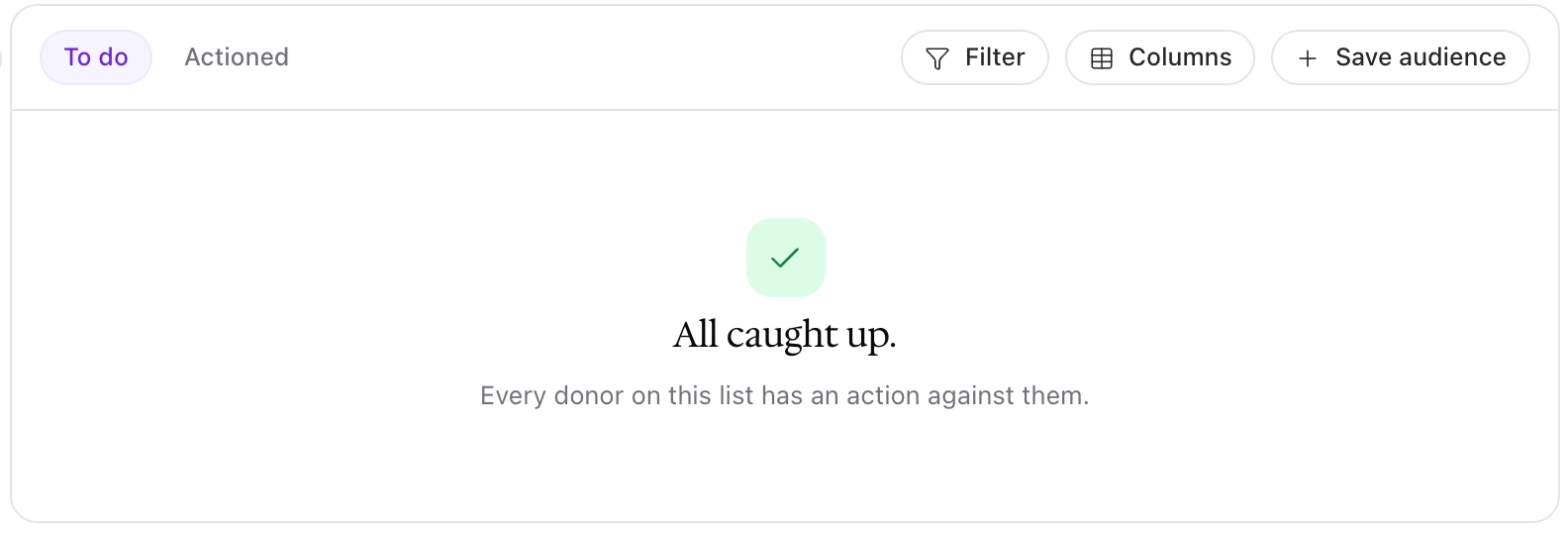
When every donor in an insight has an action recorded, To do shows All caught up.
Dataro does not hide a donor because they were contacted recently. If a donor qualifies for an insight again the following week, they return to To do with their last action and its date still showing, so you can decide whether to reach out again.
The donor panel
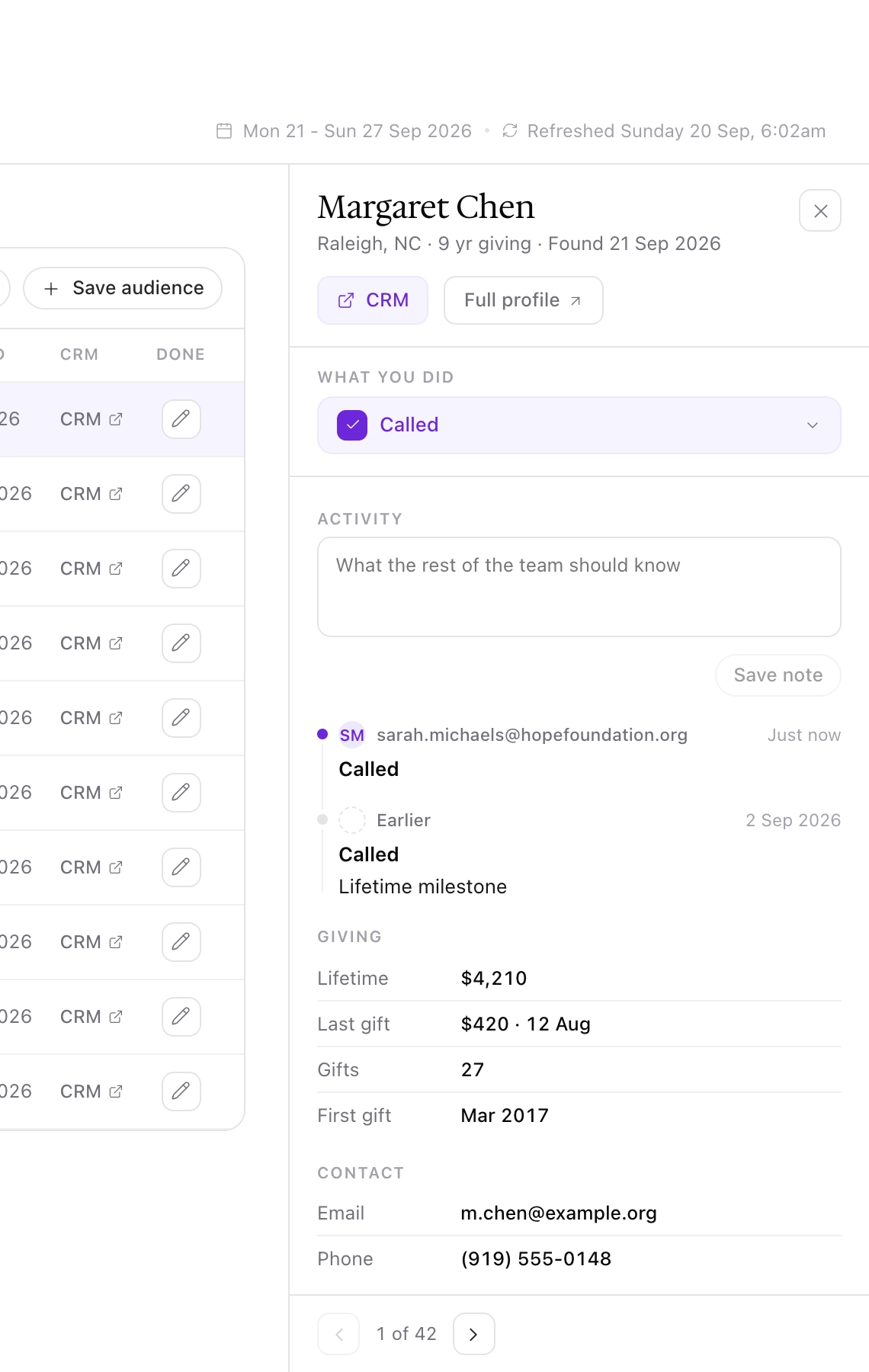
Click a donor's name to open the donor panel without leaving the table. The panel contains:
CRM and Full profile buttons, which open the donor in your CRM or on their Dataro donor profile.
What you did, which records an action using the same options as the Done column.
Activity, where you add a note and click Save note. You can add as many notes as you need, and each one is saved separately.
A history of every action and note recorded for the donor, showing who added it, when, and which insight it relates to.
A Giving summary and the donor's Contact details.
Use the arrows at the bottom of the panel to move to the next donor in the list.
Each action and note is tagged with the insight you were working at the time, and the panel shows them all together on the donor. For example, if you call a donor about a giving anniversary and they later appear in Recurring donors at risk of canceling, the panel shows the earlier call alongside the new insight.
Saving the list as an audience

Click Save audience above the table to save the selected insight's donors to the Audiences page. From there you can push the audience to your CRM, export it as a CSV, or send it to Google or Meta. This works for both audience insights and donor alerts.
The Archive tab
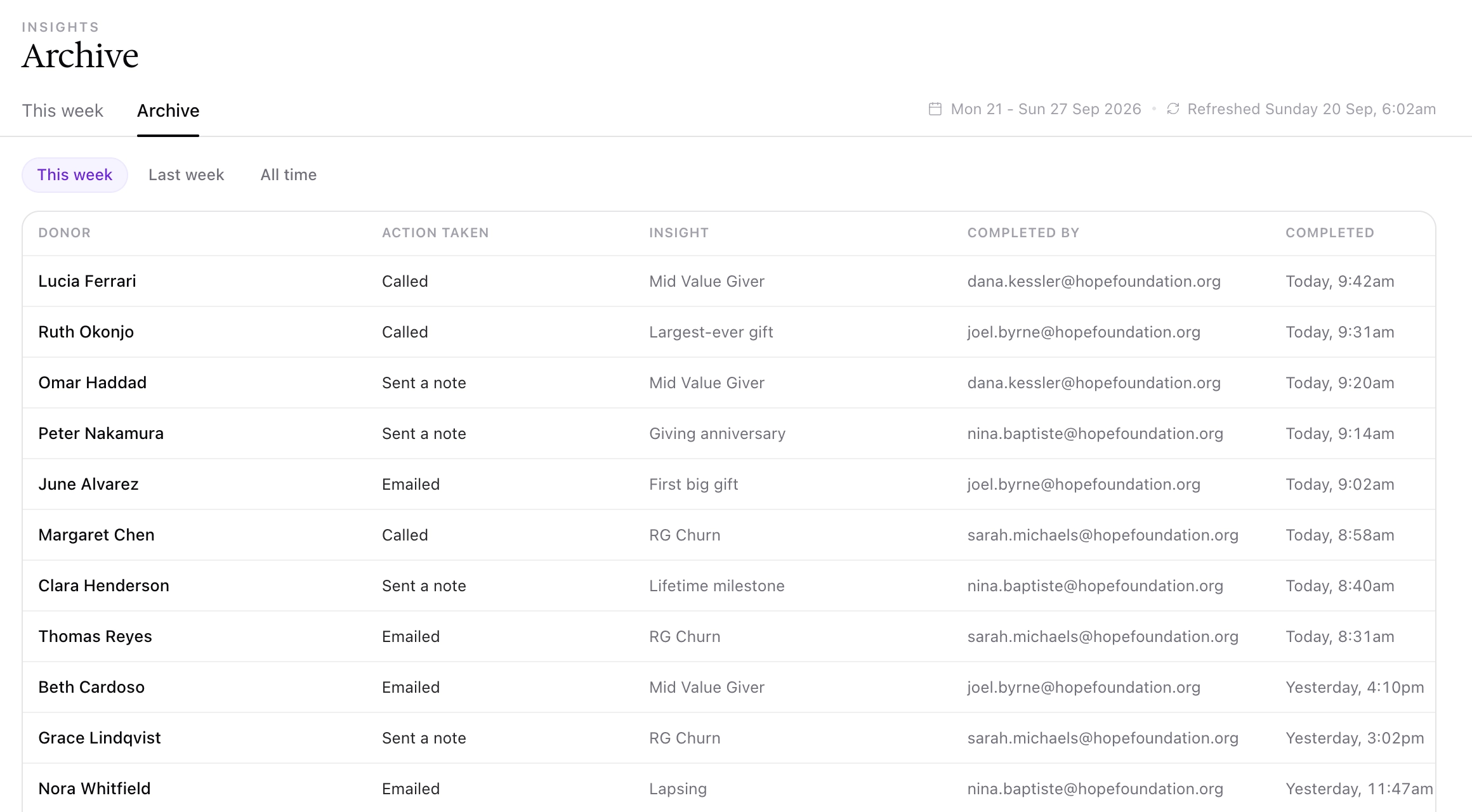
The Archive tab is a record of every action recorded in your organization. Each row shows the donor, the action taken, the insight it relates to, who completed it, and when. Use This week, Last week, and All time to change the period shown.
Frequently asked questions
Does recording an action update my CRM?
Not yet. Sending recorded actions to your CRM is coming soon. Until then, use the CRM link to open the donor's record and update it at the same time, or save the insight as an audience and push it to your CRM.
Why is there no CRM link for some donors?
The link only appears when Dataro holds a CRM record ID for the donor.
What happens to donors I do not get to this week?
They carry over into the next week's list. Insights do not expire at the end of the week: a donor stays on the list until you record an action, or until the insight no longer applies to them (e.g. a donor at risk of churning makes a gift). Donors you have actioned keep their action, date, and notes.
Does choosing a program change what my colleagues see?
No. The program filter only changes your own view of the list. Everyone in your organization still sees every insight, and anything you record is visible to all of them.
I recorded the wrong action. How do I change it?
Click Undo in the confirmation that appears after you record it. Afterwards, open the donor panel and choose a different option under What you did.
Can I assign donors to a colleague?
Not today. Everyone in your organization works from the same list. Team activity and the Archive tab show who completed each action, and the program filter lets each person narrow the list to their own work.
The same donor is in two insights. Do I need to action them twice?
Each action is recorded against the insight you are working at the time, so record it in each insight you act on. The donor panel shows the full history across both. See Working an insight for how we recommend sequencing the contact.